Keywords: CommBox EdgeOS 8.x, Starlink, WAN Type, RV Antenna, Maritime Antenna, Link Bonding, WAN Profile
Overview
The KVH EdgeServer (CommBox EdgeOS 8.x) supports Starlink systems (RV/Standard or Maritime) as an SD-WAN Internet source. This guide explains how to connect a Starlink antenna to the EdgeServer, configure the WAN interface used by Starlink, and add the Starlink link to a WAN Profile so that it can be prioritized or bonded with other Internet sources such as Cellular or VSAT.
Advantages of using the KVH EdgeServer with Starlink:
-
Starlink is managed as a native SD-WAN source with link probing, latency monitoring and Speed Test from the Interfaces page.
-
The Starlink link can be prioritized, used as a fall-through link or bonded with Cellular and/or VSAT links through SD-WAN → WAN Profiles.
-
Starlink usage, plans/pools and Quota Kontrol are managed centrally from the Starlink (Orbit) screen of the CommBox Edge Cloud Portal.
Primary Starlink Dish Configurations
The EdgeServer can be connected to a single or dual Starlink dish system without the need for the Starlink WiFi Router. A summary of components for each Starlink system type is given below.
The RV Starlink system includes the following components:
-
Starlink RV Antenna
-
Starlink Router Cable
-
Starlink WiFi Router (optional)
-
Starlink AC adaptor
The Maritime Starlink system includes two identical sets of the following components:
-
Starlink Maritime Antenna
-
Starlink Cable
-
Starlink High Power Supply
-
Starlink WiFi Router (optional)
-
Starlink Router Cable
Additionally, it is recommended that a Starlink Ethernet Adapter is used in place of the WiFi Router to simplify installation.
Starlink RV Antenna with Ethernet Adapter Cable
The system components available are the items listed for the RV unit above, plus the Starlink Ethernet Adapter. The basic connectivity of the Starlink RV to the EdgeServer will be similar to the following:
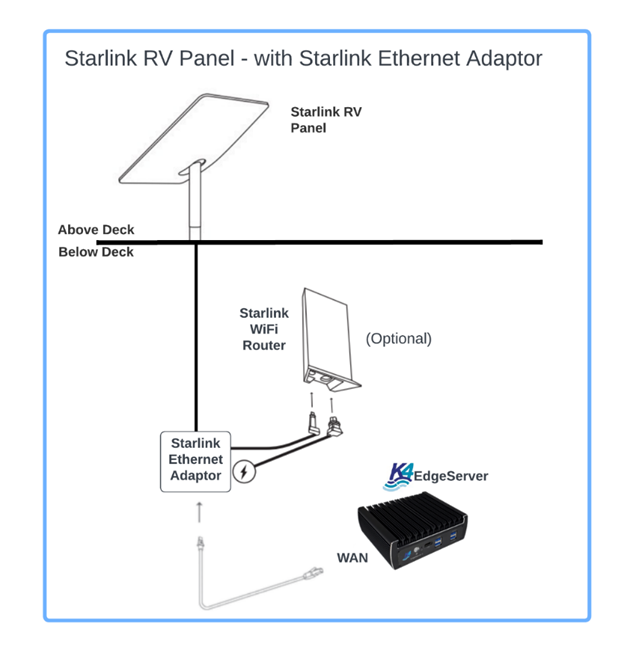
The Starlink GE link will connect to an EdgeServer WAN port. The Starlink WiFi Router can be in bypass or in router mode.
Starlink Maritime Antenna with Ethernet Adapter Cable
The system components available are the items listed for the Maritime unit above, plus the Starlink Ethernet Adapter per Maritime unit. The basic connectivity of the Starlink Maritime to the EdgeServer will be similar to the following:
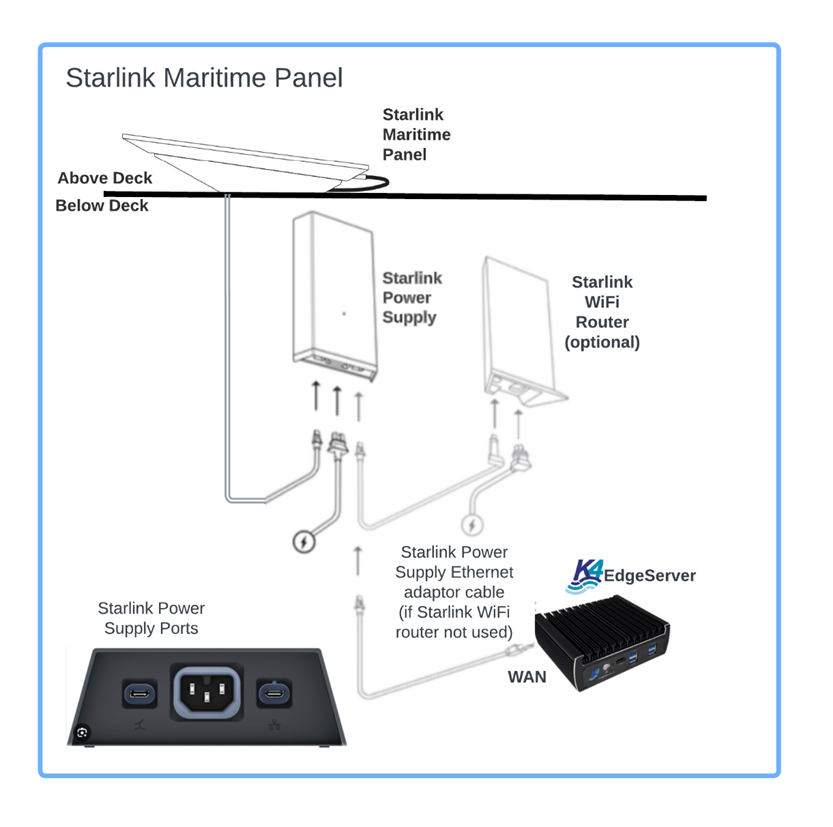
Each Starlink Maritime Panel will have a single GE link from the Starlink Power supply unit; this GE link will connect to a EdgeServer WAN ports.
Starlink Maritime Antenna with Ethernet Adapter Cable
The system components available are the items listed for the Maritime unit above, plus the Starlink Ethernet Adapter per Maritime unit. The basic connectivity of the Starlink Maritime to the EdgeServer will be similar to the following:
Each Starlink Maritime Panel will have a single GE link from the Starlink Power supply unit; this GE link will connect to a EdgeServer WAN ports.
Configure the Starlink WAN Interface on CommBox EdgeOS 8.x
Follow the below steps to configure the EdgeServer WAN port that is connected to the Starlink antenna:
-
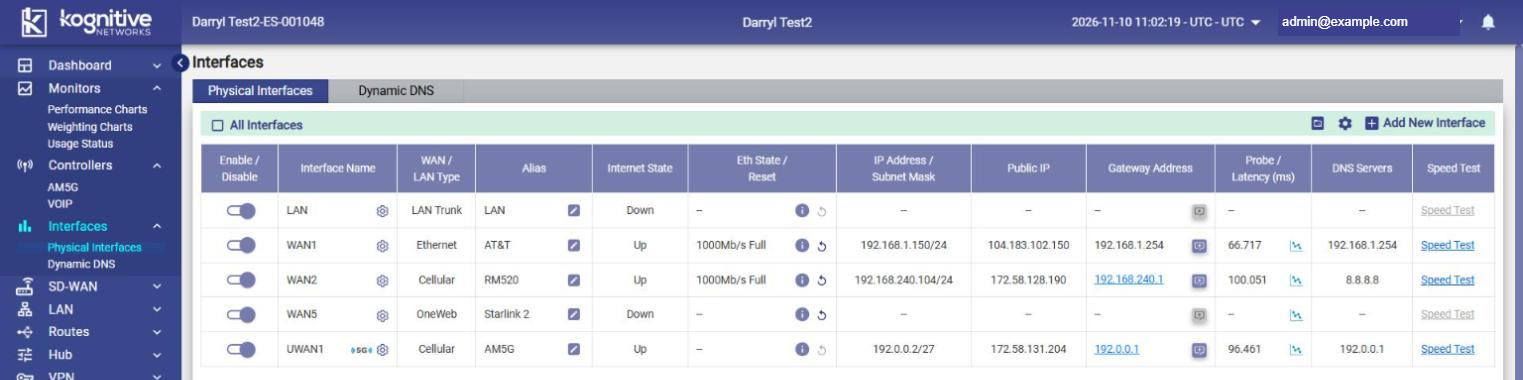
Connect the Starlink Ethernet link to an EdgeServer WAN port (the example here uses WAN5).
-
By default, the EdgeServer WAN port and the Starlink equipment use DHCP. Leave this as-is.
-
Login to the EdgeServer device portal and select Interfaces → Physical Interfaces from the left menu. The Physical Interfaces table lists every interface with its WAN/LAN Type, Alias, Internet State, IP Address, Gateway Address, Probe/Latency and Speed Test.
-
If the interface used by Starlink is enabled, disable it using the Enable/Disable slider in the first column. The interface configuration can be edited only when the interface is disabled.
-
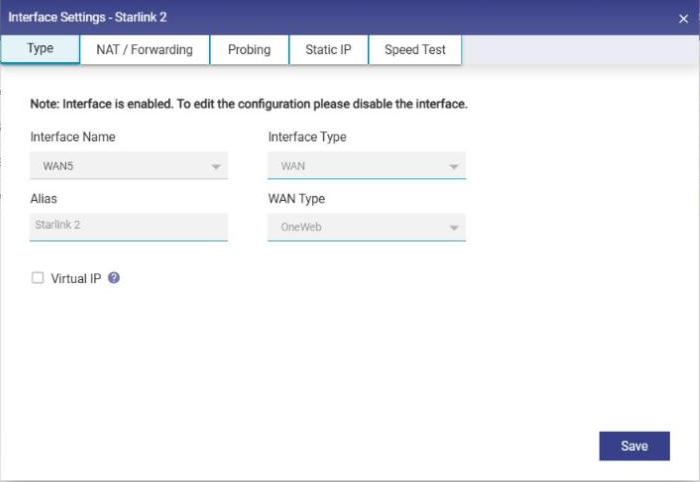
Click the Gear icon in the Interface Name column. The Interface Settings dialog box opens with the Type, NAT / Forwarding, Probing, Static IP and Speed Test tabs.
-
In the Type tab:
-
Interface Name - The WAN port connected to Starlink (for example, WAN5).
-
Interface Type - Select WAN.
-
Alias - Enter a name for the link, for example Starlink or Starlink_Starboard. The alias is shown across the device portal and the CommBox Edge Cloud Portal.
-
WAN Type - Select Starlink (or Starlink Residential for a residential/RV Starlink subscription). Other available WAN types include Cellular, Wi-Fi, Ethernet, OneWeb, VSAT (VSAT, VSAT-Ka, VSAT-Ku, VSAT-HighSpeed, VSAT-Unlimited, VSAT-VOIP), LBAND, LAN Trunk and LAN Access.
-
-
Configure the NAT / Forwarding, Probing and Static IP tabs only if required. DHCP is used by default.
-
Click Save.
-
Enable the interface again using the Enable/Disable slider.
If a second Starlink antenna is used (for example, the Maritime dual-antenna system), repeat the above steps for the second WAN interface. Once Starlink is configured as a WAN, it will show the Internet State, Probe/Latency and Speed Test details in the Physical Interfaces table.
Starlink Internet Link Bonding (WAN Profiles)
The EdgeServer can bond multiple Internet sources together to use all of the available capacity. One, two or more Starlink systems can be bonded with Cellular and/or VSAT links; it is common to bond two Starlink systems with a 5G Cellular modem. Traffic is distributed across the bonded links based on each link's measured performance, i.e. faster links are assigned more traffic than slower links.
To add the Starlink link to a WAN Profile:
-
Select SD-WAN → WAN Profiles from the left menu.
-
Select an existing profile from the list, or click + Profile to create a new profile.
-
Drag the Starlink WAN from the Disabled WANs section to the required priority in the Set Priority for WANs section (Highest Priority, Priority 2, Priority 3, Lowest Priority).
-
WANs placed in the same priority are bonded together.
-
WANs placed in lower priorities are used as failover links.
-
-
Set the Fall-Through Mode to Enable to fall through to the next priority when the WANs in a priority are down.
-
Select the Hub Dropoff checkbox of a priority to send the traffic of that priority through the KVH Hub.
-
Click Save.
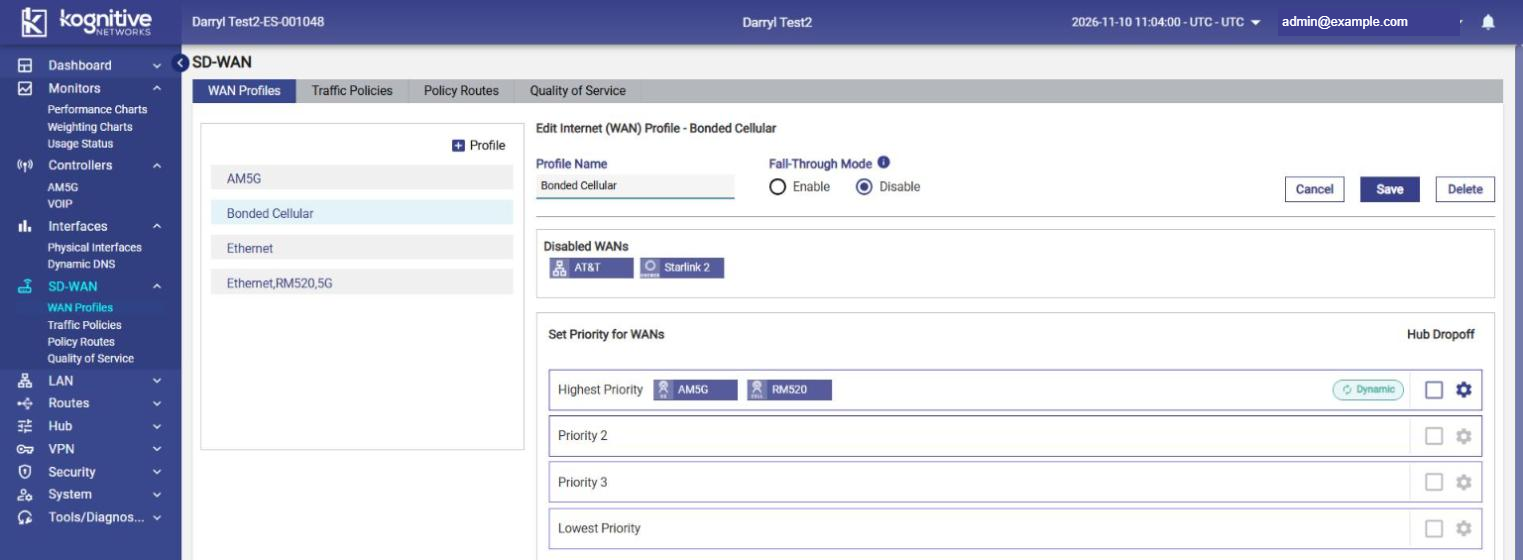
To change the bonding settings of a priority, click the Gear icon of that priority. The Advanced Settings dialog box opens with the following tabs:
-
Link Bonding - Select the link bonding mechanism. Dynamic bonding (default) assigns traffic based on the continuously measured link performance. Static bonding uses the Weighting % entered for each WAN. Link Bonding is applicable only when more than one WAN is assigned to the priority.
-
Internet Priority - Internet priority settings for the WANs of this priority.
-
MultiPath Konnect - MultiPath Konnect settings for the priority.
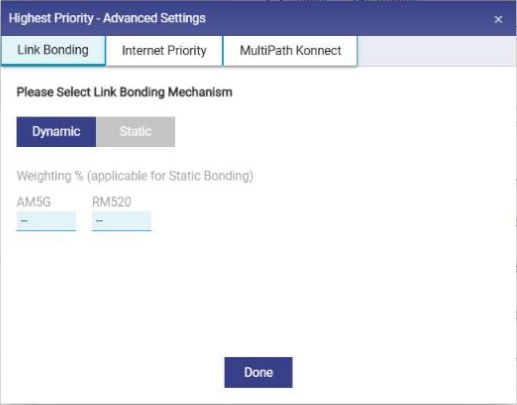
Click Done to close the dialog box and then click Save to save the WAN Profile.
Starlink service lines, usage, plans/pools and Quota Kontrol are managed from the Starlink screen of the CommBox Edge Cloud Portal. Refer to the other guides under the Orbit section for more information.