Keywords: Create Pools, Create Plans, Sub pools, Custom Plans, Quota Kontrol, Starlink Cloud, Orbit
Overview
This guide explains how to create and manage Pools and Plans for Starlink Cloud services using the CommBox Edge Cloud Portal portal. It covers the Plans tab of the Starlink screen, defining the pool/plan size and duration, configuring Quota Kontrol actions (such as notifications, pausing service lines and mobile priority opt-out), revert actions, and email notifications. By following this guide, you will be able to set up data usage pools and plans that automate quota enforcement and reporting for your service lines.
Plans Tab
-
Login to the CommBox Edge Cloud Portal using valid credentials.
-
Select the Starlink option from the left menu bar. The Starlink screen opens.
-
In the Organization field at the top, select the organization or sub-organization. The logged in user's organization is selected by default.
-
Click the Plans tab.
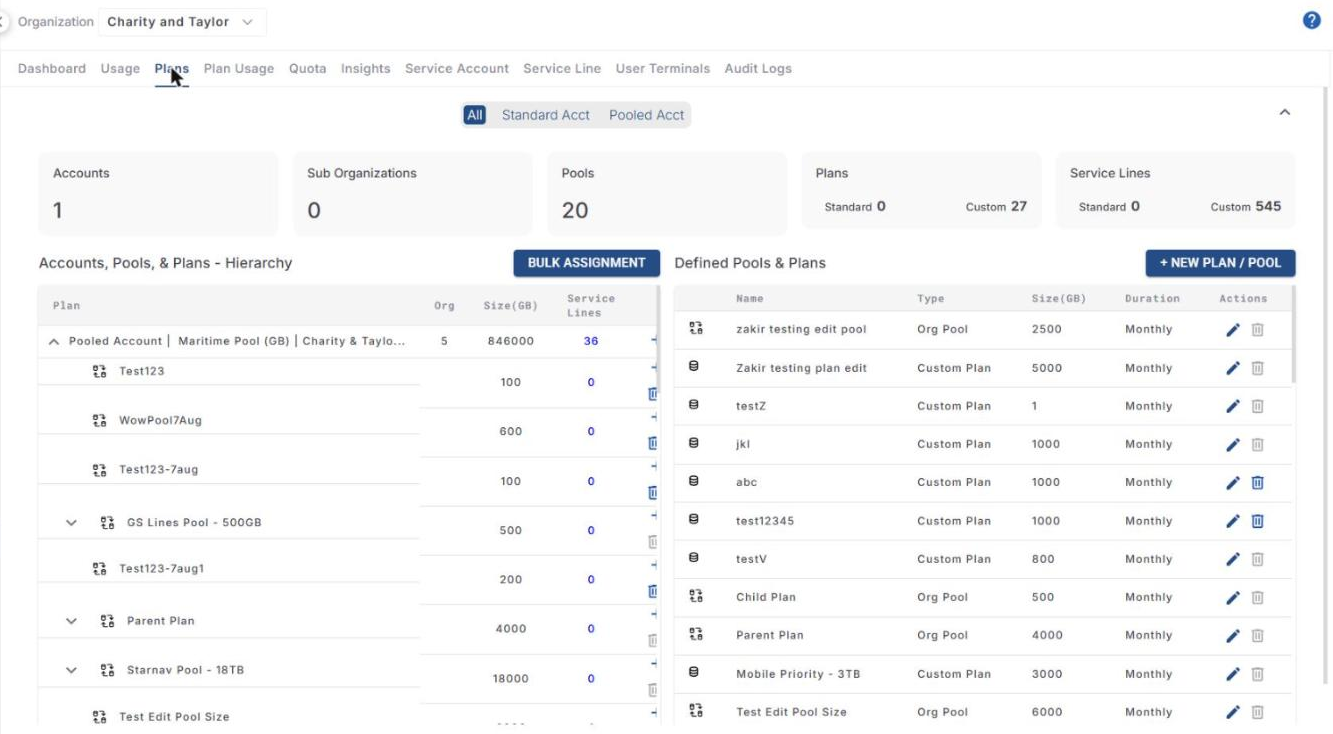
The Plans tab shows the following:
-
All / Standard Acct / Pooled Acct toggle - Filters the data by the account type.
-
Summary cards - Number of Accounts, Sub Organizations, Pools, Plans (Standard/Custom) and Service Lines (Standard/Custom). Use the arrow icon at the top right to collapse/expand the summary.
-
Accounts, Pools, & Plans - Hierarchy - Shows the pooled accounts and the pools/plans added under them, with the Bulk Assignment button. Refer to How To: Add Pools/Plans under a Main Pool and Assign Pools/Plans to Service Lines for more information.
-
Defined Pools & Plans - Lists all the pools and plans created for the organization, with the + New Plan / Pool button.
Create Pools and Plans
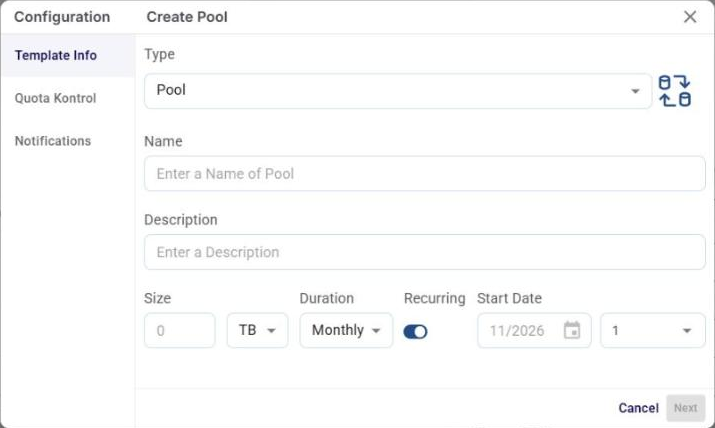
Click the + New Plan / Pool button in the Defined Pools & Plans section. The Create Pool dialog box opens with the Template Info, Quota Kontrol and Notifications options in the side menu.
Template Info
-
The Template Info option is selected by default.
-
In the Type field, select Pool to create a pool or select Plan to create a plan. The dialog box title changes accordingly.
-
Enter a Name for the pool/plan.
-
Enter a Description for the pool/plan.
-
Enter the required Size and select the unit (GB/TB).
-
Select the Duration of the pool/plan (for example, Monthly).
-
Enable the Recurring toggle to renew the pool/plan automatically for every duration.
-
Select the Start Date (month/year) and the day of the month on which the pool/plan cycle starts.
-
Click Next.
Quota Kontrol
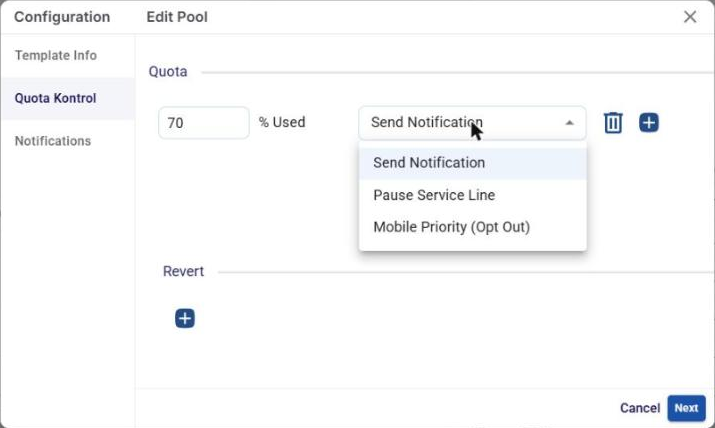
The Quota Kontrol section is used to specify the actions to be taken when the data usage reaches a specific percentage of the total quota of the pool/plan.
-
In the % Used field, enter the target percentage.
-
Select the action from the dropdown menu:
-
Send Notification - Sends a notification about the data usage to the email addresses given in the Notifications section.
-
Pause Service Line - Pauses the internet connectivity of the service lines of the pool/plan.
-
Mobile Priority (Opt Out) - Opts the service lines out of using Mobile Priority data. Mobile Priority data is used when the site is at sea, beyond the preset distance from the shore; when opted out, the service lines stop using the priority data.
-
-
Click the + icon to add another action, or the Delete icon to remove an action.
-
In the Revert section, click the + icon to add the actions to be taken when the pool/plan renews for the next cycle: Resume All Service Lines or Opt In All Service Lines.
-
Click Next.
Notifications
-
In the Pool or Plan Associated Email Addresses field, enter the email addresses to which the notifications should be sent and press Enter after each email address.
-
Click Save to create the pool/plan. Click Cancel to close the dialog box without saving.
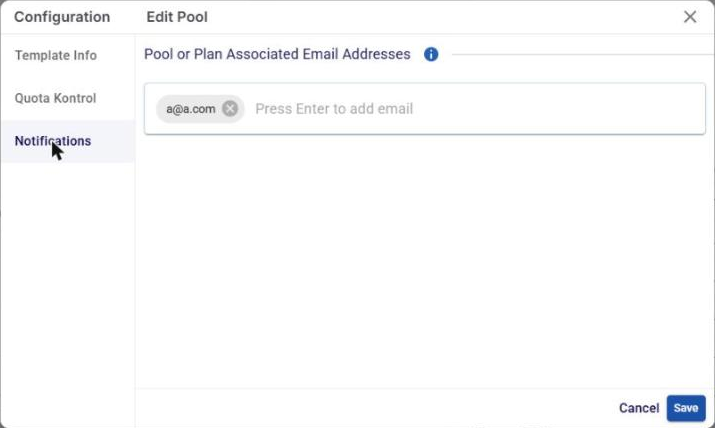
Now when the usage reaches the percentage specified in the Quota Kontrol section, notifications will be sent to the given email addresses with the details of the data consumption.
Defined Pools & Plans
The created pools and plans are listed in the Defined Pools & Plans section. The table shows the following information:
-
Name - Name of the pool/plan.
-
Type - Org Pool or Custom Plan.
-
Size (GB) - Data allocated to the pool/plan.
-
Duration - Duration of the pool/plan.
-
Actions - Edit icon to edit the pool/plan, and Delete icon to delete it.