The Generated Reports tab lists the reports generated on demand with the Generate Report button in the Activity, Firewall Reports and Content Filter tabs. The fields of the Generate Report dialog for each tab are described on the corresponding page.
The Cellular tab does not have a Generate Report button. Use the Download button in the Cellular tab to download its data.
Generated Reports
-
Click the Generated Reports tab in the Reports screen. Only the Organization filter applies to this tab.
-
The total number of reports is shown next to the search field, for example Generated Reports : 30.
-
Use the search field to find reports.
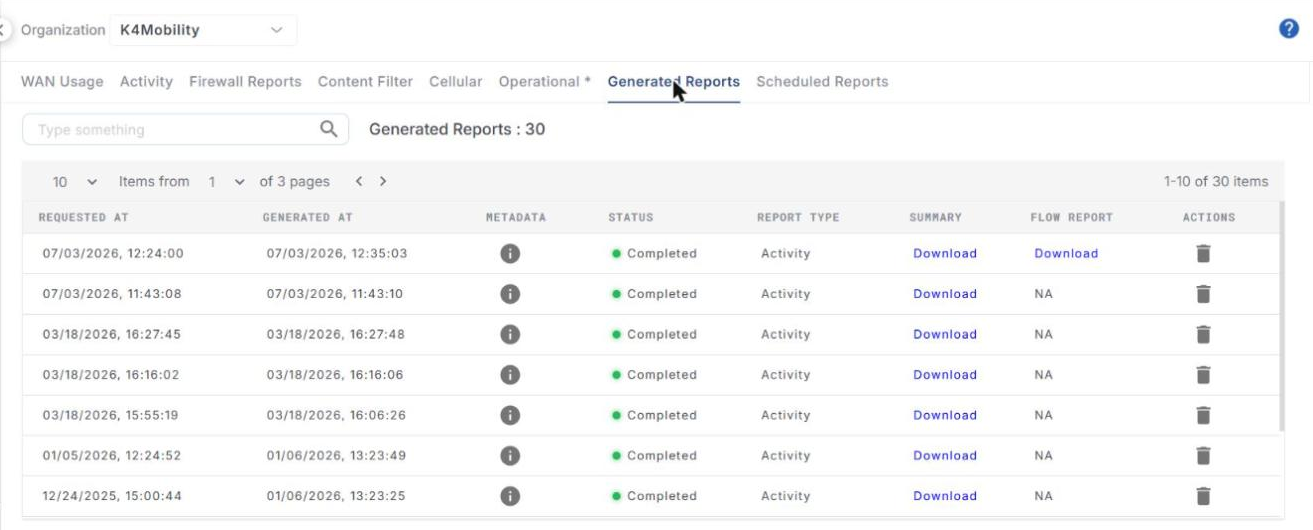
The table shows the following information:
-
Requested At – date and time when the report was requested.
-
Generated At – date and time when the report was generated.
-
Metadata – click the info icon to view the details of the report request.
-
Status – status of the report. While a report is being generated, its status shows that it is in progress. When it is complete, the status changes to Completed.
-
Report Type – the tab the report was generated from, for example Activity.
-
Summary – click Download to download the report once it is completed.
-
Flow Report – click Download to download the detailed flow report in CSV format. This is available only if Detailed Flow Report was selected when generating the report; otherwise it shows NA.
-
Actions – click the Delete icon to delete the report entry.