Keywords: CommBox EdgeOS, Reduce Video and Media Streaming, Traffic Policy
Overview
This guide explains how to use traffic policies on an CommBox EdgeOS device to reduce overall video and media streaming data usage by applying rate limits that encourage standard-definition streaming. It introduces the idea of shaping traffic for video, social media, streaming media, and CDN categories so that bandwidth for these services is limited (e.g., 1 Mbps), resulting in lower consumption without significantly impacting playback quality. By following this guide, you will be able to configure traffic policy settings that control download and upload rates to effectively manage heavy media traffic on your network.
Problem Statement
How to reduce Video and Media Streaming Usage by reducing video download rate.
Video Streaming can change quality based on the performance of the WAN link, thus if one rate controls “Video”, one can reduce the video quality and overall usage. Video quality can vary from Ultra High Dev (UHD), High-Def (Several) to Standard-Def (Several); and with each the video playback rate can change from 10-12 Mbps to 400 Kbps. Not all Video Players are the same (Hulu, Disney, Netflix, MAX, PRIME, Instagram, etc.), however they all have the capability to dynamically adjust video quality based on Internet performance – as the Internet improves or worsens the video quality requested will change accordingly (dynamically). Also, in many cases users will watch videos on their Mobile, and with a small screen the quality of the video required is reduced – standard def video is typically acceptable.
Thus, a simple method to reduce video byte-consumption is to rate control video downloads toward the Standard Definition rates.
Solution
For Captive services, enhance the device traffic policy of the target service plan. When a user logs in, they are assigned a Device Traffic Policy for the logged-in device based on their plan. To reduce video data usage (moving the stream from UHD/HD to SD), set a 1 Mbps rate limit on all video-related application categories in the crew’s device traffic policy. For non-captive networks, apply the same rule in the Network Traffic Policy of the access network.
Include these application categories:
-
All Social Media
-
All Streaming Media
-
All CDN
-
All Arts and Entertainment
Set an upload and download rate limit of 1 Mbps. Standard definition video playback varies from 400-1000 Kbps.
How to configure the rule in CommBox EdgeOS 8.x
-
Log in to the CommBox EdgeOS portal and select SD-WAN > Traffic Policies.
-
Select the policy to edit (pencil icon): a Device Policy for captive crew devices, or a Network Policy for an access network. You can also create a new one with Add Device Policy or Add Network Policy.
-
Select the WAN tab the limit should apply to (for example Cellular, Starlink or Bonded). Use Copy To to copy the rules to other WAN tabs.
-
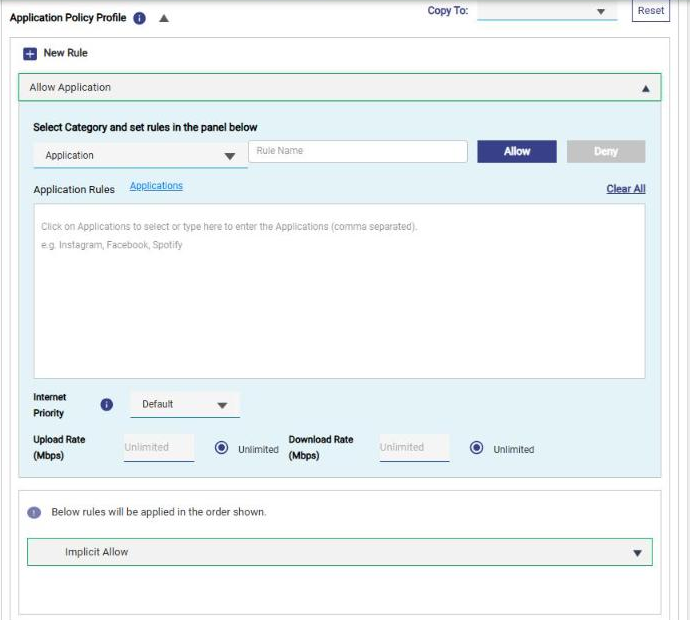
Under Application Policy Profile, click New Rule.
-
Keep the category as Application, enter a Rule Name and keep Allow selected.
-
Click Applications and select All Social Media, All Streaming Media, All CDN and All Arts and Entertainment.
-
Set Upload Rate (Mbps) and Download Rate (Mbps) to 1 (clear the Unlimited option).
-
Click Save.
-
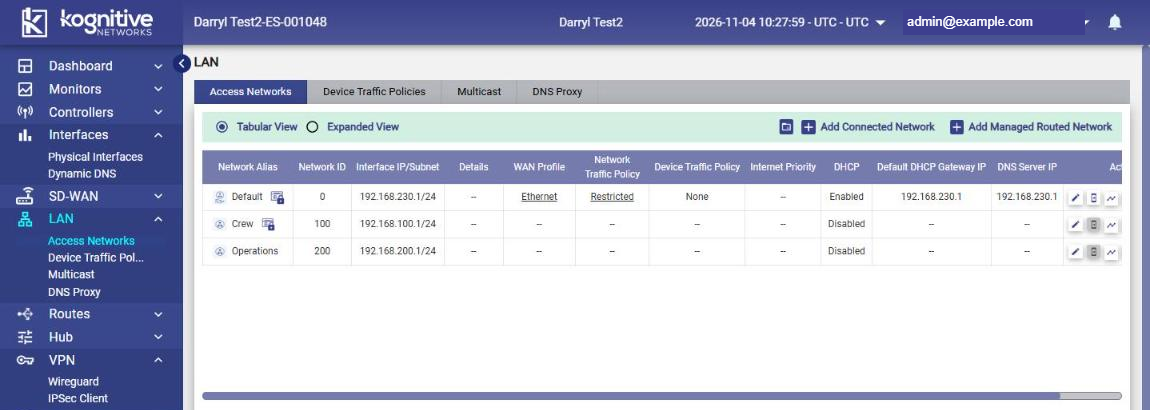
Assign the policy where it is needed: for access networks, select the policy in LAN > Access Networks (Network Traffic Policy / Device Traffic Policy columns, pencil icon to edit). For captive service plans, assign the device traffic policy to the plan.
Testing Results
For Netflix – With the 1 Mbps rate limit, observe video playback rates between 440-1069 Kbps, and Audio consistently 128 Kbps; usage was reduced measurably, and did not notice any playback stalling and failures.



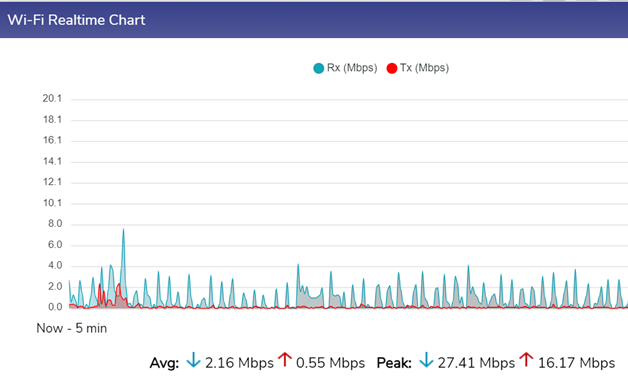
For HULU – With the 1 Mbps rate limit, the video download data rates/spikes over time behavior was reduced measurably. From the Edge real-time throughput charts.
HULU - No rate controls – the Periodic downloads spike to 10-15 Mbps.
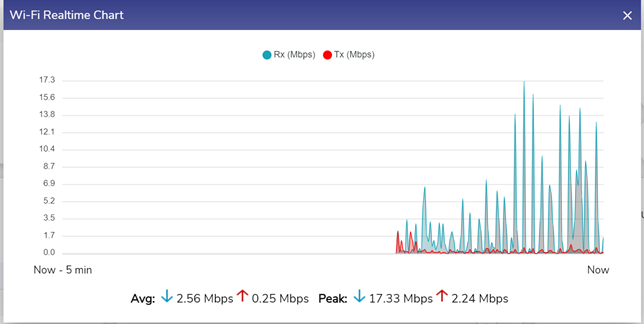
HULU - With 1 Mbps rate controls, one can see the periodic downloads spike only to 2-3 Mbps.