
Keywords: CommBox EdgeOS, WhatsApp, Restrict WhatsApp, Traffic Policy
Overview
This guide explains how to configure traffic policy rules on an CommBox EdgeOS 8.x device to restrict or permit WhatsApp traffic based on specific functionality. It covers rule sets for WhatsApp text messaging, full messaging, voice calls and full app usage, using domain and IP/port rules. By following this guide, you can allow only the WhatsApp features you want while blocking the rest.
Where to create the rules
-
Log in to the CommBox EdgeOS portal.
-
Select SD-WAN > Traffic Policies.
-
Select an existing policy on the left (pencil icon) or create one with Add Network Policy (applies to an access network) or Add Device Policy (applies to individual devices).
-
Select the WAN tab the rules should apply to (for example Cellular, AT&T, Starlink or Bonded). Use Copy To to copy the rules to other WAN tabs.
-
Under Application Policy Profile, click New Rule for each rule below.
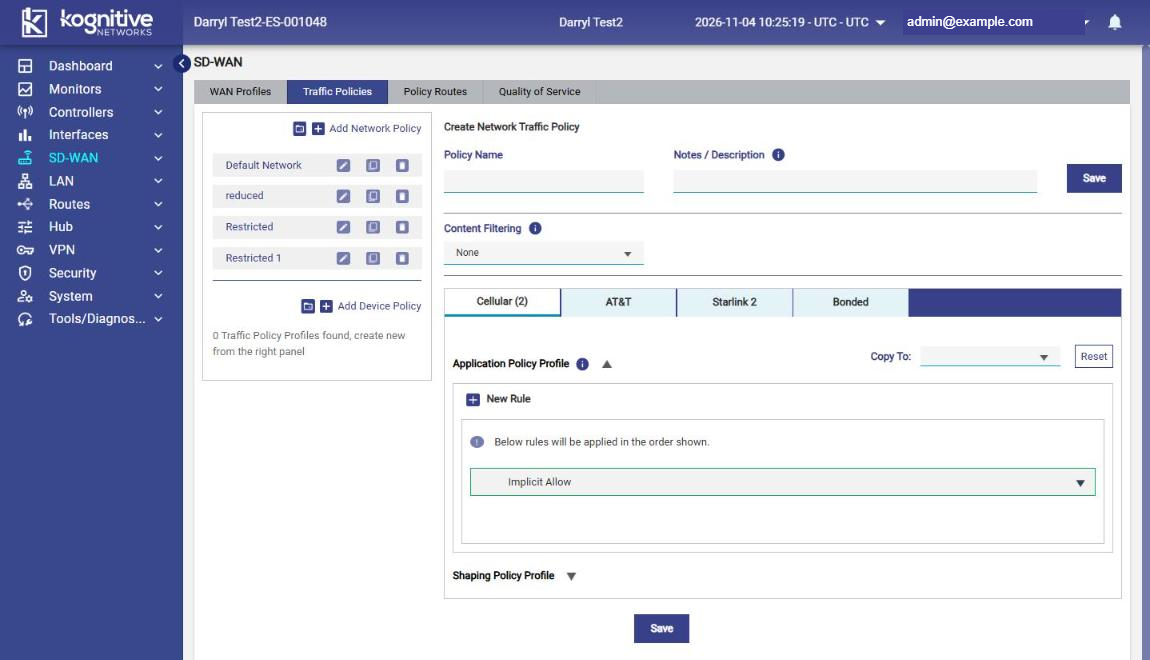
For each rule:
-
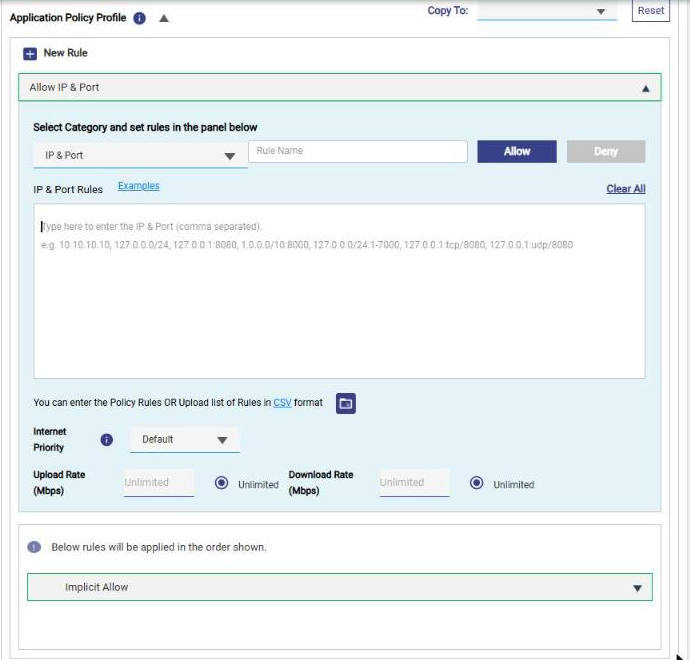
In Select Category, choose Application, Domain, IP & Port or Protocol.
-
Enter a Rule Name and select Allow or Deny.
-
Enter the rule values (comma separated). For IP & Port rules, you can include the protocol, for example
0.0.0.0/0:tcp/5222or0.0.0.0/0:udp/3478. Click Examples for more formats, or upload a list in CSV format. -
Optionally set Internet Priority and an Upload Rate / Download Rate (Mbps); leave Unlimited selected for no limit.
-
Click Save at the bottom of the page when all rules are added.
1 Only WhatsApp Text Messaging Functionality
Only text messages are allowed by this rule set.
1.1 Allow Only TCP Port 5222
Add an IP & Port rule 0.0.0.0/0:tcp/5222 with action Allow and a low rate limit.
Apply a rate limit to this port-based rule. Because it allows TCP 5222 to any destination, other traffic (for example a VPN or proxy app configured on this port) could use it to bypass the filter. WhatsApp text messaging needs very little bandwidth, so a low Upload/Download Rate (for example 0.1 Mbps) keeps messaging working while preventing misuse of the open port.
1.2 Allow WhatsApp Domain Rule
Add a Domain rule for whatsapp.com (for example www.whatsapp.com) with action Allow. Alternatively, choose the Application category and select WhatsApp from the Applications list.
1.3 Allow Port 80 for HTTP Probing
Add an IP & Port rule 0.0.0.0/0:tcp/80 with action Allow and a low Upload/Download Rate. This lets phones run their HTTP connectivity check, so they do not show a “No Internet” warning.
1.4 Implicit Deny
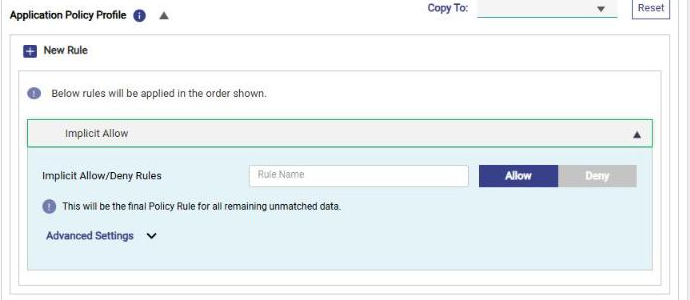
Expand the final Implicit Allow rule at the bottom of the list and click Deny, so that all traffic not matched by the rules above is blocked. (The rule is named Implicit Allow by default; you change it rather than add a new rule.)
Create the rules in the order shown. Rules are applied from top to bottom, and the final Implicit rule applies to all remaining unmatched traffic.
2 WhatsApp Messaging Functionality
Includes text, voice note and picture messages.
2.1 Allow WhatsApp Domain Rule
Add a Domain rule for whatsapp.com (for example www.whatsapp.com) with action Allow. Alternatively, choose the Application category and select WhatsApp from the Applications list.
2.2 Allow Port 80 for HTTP Probing
Add an IP & Port rule 0.0.0.0/0:tcp/80 with action Allow and a low Upload/Download Rate. This lets phones run their HTTP connectivity check, so they do not show a “No Internet” warning.
2.3 Implicit Deny
Expand the final Implicit Allow rule at the bottom of the list and click Deny, so that all traffic not matched by the rules above is blocked. (The rule is named Implicit Allow by default; you change it rather than add a new rule.)
Create the rules in the order shown. Rules are applied from top to bottom, and the final Implicit rule applies to all remaining unmatched traffic.
3 WhatsApp Voice Call Functionality
This rule set allows voice calls. Because 8.x rules can specify the protocol, use UDP for the call port so that only call traffic is opened.
3.1 Allow UDP Port 3478
Add an IP & Port rule 0.0.0.0/0:udp/3478 with action Allow.
3.2 Allow WhatsApp Domain Rule
Add a Domain rule for whatsapp.com (for example www.whatsapp.com) with action Allow. Alternatively, choose the Application category and select WhatsApp from the Applications list.
3.3 Allow Port 80 for HTTP Probing
Add an IP & Port rule 0.0.0.0/0:tcp/80 with action Allow and a low Upload/Download Rate. This lets phones run their HTTP connectivity check, so they do not show a “No Internet” warning.
3.4 Implicit Deny
Expand the final Implicit Allow rule at the bottom of the list and click Deny, so that all traffic not matched by the rules above is blocked. (The rule is named Implicit Allow by default; you change it rather than add a new rule.)
Create the rules in the order shown. Rules are applied from top to bottom, and the final Implicit rule applies to all remaining unmatched traffic.
4 Full WhatsApp Functionality
All WhatsApp features operate.
4.1 Allow WhatsApp Domain Rule
Add a Domain rule for whatsapp.com (for example www.whatsapp.com) with action Allow. Alternatively, choose the Application category and select WhatsApp from the Applications list.
4.2 Allow Specific Ports
Add IP & Port rules with action Allow for:
-
TCP: 4244, 5222, 5223, 5228, 5242 (for example
0.0.0.0/0:tcp/5222) -
TCP and UDP: 59234, 50318
-
UDP: 3478, 45395 (for example
0.0.0.0/0:udp/3478)
4.3 Allow Port 80 for HTTP Probing
Add an IP & Port rule 0.0.0.0/0:tcp/80 with action Allow and a low Upload/Download Rate. This lets phones run their HTTP connectivity check, so they do not show a “No Internet” warning.
4.4 Implicit Deny
Expand the final Implicit Allow rule at the bottom of the list and click Deny, so that all traffic not matched by the rules above is blocked. (The rule is named Implicit Allow by default; you change it rather than add a new rule.)
Create the rules in the order shown. Rules are applied from top to bottom, and the final Implicit rule applies to all remaining unmatched traffic.
Conclusion
By following the above steps, you have configured traffic policy rules on the CommBox EdgeOS device that restrict WhatsApp traffic by functionality, while allowing HTTP probing on port 80 to prevent a “No Internet” alert on user devices.