Keywords: CommBox Edge Cloud Portal, Configuration, Default Configuration, Manual Backup Configuration, Apply Configuration
Overview
This guide explains how to save a configuration backup from an existing CommBox EdgeOS device and apply it to a new or different device using CommBox Edge Cloud Portal. It covers saving configurations, default configurations, applying configurations during registration or to deployed devices, and checking the result. This lets you replicate or restore network settings across devices quickly and consistently.
1 How to Save a Configuration
Configurations are saved from the device’s Configurations dialog. Saved configurations can be applied to other devices and used as default configurations.
-
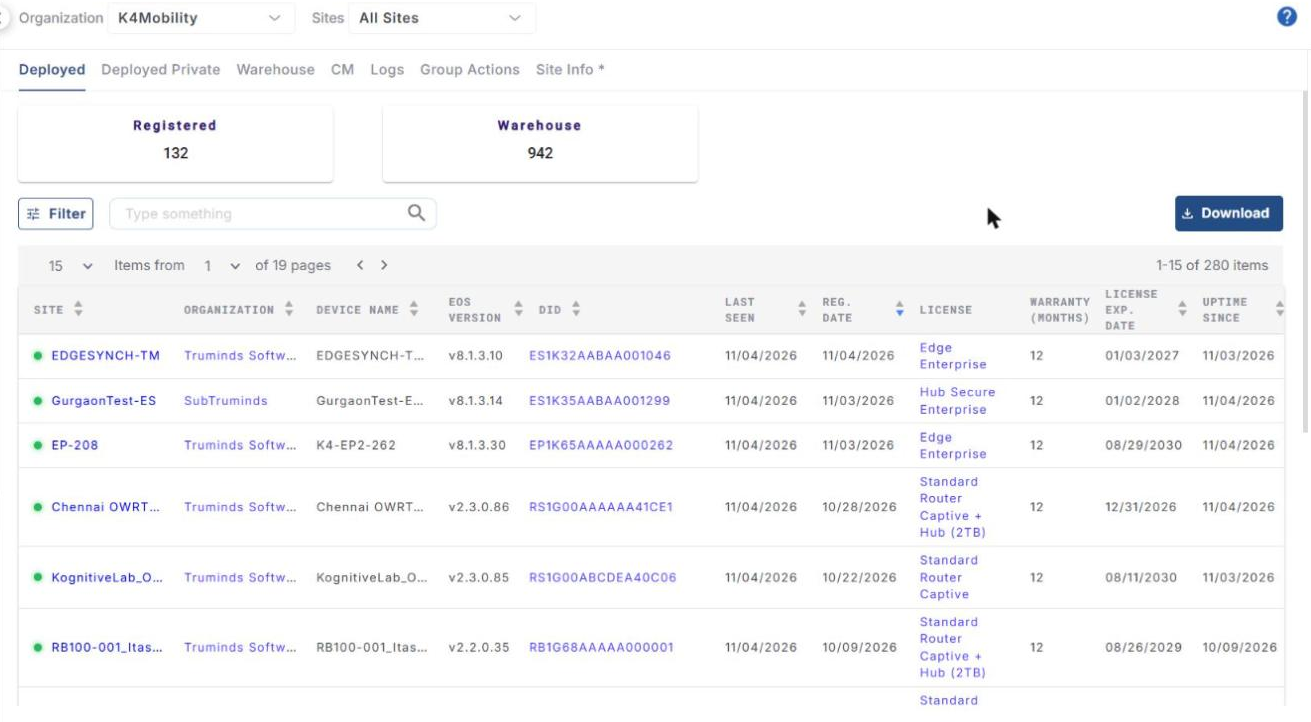
In CommBox Edge Cloud Portal, select Inventory from the left menu. The Deployed tab opens, listing the devices deployed in the selected organization.
-
Use the EOS Version column to find the device whose configuration you want to save. The Saved Config column shows the date of the last saved configuration.
-
Click the gear icon in the Operations column. The Configurations dialog opens. The Configurations dialog has these options in its left menu: Traffic Policy, Firewall, WAN Profile, Policy Route, Hub IP, Quota, System and Association.
-
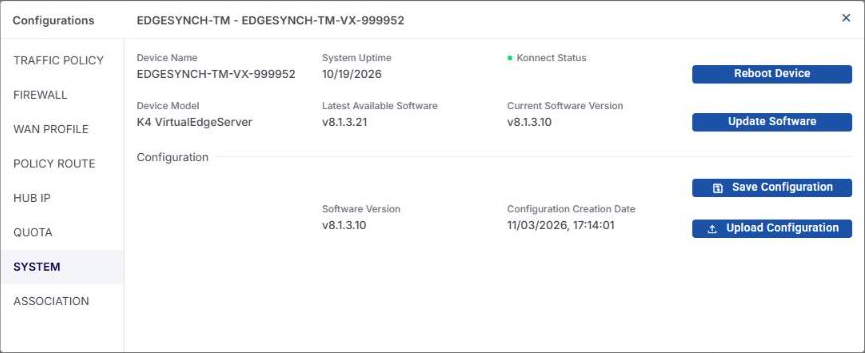
Select SYSTEM. It shows the device details (Device Name, System Uptime, Konnect Status, Device Model, Latest Available Software, Current Software Version) and, under Configuration, the Software Version and Configuration Creation Date of the last saved configuration.
-
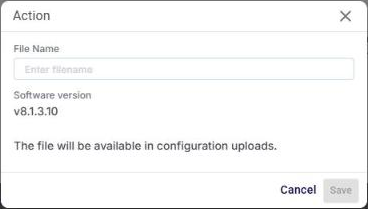
Click Save Configuration. The Action dialog opens.
-
Enter a File Name. The Software version of the device is shown; the file will be available in configuration uploads.
-
Click Save.
The saved configuration is listed in Inventory > CM > Configurations under Backup Configuration (Config Name, Organization, Site, DID, EOS Version, Creation Time, Initiated By, Status). From there it can be deleted or shared. The Backups sub-tab lists the backups taken from the devices (Name, Site Name, DID, Software Version, Creation Time, Status).
2 Default Configurations
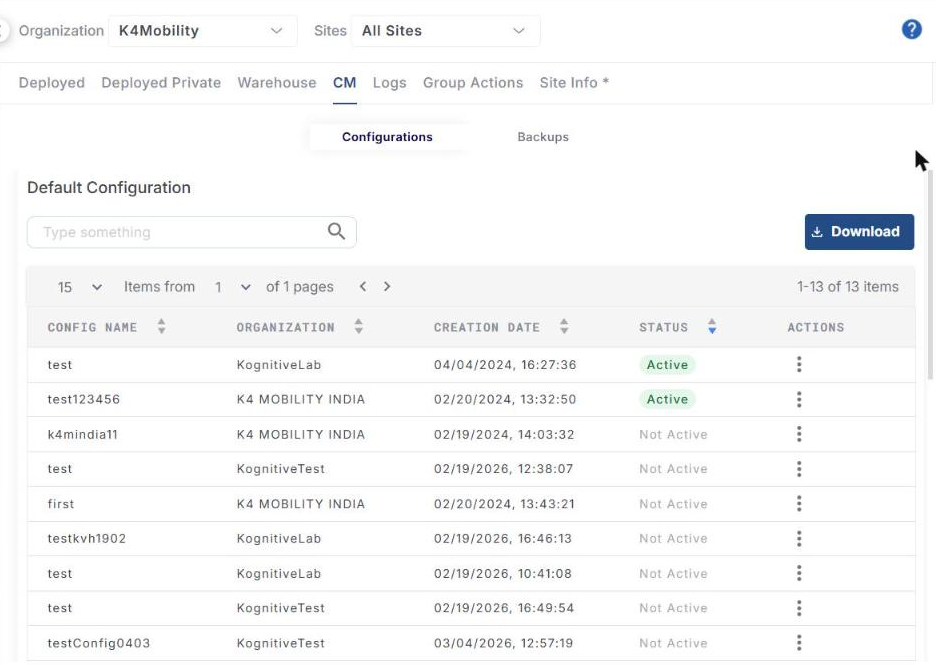
A default configuration can be applied to new devices added to an organization during registration. Default configurations are listed in Inventory > CM > Configurations under Default Configuration (Config Name, Organization, Creation Date, Status: Active / Not Active). Use the actions menu (⋮) of an entry to manage it. Only an Active default configuration is applied automatically to new devices of that organization.
3 How to Apply a Configuration to a New Device During Registration
Configurations can be applied to new devices while registering them from the Warehouse tab.
-
Select Inventory and click the Warehouse tab.
-
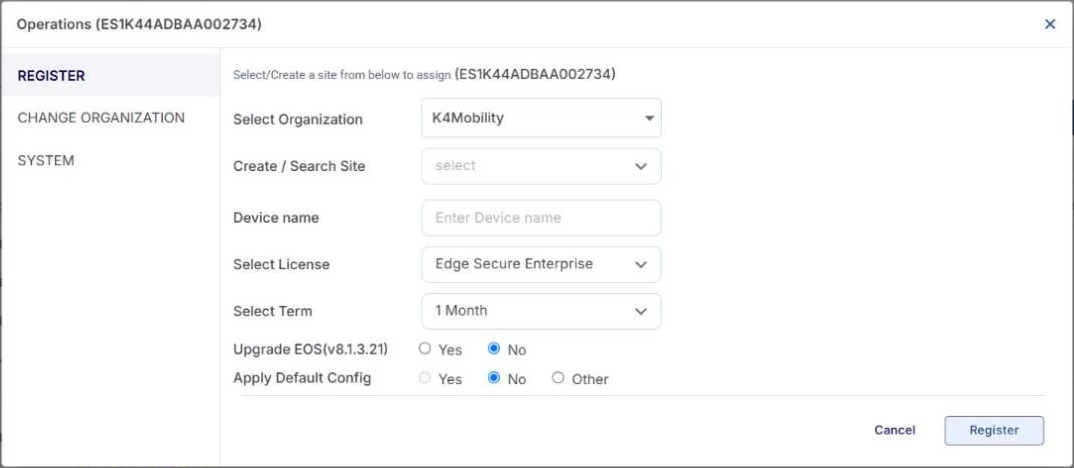
Click the gear icon in the Operations column of the device. The Operations dialog opens with REGISTER selected.
-
Select the Organization, choose or Add the site in Create / Search Site, and enter the Device name, License and Term.
-
Upgrade EOS: select Yes to upgrade the device to the CommBox EdgeOS version shown, or No to keep its current version.
-
Apply Default Config:
-
Yes applies the organization’s active default configuration for that device type.
-
No keeps the device’s current configuration.
-
Other lets you choose one of your saved configurations from the Select Configuration list (only configurations for that device type are listed).
-
-
Click Register. The device moves from the Warehouse tab to the Deployed tab.
4 How to Apply a Configuration to a Deployed Device
-
Select Inventory. On the Deployed tab, click the gear icon in the Operations column of the device.
-
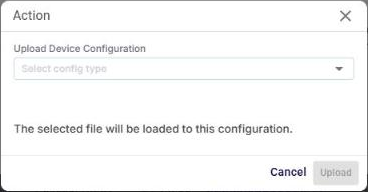
Select SYSTEM and click Upload Configuration. The Action dialog opens.
-
In Upload Device Configuration, select the saved configuration. The selected file will be loaded to this device.
-
Click Upload.
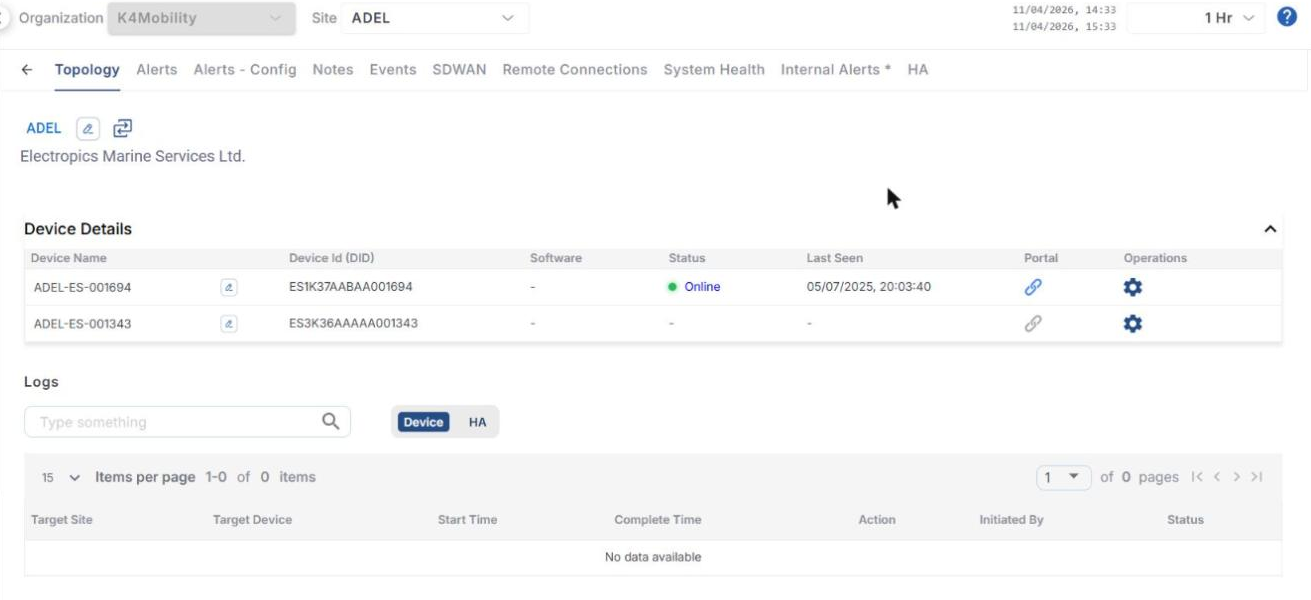
You can also do this from a site’s Topology tab (Sites > select the site): click the gear icon in the Operations column of the device under Device Details.
5 How to Check the Status of a Configuration Restore
-
Select Inventory and click the Logs tab.
-
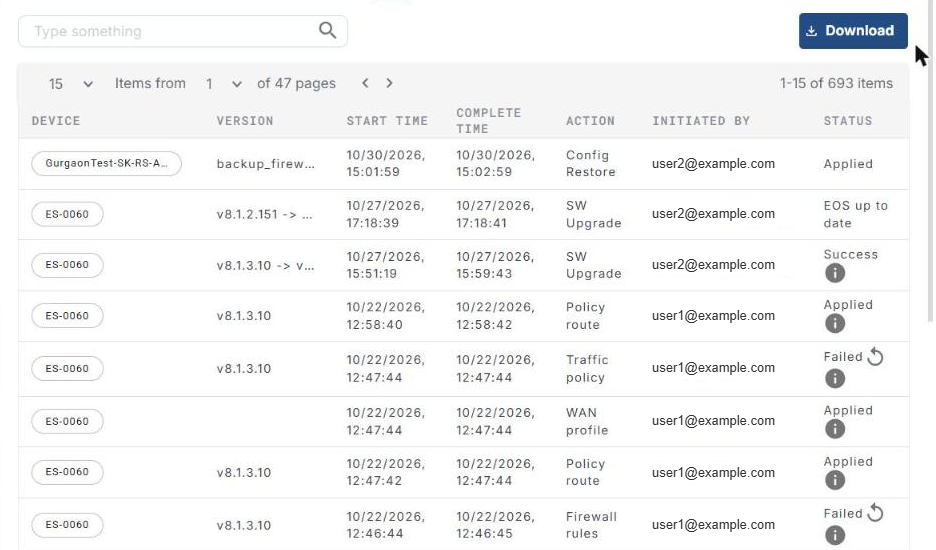
The tab lists configuration and upgrade operations with Site/Group, Device, Version, Start Time, Complete Time, Action (for example Config Restore, SW Upgrade, Traffic policy, WAN profile, Policy route, Firewall rules), Initiated By and Status.
-
Status values include Applied, Success, EOS up to date and Failed. Click the info icon for details. For a failed operation, click the Retry icon to apply it again.