Keywords: CommBox Edge Cloud Portal, Quota Kontrol, Create Quota, Monitor Quota
Overview
This guide explains how to use Quota Kontrol in CommBox Edge Cloud Portal to create and monitor data usage quotas. It covers choosing the data usage source, setting the quota period and limit, and configuring automated actions (such as notifications, applying WAN profiles or network policies, and disabling interfaces) when usage thresholds are reached. It also describes how to read the quota usage list.
1 How To Create a Quota
-
Log in to CommBox Edge Cloud Portal.
-
In the top bar, select the Organization (your own organization is selected by default; the list includes its sub-organizations) and the Sites.
-
Select Kontrol from the left menu. The Quota tab opens (the other tabs are Geo and Logs).
-
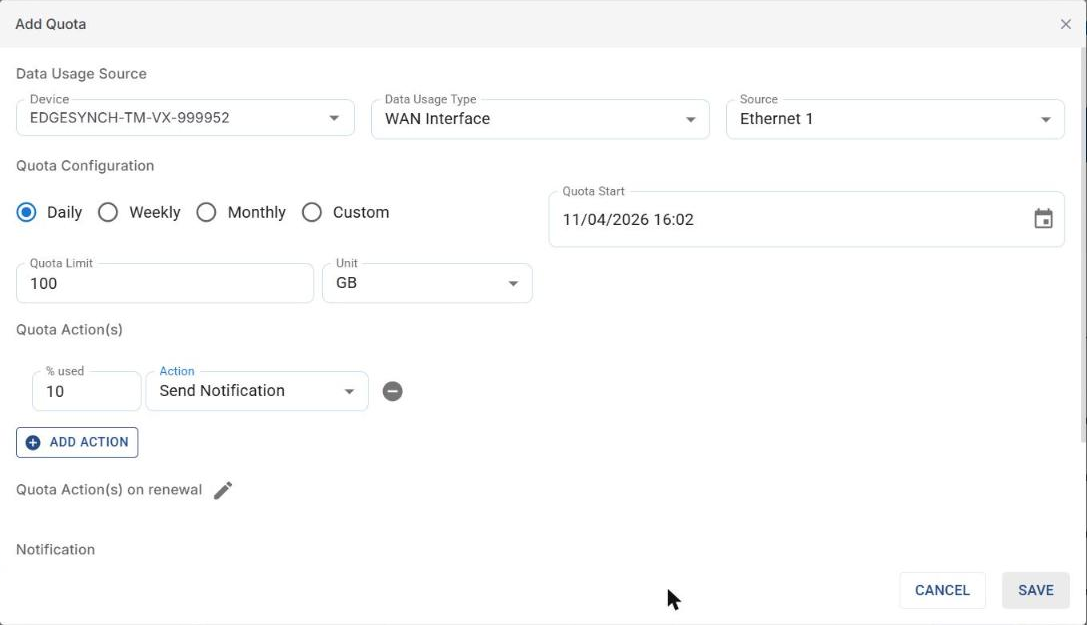
Click ADD QUOTA. The Add Quota dialog opens.
-
Under Data Usage Source:
-
Device - select the device.
-
Data Usage Type - select WAN Interface or Access Network.
-
Source - tick the WAN interfaces or access networks of that device to include.
-
-
Under Quota Configuration, select Daily, Weekly, Monthly or Custom (for Custom, enter the period), and set the Quota Start date and time.
-
Enter the Quota Limit and select the Unit (MB, GB or TB).
-
Under Quota Action(s), click ADD ACTION for each action to take when usage reaches a percentage of the quota. Enter the % used and select the Action (see below). Use the minus icon to remove an action.
-
Optionally, click the pencil icon next to Quota Action(s) on renewal (Enable Edit) to define actions to run when the quota period renews.
-
Under Notification, tick Email and/or Microsoft Teams to choose how notifications are sent.
-
Click SAVE. Click CANCEL to close without saving.
1.1 Quota actions
-
Send Notification - sends a notification about data consumption by the selected channels when the threshold is reached.
-
Predict Overage Notification - notifies in advance when usage is predicted to exceed the quota.
-
Assign WAN Profile - applies another WAN profile (for example with different WAN priorities). The WAN profile must already exist on the device (CommBox EdgeOS: SD-WAN > WAN Profiles).
-
Assign Network Policy - applies another network traffic policy. The policy must already exist on the device (CommBox EdgeOS: SD-WAN > Traffic Policies).
-
Disable Interfaces - disables the selected Interfaces when the threshold is reached.
-
Reset Device - resets the device when the threshold is reached.
2 How To Monitor Quotas
-
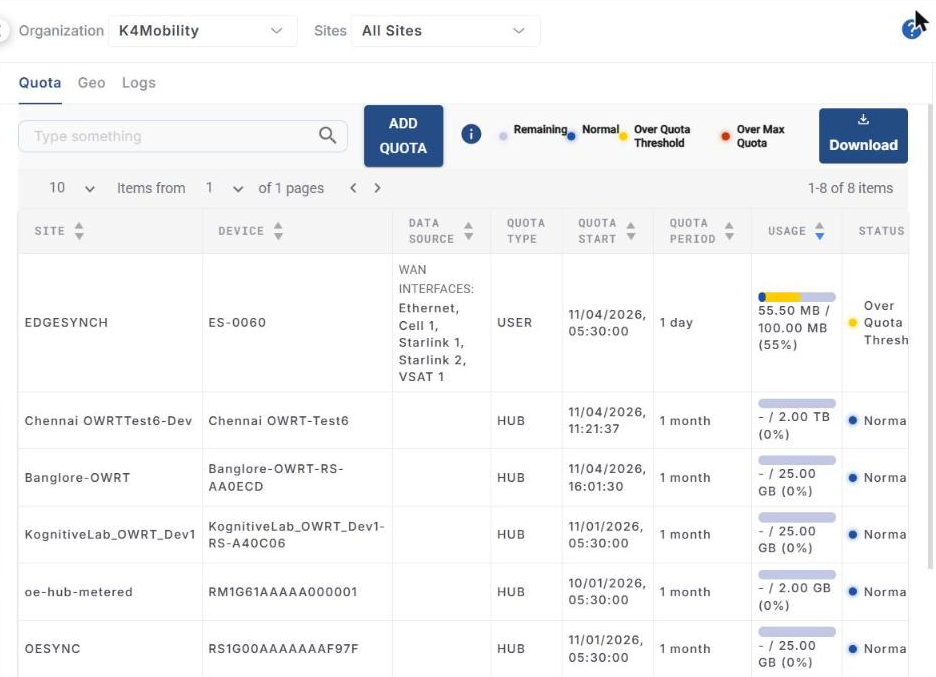
Select Kontrol from the left menu. The Quota tab lists the quotas for the selected organization and sites.
-
Columns: Site, Device, Data Source (the WAN interfaces or networks counted), Quota Type (for example USER or HUB), Quota Start, Quota Period, Usage (used / limit and percentage), Status and Actions.
-
The legend above the table explains the usage bar colours: Remaining, Normal, Over Quota Threshold and Over Max Quota. The info icon explains the colours in more detail.
-
Hover over a usage bar for details such as the WAN links, usage, thresholds, maximum quota, elapsed period and estimated over date.
-
Use the search box to filter quotas, and Download to export the list.