
-
Overview
The Sharing Backup Configuration feature allows an organization to share a saved device configuration backup with one or more other organizations.
The receiving organizations can then:
-
Use the shared configuration during device registration
-
Upload the configuration to existing deployed devices
-
Set the configuration as a default configuration for a specific device type.
Once a configuration is shared, it cannot be deleted or revoked from the receiver’s environment.
-
Workflow – Sender Organization
Step 1: Login
-
Login to the platform using valid credentials.
Step 2: Navigate to Inventory
-
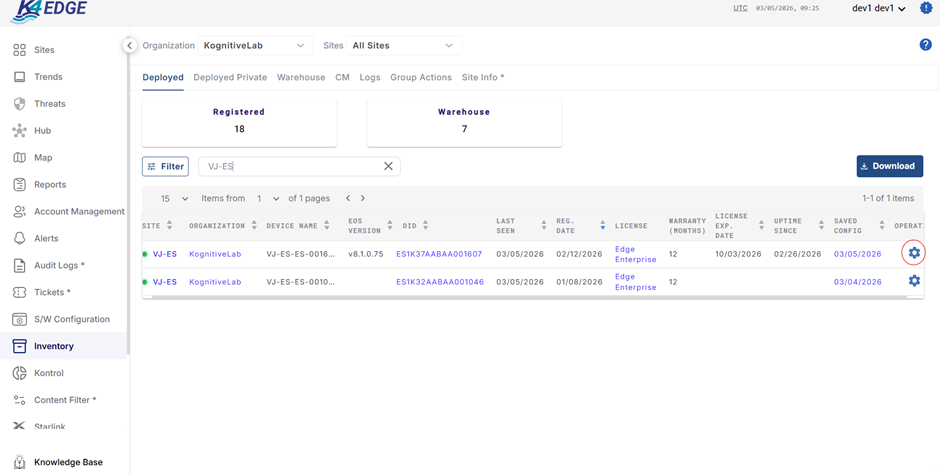
Go to the Inventory tab.
-
Select the device whose configuration backup needs to be created.
-
Click the Settings icon.
Step 3: Save Device Configuration
-
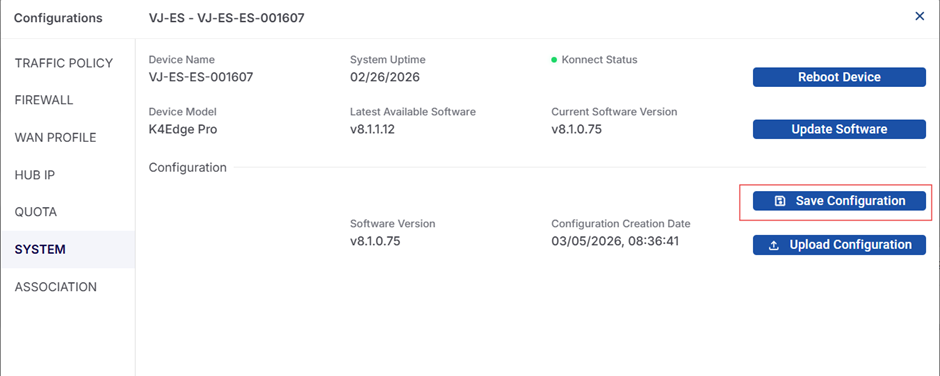
Navigate to the System option.
-
Select Save Configuration.
-
Enter the File Name for the configuration backup.
-
Click Save.
Step 3: Save Device Configuration
-
Navigate to the System option.
-
Select Save Configuration.
-
Enter the File Name for the configuration backup.
-
Click Save.
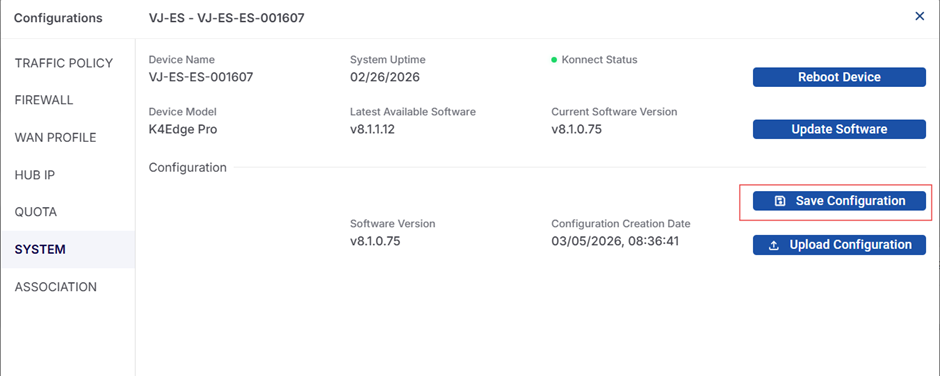
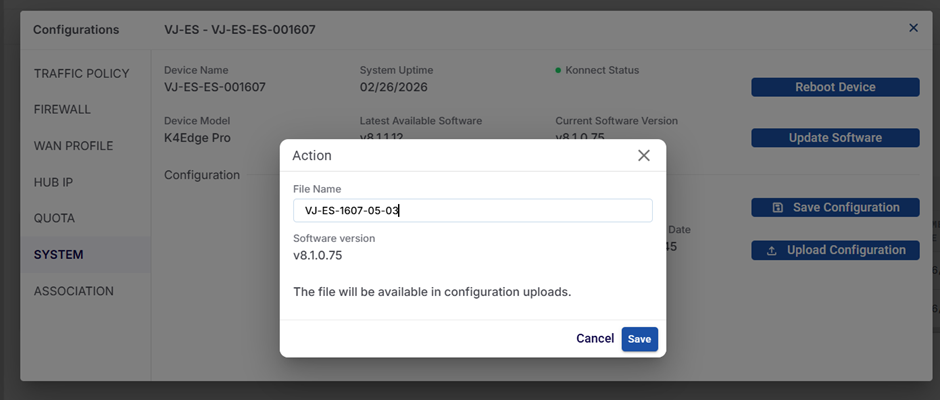
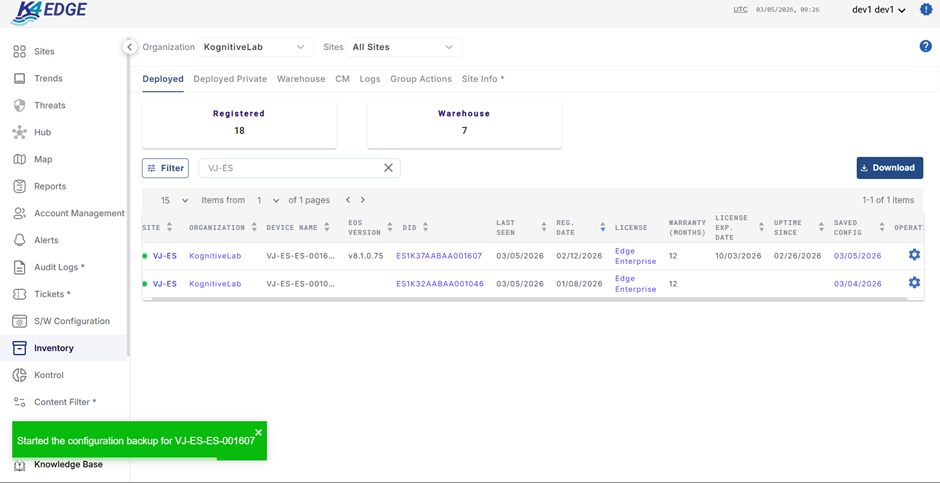
The configuration backup is now created.
Step 4: Locate the Saved Backup
-
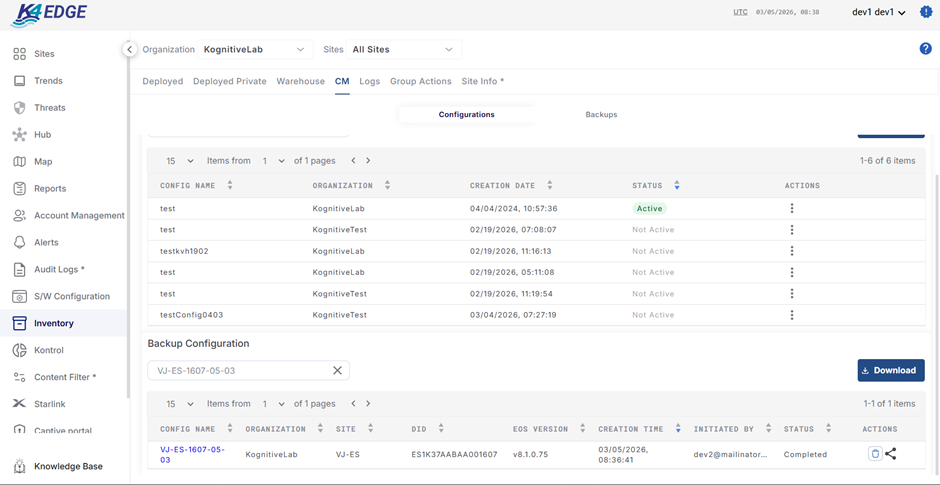
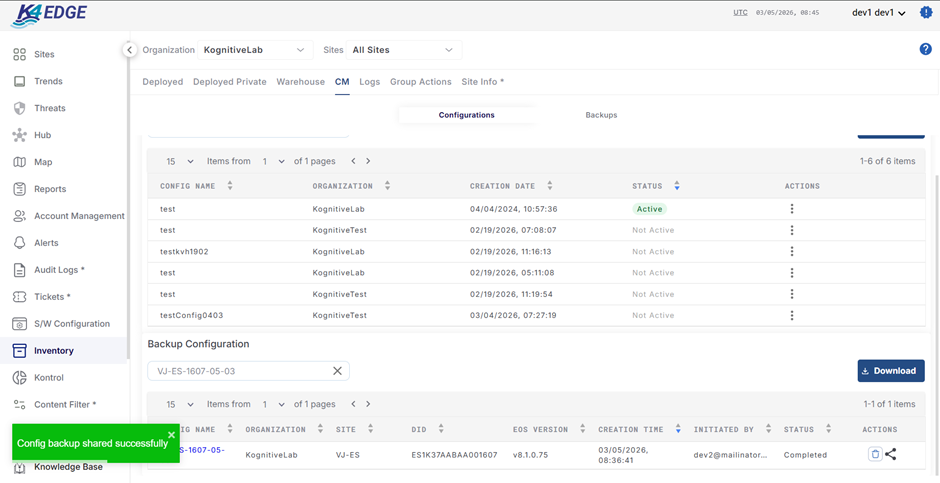
Go to the CM (Configuration Management) tab.
-
Locate the saved backup in the Backup Configuration table.
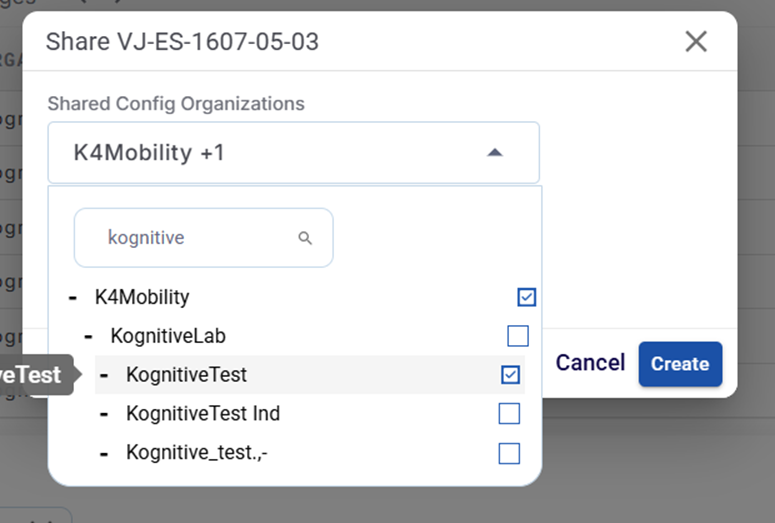
Step 6: Select Organizations
-
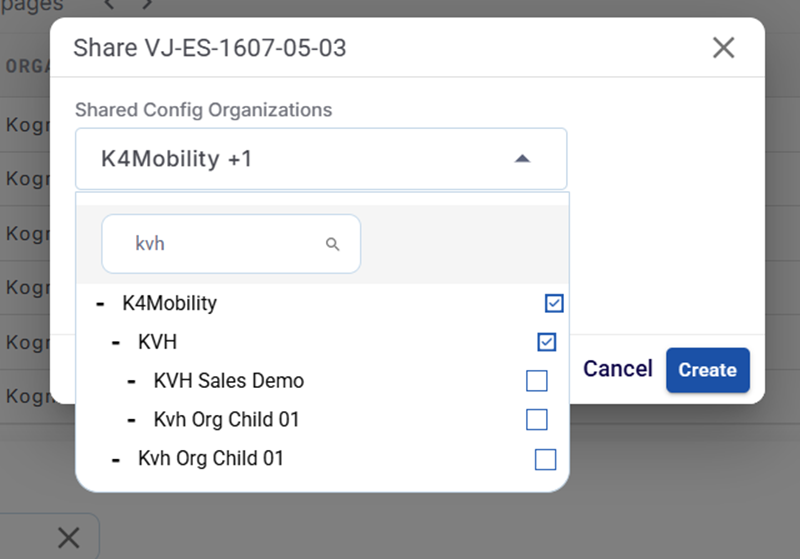
Select the organization(s) to which the configuration needs to be shared.
-
Multiple organizations can be selected in a single action.
Step 7: Customize Shared File Name
-
Enter the File Name that should appear in the receiver organization's CM tab.
-
This allows the sender to customize how the configuration will be displayed for the receiver.
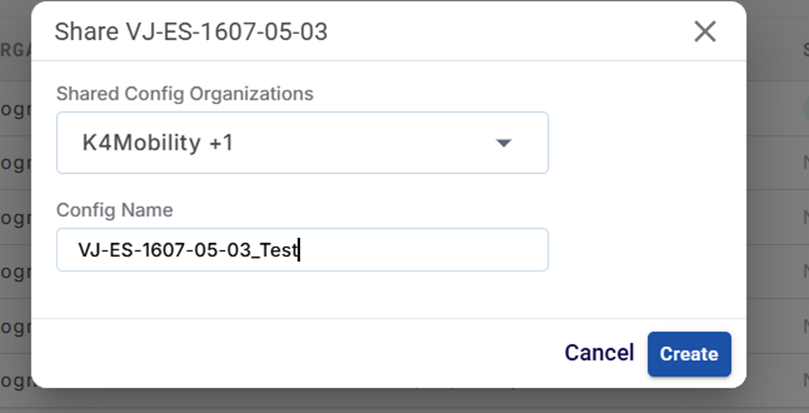
Step 8: Create the Share
-
Click Create.
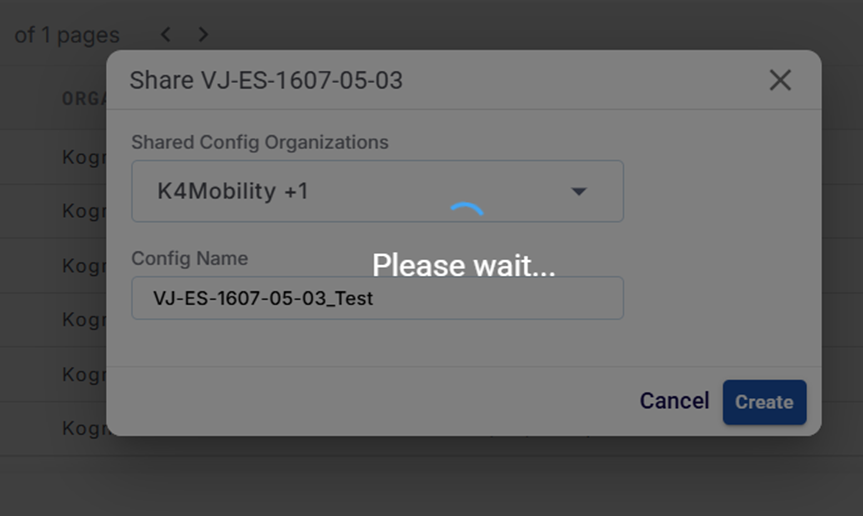
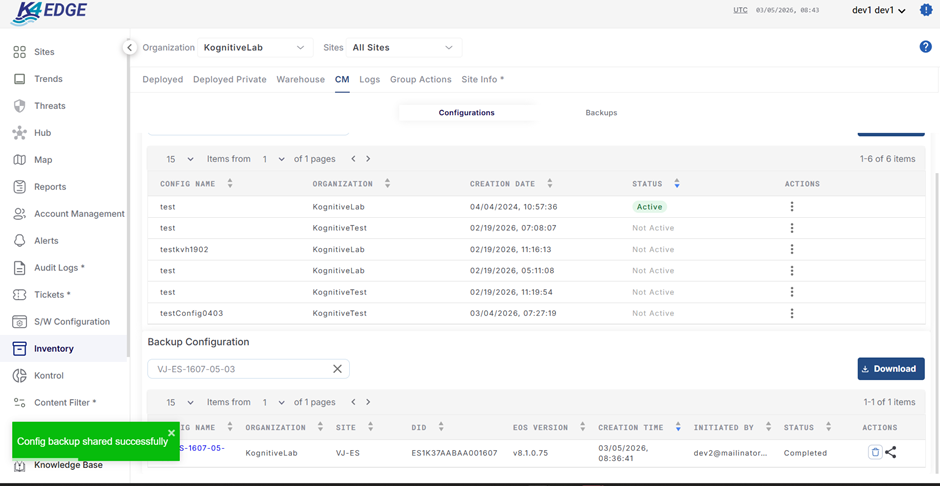
The configuration will now be shared with the selected organizations.
Important Notes (Sender Side)
-
Once a configuration is shared, it cannot be deleted or revoked.
-
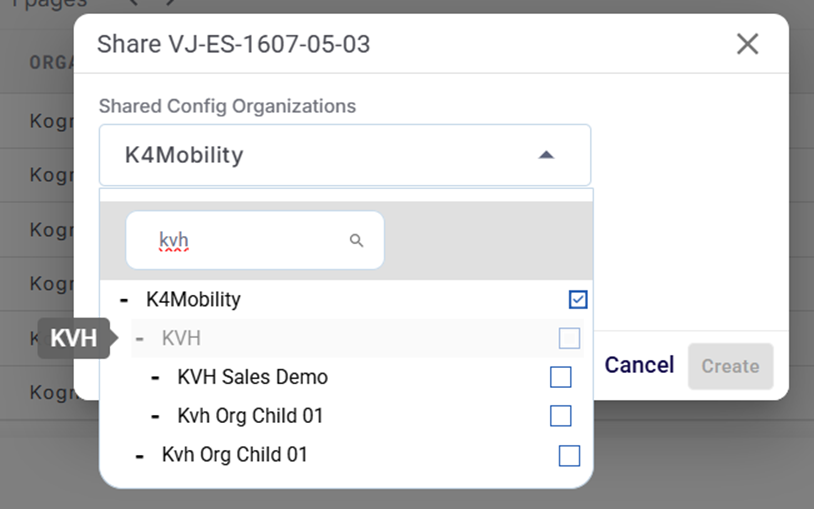
The organization that has already received the configuration will be disabled in the dropdown list for that configuration.
-
The same configuration can still be shared with other organizations.
-
Workflow – Receiver Organization
Step 1: Login
-
Login to the platform.
Step 2: Locate the Shared Configuration
-
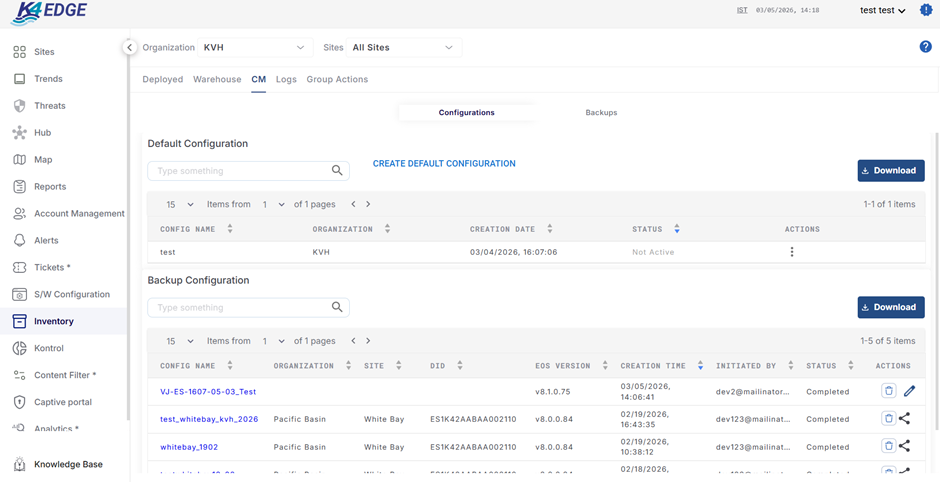
Go to Inventory → CM Tab.
-
Locate the configuration in the Backup Configuration Table.
How to Identify a Shared Configuration
A shared configuration can be identified by the following indicators:
-
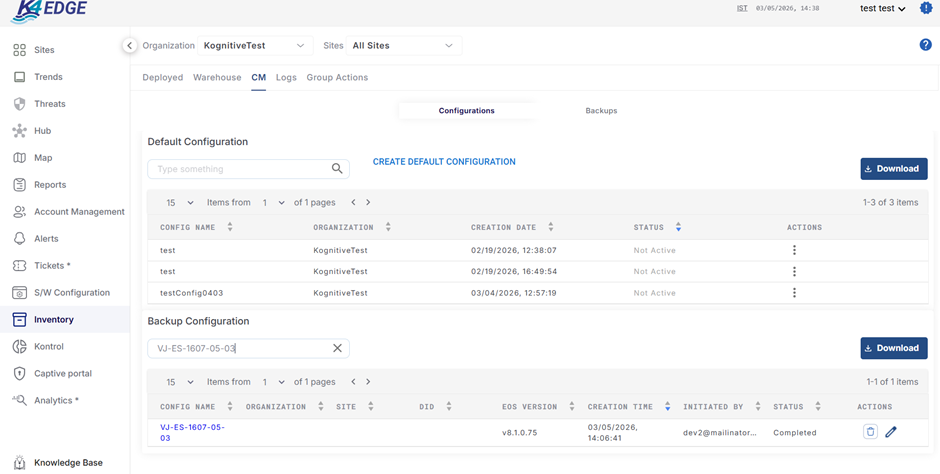
Organization and Site Name fields will be empty
-
The configuration can also be re-shared to sub-organizations (sub-OUs) if permitted.
-
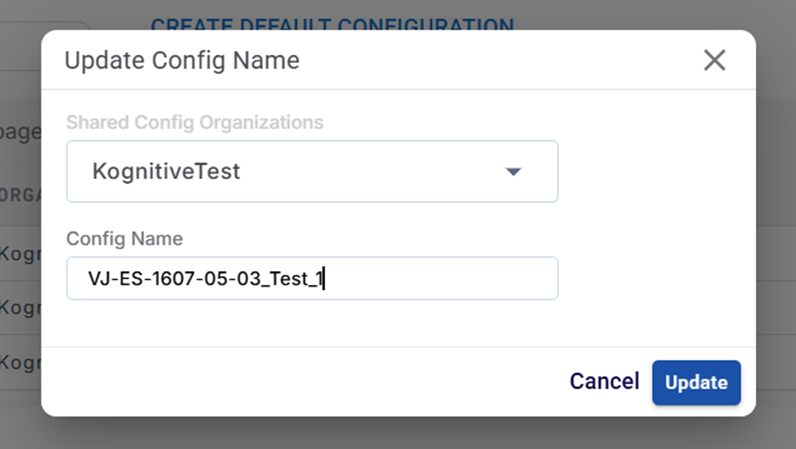
The row contains a Pencil (Edit) icon, allowing the receiver to rename the configuration.

The pencil icon allows the receiver to rename the configuration.


Re-Sharing Shared Configurations
A receiving Organization can re-share a received configuration with its sub organizations .

Rules
-
If the parent OU has not shared the configuration with a particular sub-OU:
-
The receiving OU can share the configuration with that sub-OU.
-
-
If the parent OU has already shared the configuration with that sub-OU:
-
That sub-OU will appear greyed out (disabled) in the sharing dropdown when the receiving OU attempts to share it.
-
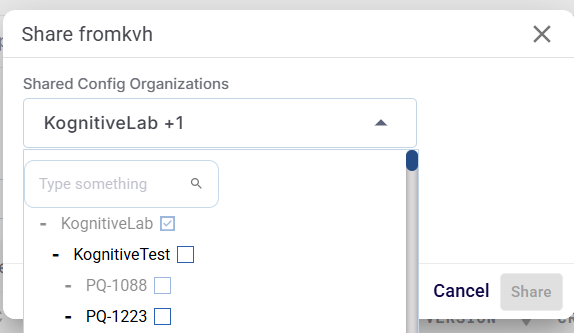
This behavior prevents duplicate sharing of the same configuration to the same organization.
-
Using Shared Configuration During Device Registration
Step 1: Go to Warehouse
-
Navigate to Warehouse.
-
Select a device with the same product type as the shared configuration.
Step 2: Register Device
-
Click Register.
Step 3: Select Configuration
-
In the Configuration dropdown, select Other.
-
The Shared Configuration will appear in the list.
-
Select the required configuration.
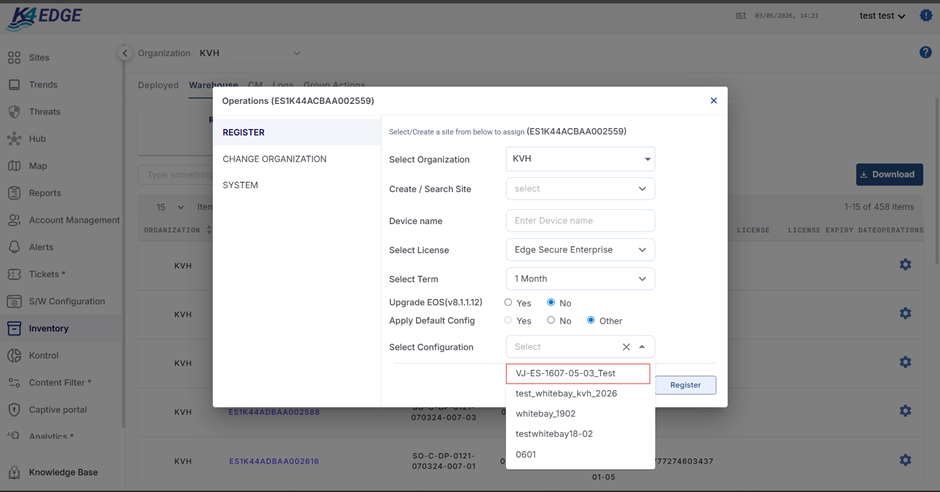
The device will now be registered using the shared configuration.
-
Applying Shared Configuration to Existing Devices
For devices that are already deployed:
-
Go to Inventory.
-
Select the device.
-
Click the Settings icon.
-
Go to System.
-
Select Upload Configuration.
-
Choose the Shared Configuration.
-
Confirm the action.
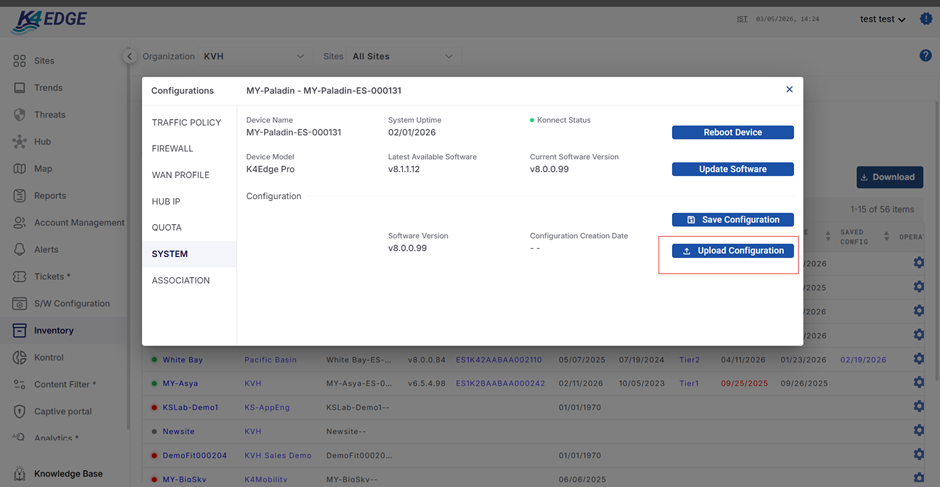
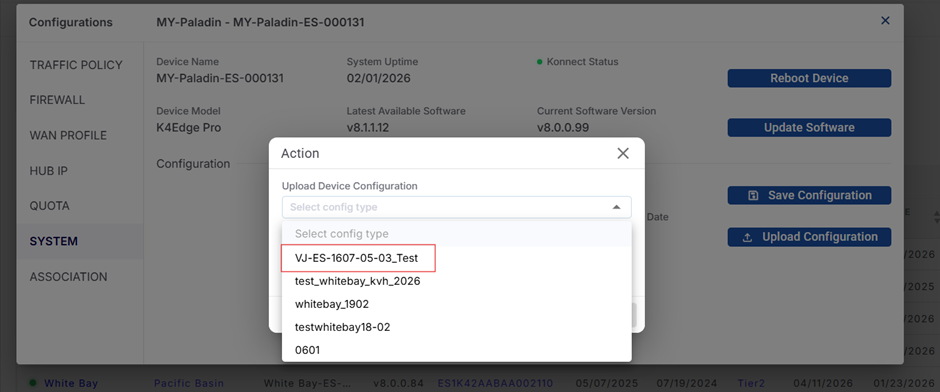
The deployed device will now use the selected shared configuration.
-
Setting Shared Configuration as Default
To automatically apply the shared configuration when devices are registered:
Step 1: Go to Default Configuration
-
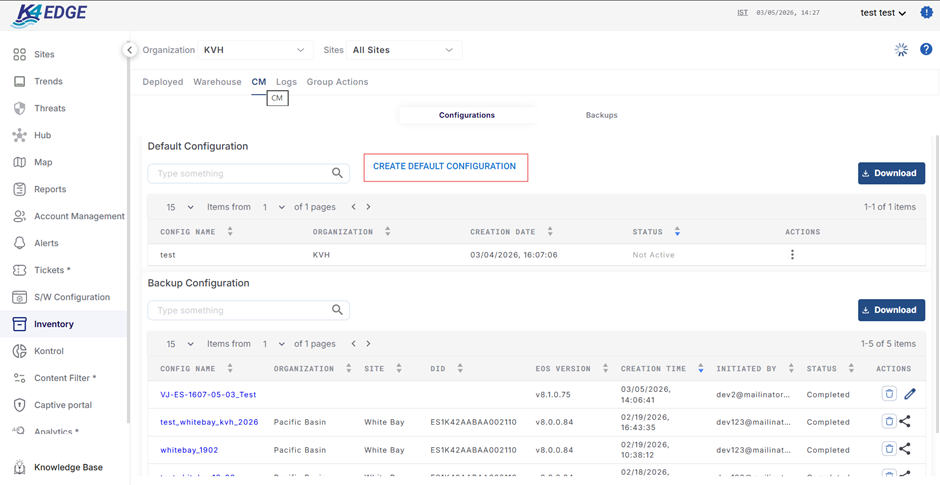
Navigate to the Default Configuration Table.
Step 2: Create Default Configuration
-
Click Create Default Config.
Step 3: Configure Default Settings
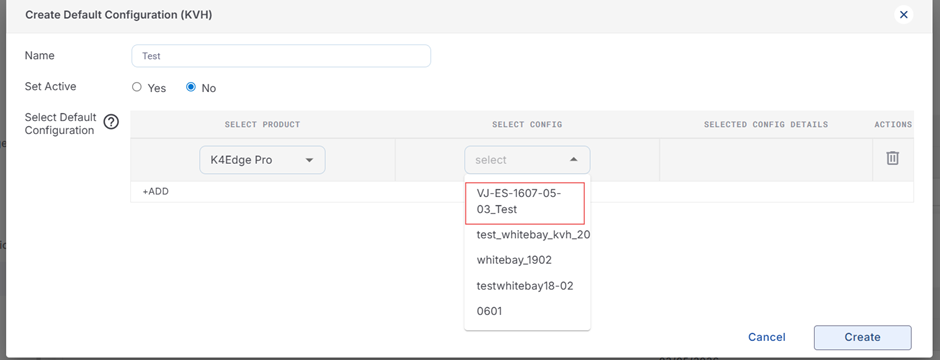
Enter the following details:
-
Default Configuration Name
-
Active Status (Enable/Disable)
-
Select the Shared Configuration Name from the dropdown.
Step 4: Save
-
Click Create.
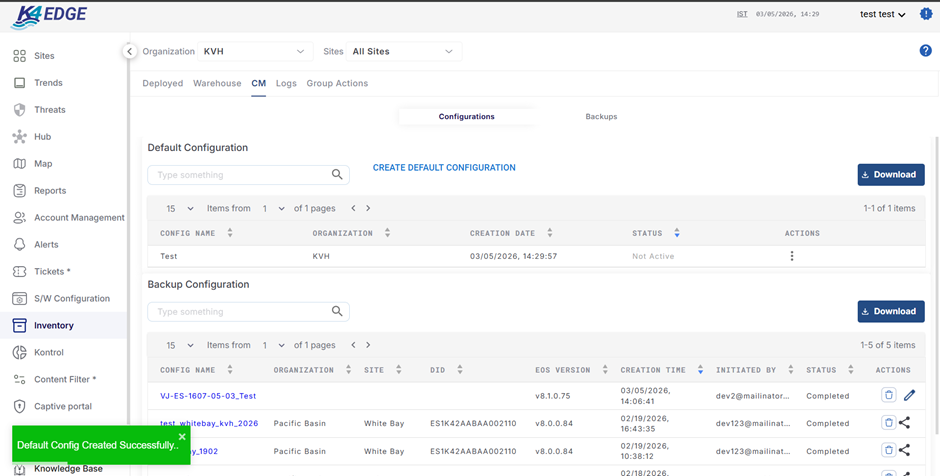
Now whenever a device of the corresponding product type is registered, this configuration will be automatically applied.
-
Deletion Behavior
Receiver Side Deletion
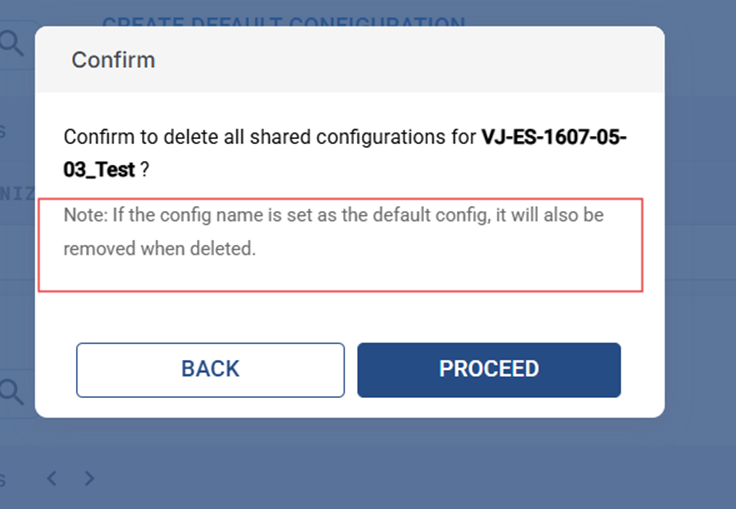
If the receiver deletes the shared configuration:
Default Configuration Impact
-
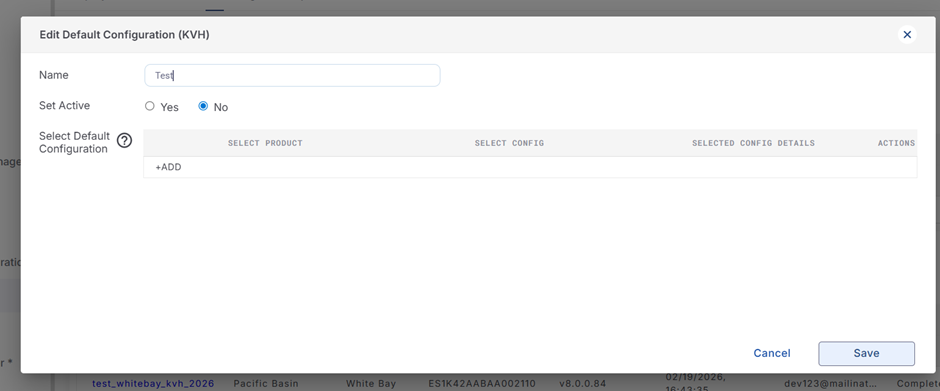
If the configuration is used in Default Configuration, that row will be removed automatically.
Device Impact
-
No changes occur at the device level.
-
Devices already using the configuration will continue using it.
Deleting the configuration only prevents future usage.
Sender Side Deletion
If the sender deletes the configuration from their side:
-
The receiver organization will not be affected.
-
The configuration will remain available and usable for the receiver.
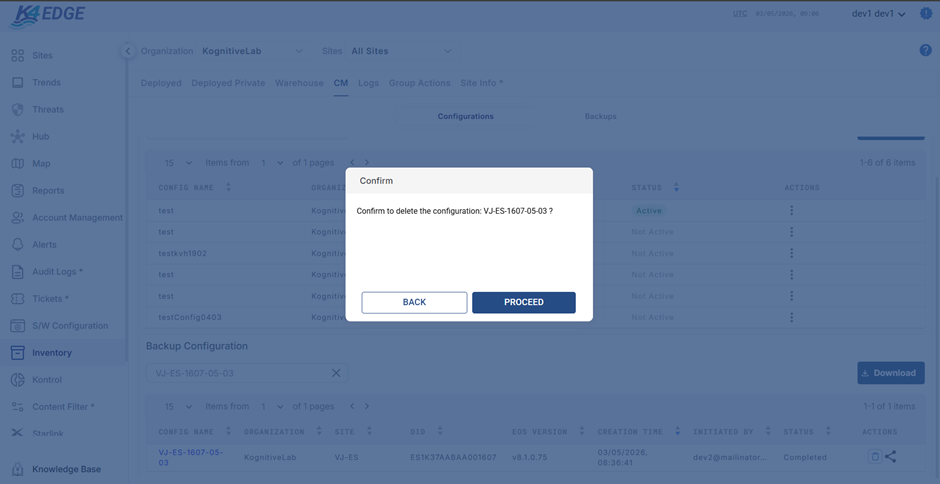
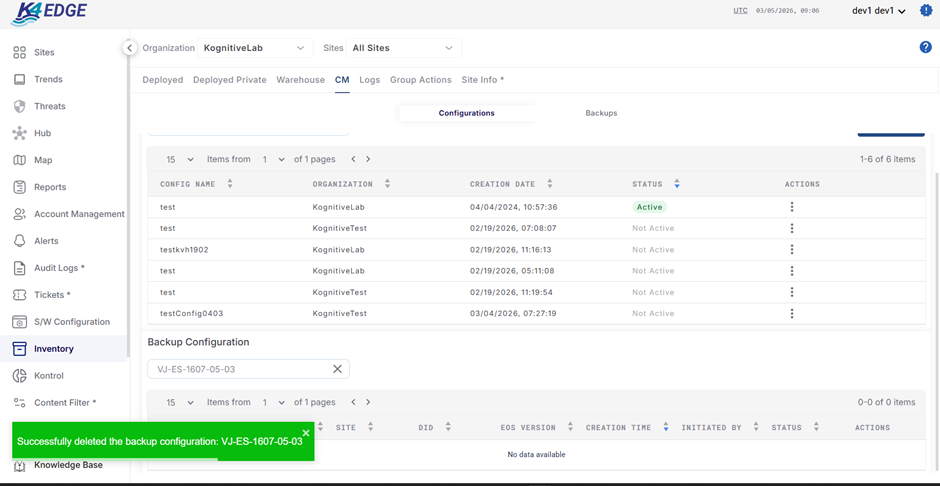
Receivers end it will be still present
-
Key Rules & Behavior Summary
|
Behavior |
Description |
|
Multi-Org Sharing |
A configuration can be shared with multiple organizations |
|
Share Irreversible |
Shared configurations cannot be revoked |
|
Receiver Rename |
Receiver can rename using pencil icon |
|
Receiver Reshare |
Receiver can reshare the config to its sub ous if not already shared |
|
Device Impact |
Deleting config does not affect devices already using it |
|
Default Config Removal |
If deleted, it is automatically removed from default config |
|
Sender Deletion Impact |
No impact on receiver organizations |