
Keywords: CommBox EdgeOS, Change Password, Reset Password, Change Default Password
Overview
This guide explains how to change or reset the password for an CommBox EdgeOS Portal user account. It covers two methods: using the Manage Accounts → Change Password option after logging in with your current credentials, and using the Forgot Password? workflow from the login screen to receive a reset link via email and set a new password. By following this guide, you will be able to securely update your portal password or recover access if you have forgotten it.
Method 1: Manage Accounts → Change Password
-
Log in to the CommBox EdgeOS portal using valid credentials.
-
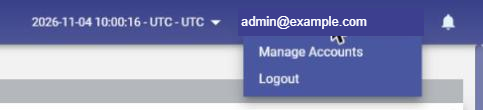
Click your user name at the top right and select Manage Accounts.
-
The Manage Accounts page opens with the tabs Add Account, Disable Account, Delete Account and Change Password. Select the Change Password tab.
-
Current Username is filled in with the logged-in account.
-
Enter the Current Password.
-
Enter the New Password and re-enter it in Confirm Password. Use the eye icon to show or hide the password.
-
Click Proceed.
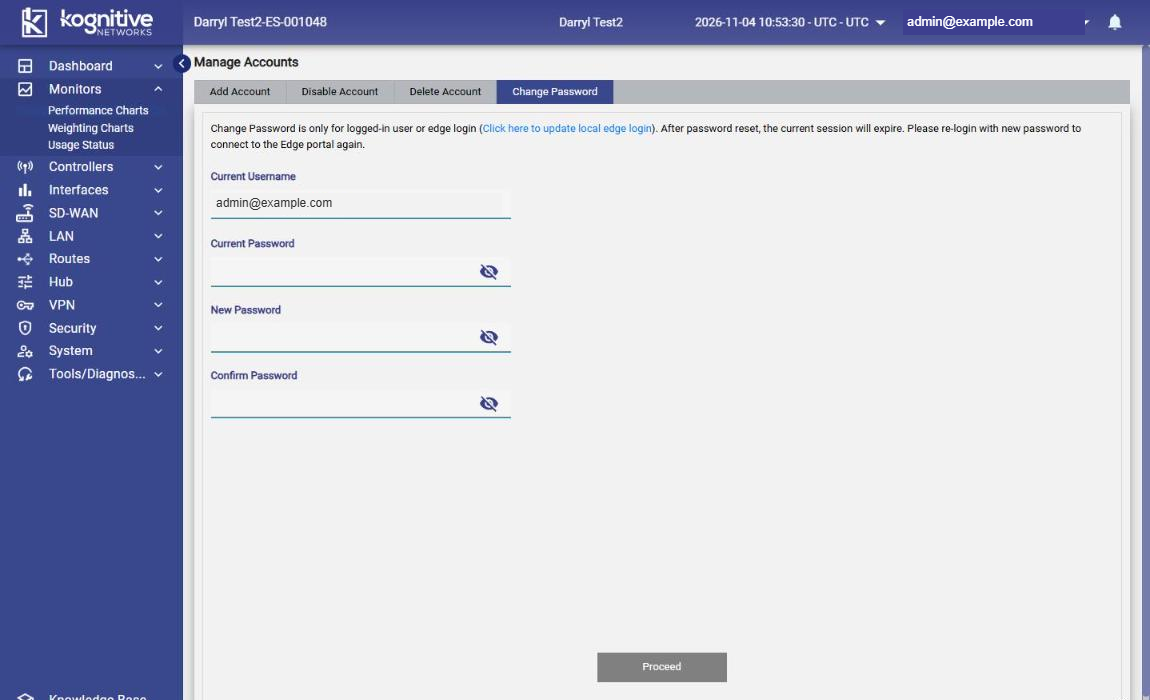
Change Password applies only to the logged-in user or the local edge login (use the Click here to update local edge login link on the tab to change the local login). After the password is changed, the current session expires; log in again with the new password.
Method 2: Forgot Password
-
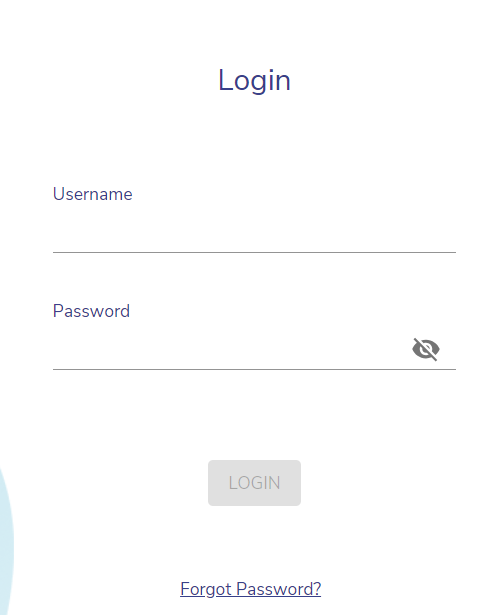
Click the Forgot Password? button from the login screen.
-
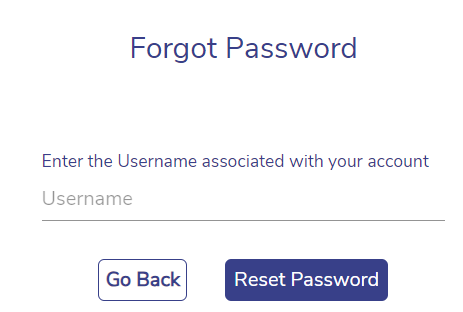
The Forgot Password screen opens as shown below:
-
Enter the Username of the account and click Reset Password.
-
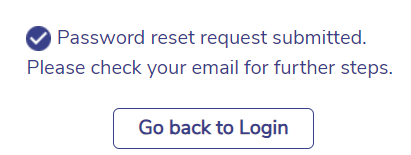
The user receives the following message on the screen.
-
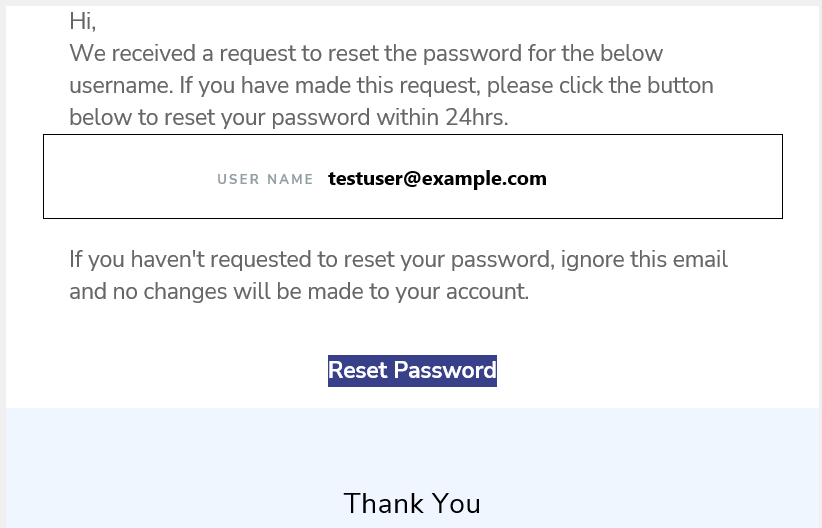
The link to reset the password will be sent to the user’s official Email address.
-
Click the Reset Password link given in the Email.
-
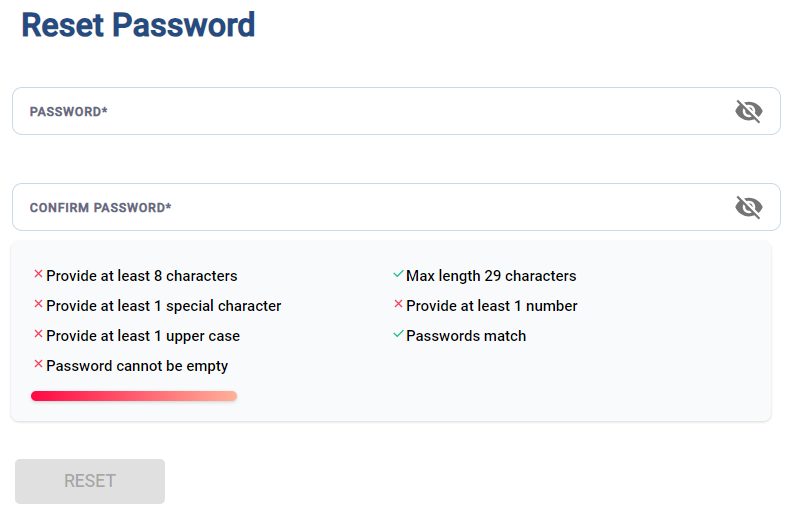
The Reset Password screen opens as shown below:
-
Enter the New Password as per the on screen guidelines.
-
Re-enter the New Password to confirm it.
-
Select the Reset button to change the password.
-
The password is now successfully changed.