
Keywords: CommBox EdgeOS, Traffic Policy, Blocked Applications, Top Blocked, Usage Status, Content Filtering
Overview
This guide explains how to check whether an application, domain or IP address is being blocked by a traffic policy on an CommBox EdgeOS 8.x device, using the Usage Status page and the Traffic Details pop-up. If your issue is not covered in this guide, please contact our support team.
Open Traffic Details
-
Log in to the CommBox EdgeOS portal.
-
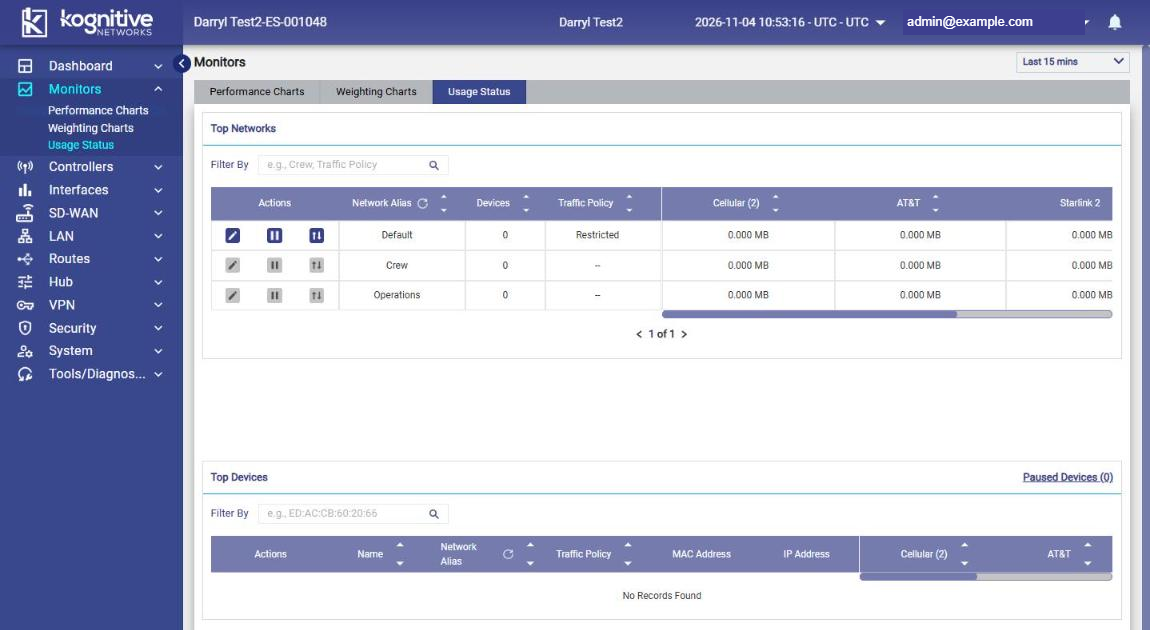
Select Monitors > Usage Status (the other Monitors tabs are Performance Charts and Weighting Charts). Use the time selector at the top right (for example Last 15 mins) to change the period.
-
The page shows the Top Networks and Top Devices tables with usage per WAN.
-
In the Actions column of Top Networks, click the Traffic Details icon of the network. (Top Devices has the same action per device.)
-
The Traffic Details pop-up opens with the tabs Top Applications, Top Domains, Top IPs (Network), Top Protocols and Content Filtering. Each tab shows Top Downloads, Top Uploads and Top Blocked. Use the All Interfaces dropdown to filter by WAN.

Check what is blocked
-
Top Applications (selected by default) - applications denied by a traffic policy rule are listed under Top Blocked.
-
Top Domains - blocked domains are listed under Top Blocked.
-
Top IPs (Network) - blocked IP addresses are listed under Top Blocked.
-
Top Protocols - blocked protocols are listed under Top Blocked.
-
Content Filtering - traffic blocked by the Content Filtering setting of the traffic policy (Adult, Malicious, Gambling) is listed under Top Blocked.
If the application, domain or IP appears under Top Blocked, it is being denied by the traffic policy of that network or device. To change this, edit the policy in SD-WAN > Traffic Policies.