
Keywords: CommBox EdgeOS, Device Traffic Policy, Traffic Policy, Application Rules, Domain Rules
Overview
This guide explains common device-specific traffic policy use cases for managing network behavior on CommBox EdgeOS devices. It covers practical scenarios where traffic policies are applied to enforce bandwidth limits, prioritize critical services, block or restrict specific applications, and optimize traffic flows based on device roles or user needs. By following this guide, you will understand real-world examples of how to tailor traffic policies for different devices to improve performance, control usage, and meet organizational requirements.
Device Traffic Policies can be used to create and apply unique policies and WAN Profiles to specific devices. If a device is assigned a unique Device Traffic Policy and it connects to an Access Network, the Traffic Policy and WAN Profile assigned to the device through the Device Traffic Policy will override the Traffic policy and WAN Profile of the Access Network. In other words, the Device Traffic Policy takes precedence over the Network Traffic Policy.
By understanding these use cases, users can make informed decisions on how to best leverage device traffic policies to enhance performance, protect sensitive data, and support the dynamic needs of the enterprise.
1 Allow access to specific Applications or Domains
Use a device traffic policy to give selected devices access to applications or domains that the network traffic policy denies to everyone else.
1.1 Create the Device Traffic Policy
-
Log in to the CommBox EdgeOS portal and select SD-WAN > Traffic Policies.
-
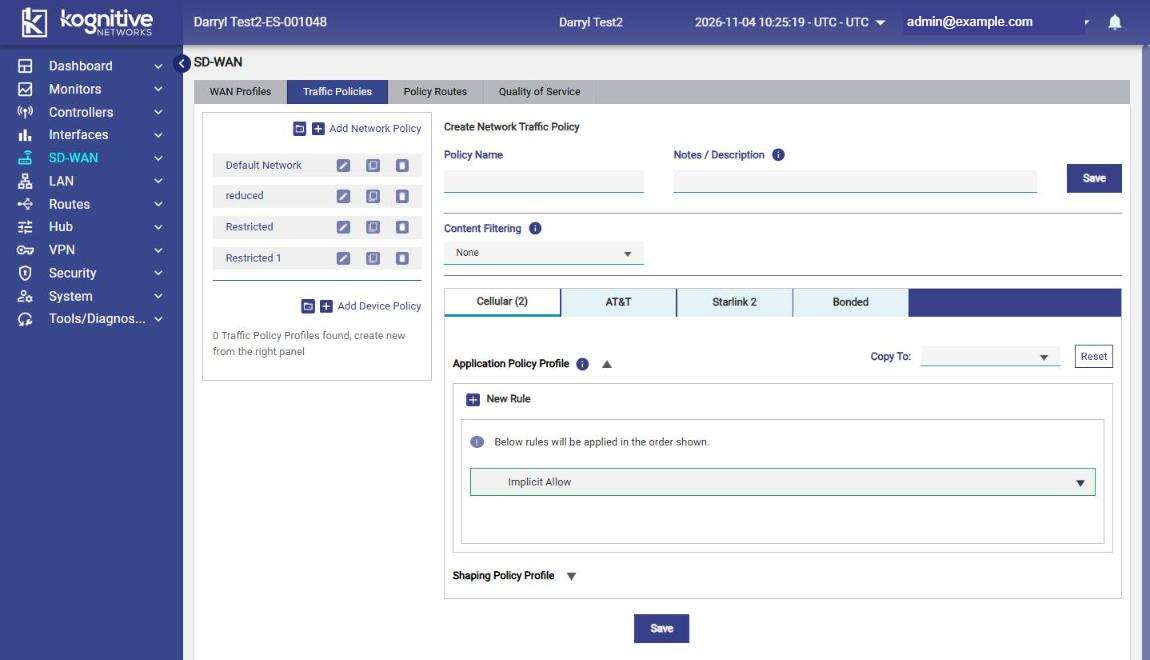
Click Add Device Policy and enter the Policy Name (and optional Notes / Description).
-
Select the WAN tab to configure. Use Copy To later to copy the rules to the other WAN tabs.
-
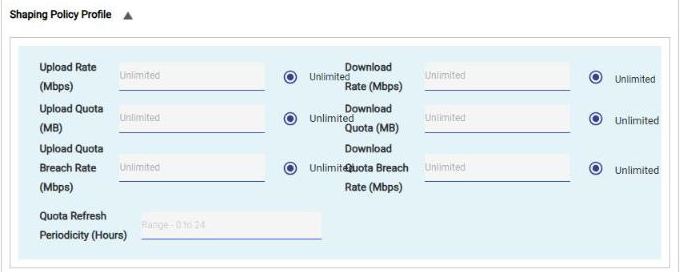
Optionally expand Shaping Policy Profile and set Upload/Download Rate, Upload/Download Quota, Quota Breach Rates and Quota Refresh Periodicity for these devices.
-
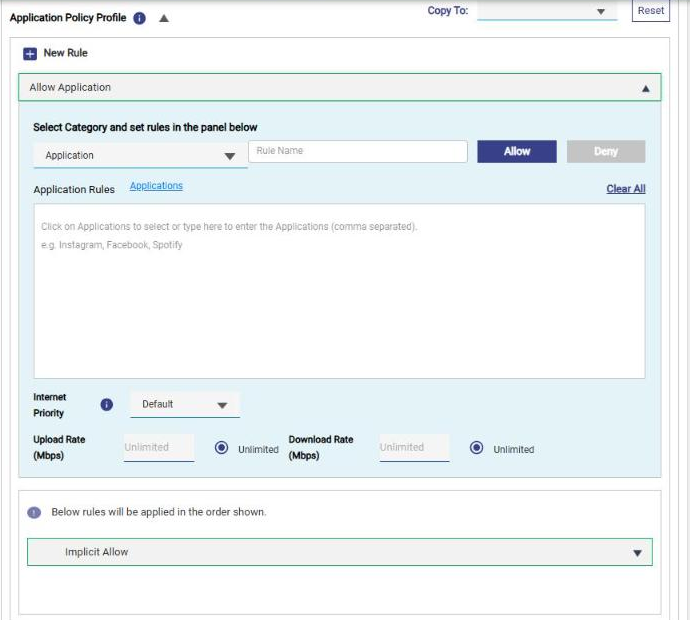
Under Application Policy Profile, click New Rule.
-
For an application rule: keep Select Category as Application, enter a Rule Name, click Applications and select the applications, then click Allow.
-
For a domain rule: click New Rule, set Select Category to Domain, enter the domains in
*.<domain name>format (comma separated) and click Allow. -
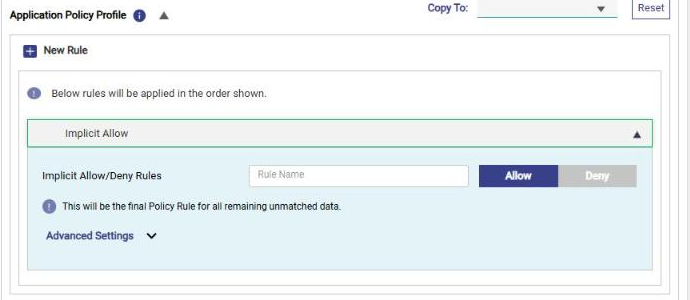
To deny everything else for these devices, expand the final Implicit Allow rule and click Deny.
-
Click Save.
1.2 Apply the policy to devices
-
Select LAN > Device Traffic Policies. The table lists MAC/IP Address, Device Name, WAN Profile, Traffic Policy, Captive Policy and Actions.
-
Click Add Device.
-
Enter the device’s MAC/IP Address, select the WAN Profile and select the device policy in Traffic Policy.
-
Click Save.
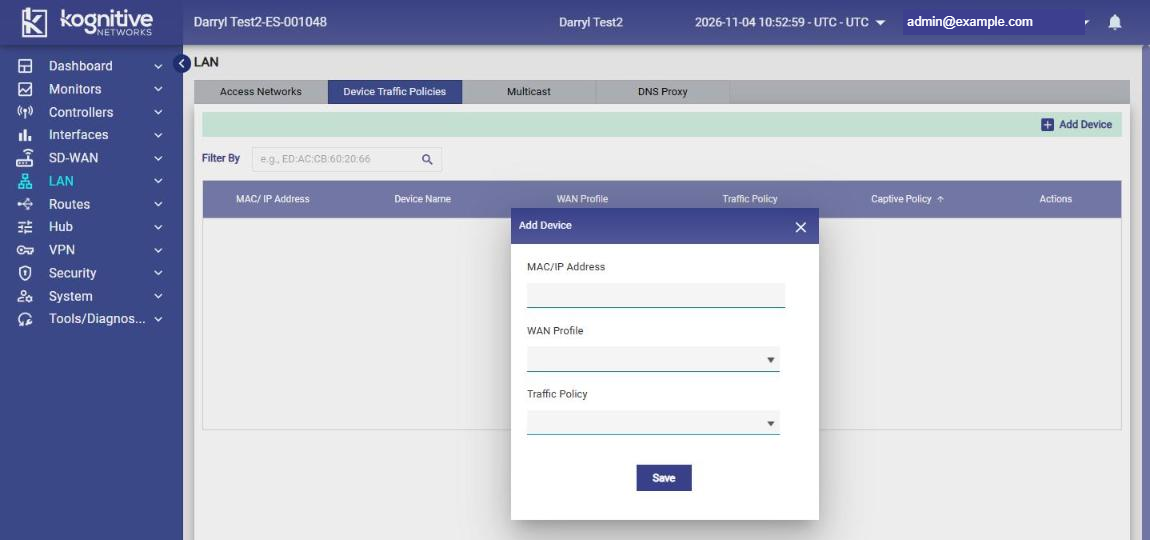
The selected devices can now reach the allowed applications and domains, while other devices on the network remain restricted by the network traffic policy. The reverse can also be configured: create a device policy that denies specific applications or domains for a few devices.
A device traffic policy and its WAN profile take precedence over the network traffic policy and WAN profile of the access network the device connects to. See also Guide: Traffic Policy Use Cases.