How SSO Works for Account Management
By default, CommBox Edge Cloud Portal uses an invitation-based account management model. Administrators create user accounts by sending invitations, and users complete registration by setting their own password.
When Single Sign-On (SSO) is enabled, user access is managed through your Identity Provider (IdP), such as Azure AD or Okta, rather than through individual account invitations.
SSO Account Provisioning
After SSO is configured and Group Role Mapping is established, users can access CommBox Edge Cloud Portal by authenticating through the configured Identity Provider.
During the user's first successful SSO login:
-
CommBox Edge Cloud Portal automatically creates an SSO user account for the authenticated user.
-
The user's access level is determined by the configured Group Role Mapping.
-
If no matching group rule is found, the system applies the configured Default Policy or denies access if Deny access if no group rule matches is enabled.
As a result, administrators do not need to invite users individually through the Account Management page. Instead, access is controlled by managing users and groups within the Identity Provider.
Access Management with SSO
In a traditional deployment:
-
An administrator sends an invitation.
-
The user completes registration.
-
The administrator manually assigns permissions.
In an SSO-enabled deployment:
-
The administrator configures SSO and role mappings.
-
Users are assigned to groups or roles in Azure AD or Okta.
-
Users authenticate through SSO.
-
CommBox Edge Cloud Portal automatically provisions the user account and assigns permissions based on the configured mappings.
This approach centralizes user lifecycle management within the organization's Identity Provider and reduces administrative overhead.
Group Role Mapping and Default Policy
Group Role Mapping determines which CommBox Edge Cloud Portal access policy is assigned to users based on their Identity Provider group or role membership.
If a user does not match a configured group mapping, the Default Policy determines the access level assigned to the user. Alternatively, administrators can enable Deny access if no group rule matches to prevent access for unmapped users.
User Deactivation
User access can be controlled directly from the Identity Provider by removing users from assigned groups or disabling their Identity Provider accounts.
Additionally, the Inactive Account Deletion setting can automatically disable SSO user accounts in CommBox Edge Cloud Portal after a specified period of inactivity.
SSO vs. Invitation-Based Access
|
Invitation-Based Access |
SSO-Based Access |
|---|---|
|
Users are invited individually by an administrator. |
Users authenticate through Azure AD or Okta. |
|
Users create and manage a CommBox Edge Cloud Portal password. |
Authentication is managed by the Identity Provider. |
|
Permissions are assigned directly within CommBox Edge Cloud Portal. |
Permissions are assigned through Group Role Mapping. |
|
User onboarding is managed per user. |
User onboarding is managed through Identity Provider groups and roles. |
|
Administrators maintain user accounts individually. |
Administrators manage access centrally through the Identity Provider. |
Configuring SSO Authentication with Okta and Azure AD
-
Click the SSO Settings tab in the Account Management screen.
-
The SSO Settings page allows administrators to configure Single Sign-On (SSO) authentication for the platform. Currently, the system supports:
-
Okta
-
Azure AD
-
SSO Settings tab
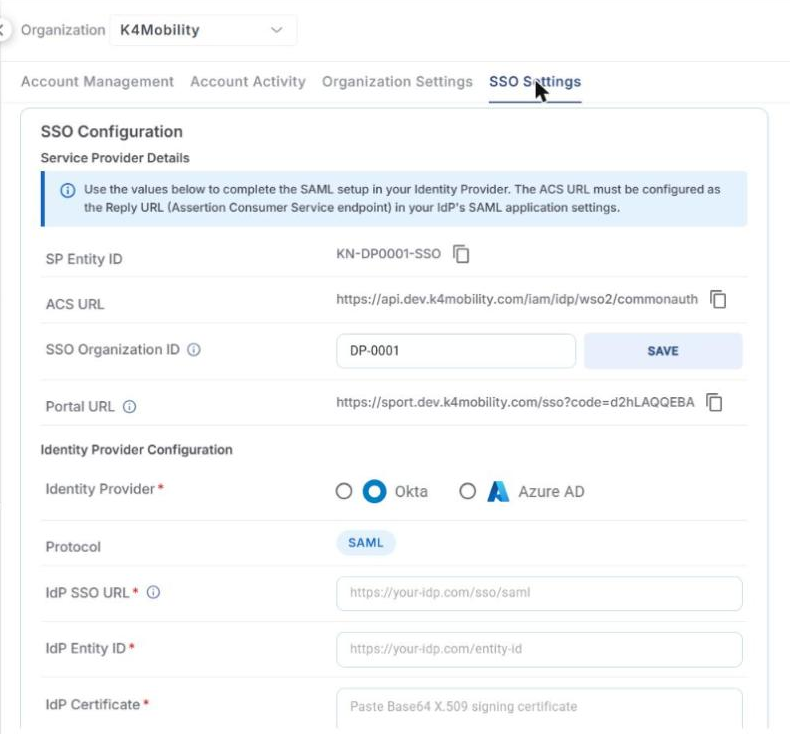
The SSO Configuration section contains the following fields:
-
Service Provider Details:
-
SP Entity ID and ACS URL – values to enter in your Identity Provider’s SAML application. The ACS URL must be configured as the Reply URL (Assertion Consumer Service endpoint). Click the copy icon to copy a value.
-
SSO Organization ID – a short ID that users enter to identify your organization on the SSO login page. It defaults to your organization ID (for example DP-0001); you can change it to something easier to remember and click SAVE. It must be 4–12 characters and can contain letters, numbers, spaces, hyphens (-) and underscores (_).
-
Portal URL – share this URL with your users so they can sign in directly with SSO once the setup is complete. Click the copy icon to copy it.
-
-
Identity Provider Configuration:
-
Identity Provider – Okta or Azure AD.
-
Protocol – SAML.
-
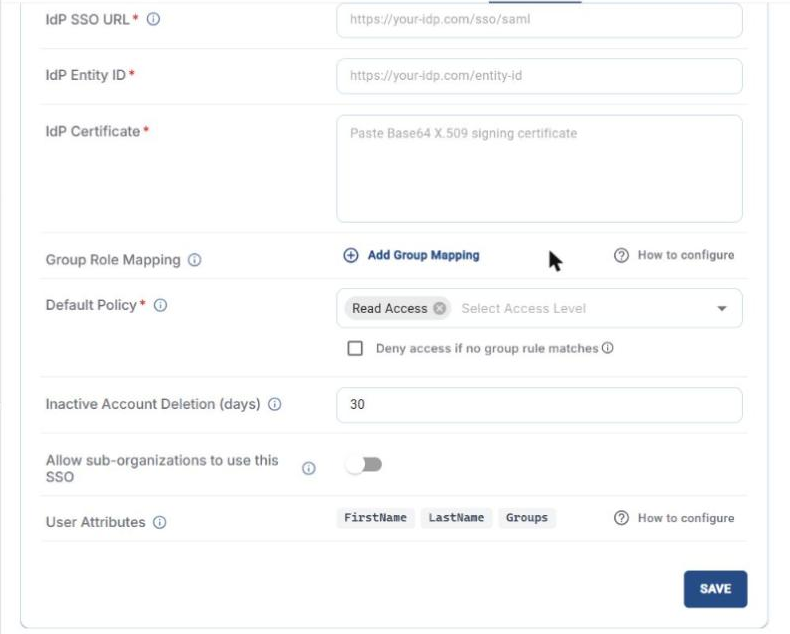
IdP SSO URL, IdP Entity ID and IdP Certificate (Base64 X.509 signing certificate) – values from your Identity Provider’s SAML application settings.
-
-
Group Role Mapping – click Add Group Mapping to add a row, type the IdP Group Name and select the Access Level to assign. Click the remove icon to delete a row. Click How to configure for help.
-
Default Policy – access level given to users who do not match any group mapping (default Read Access). Select Deny access if no group rule matches to block such users instead.
-
Inactive Account Deletion (days) – number of days of inactivity after which an SSO user account is disabled (default 30).
-
Allow sub-organizations to use this SSO – when enabled, sub-organizations that do not have their own SSO configured inherit this configuration. A sub-organization can still override it by setting up its own SSO.
-
User Attributes – optional attributes your Identity Provider sends with the user’s identity (FirstName, LastName and Groups). Configure them so that profile fields can be shown and, if Group Role Mapping is used, roles can be resolved. Click How to configure for help.
-
Click SAVE at the bottom of the section to save the configuration.
Please refer to the following pages for the detailed configuration steps for each Identity Provider: