-
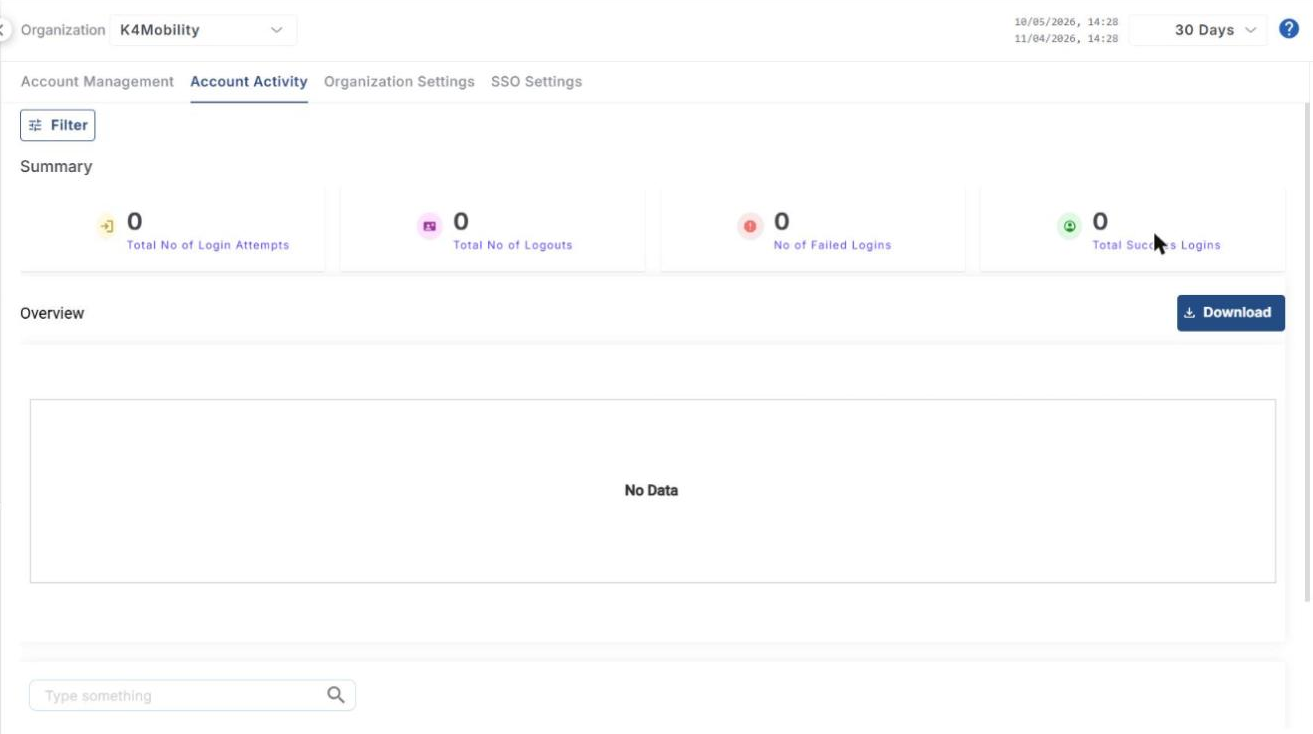
Click the Account Activity tab in the Account Management screen. It shows the activities of the user accounts of the selected organization.
-
Select the Period from the dropdown at the top-right, or select a custom interval using the From and To fields.
-
The tab contains three sections: Summary, Overview and the Activity Log table.
Summary
The Summary section shows the following information:
-
Total No of Login Attempts – total number of login attempts across all user accounts of the selected organization.
-
Total No of Logouts – total number of logouts.
-
No of Failed Logins – total number of failed login attempts.
-
Total Success Logins – total number of successful logins.
All the blue text in the Account Activity tab is clickable (login attempts, logouts, organization, user, service or event type). Clicking it filters the whole tab to show only the activity for that item.
Overview
-
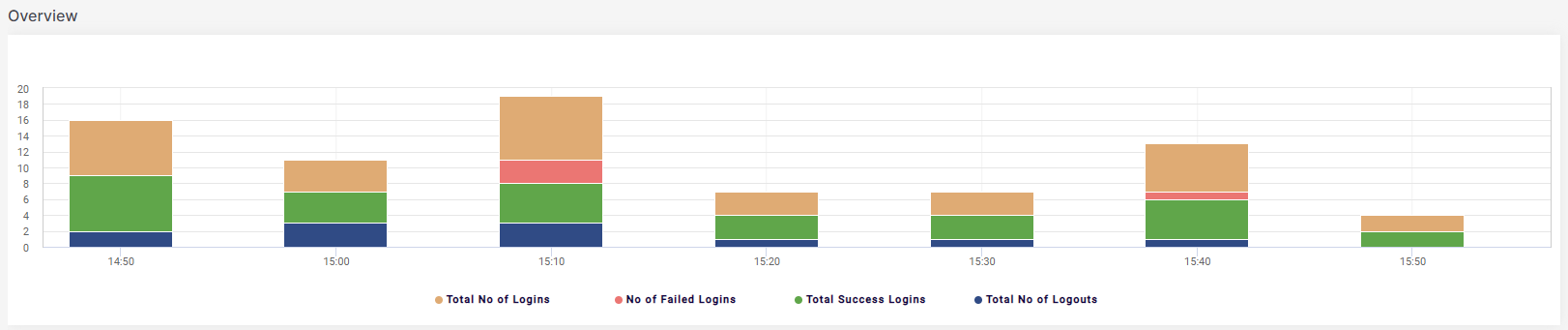
The Overview section shows a bar chart of the activities across all user accounts.
-
Click Download to download the activity details in CSV format.
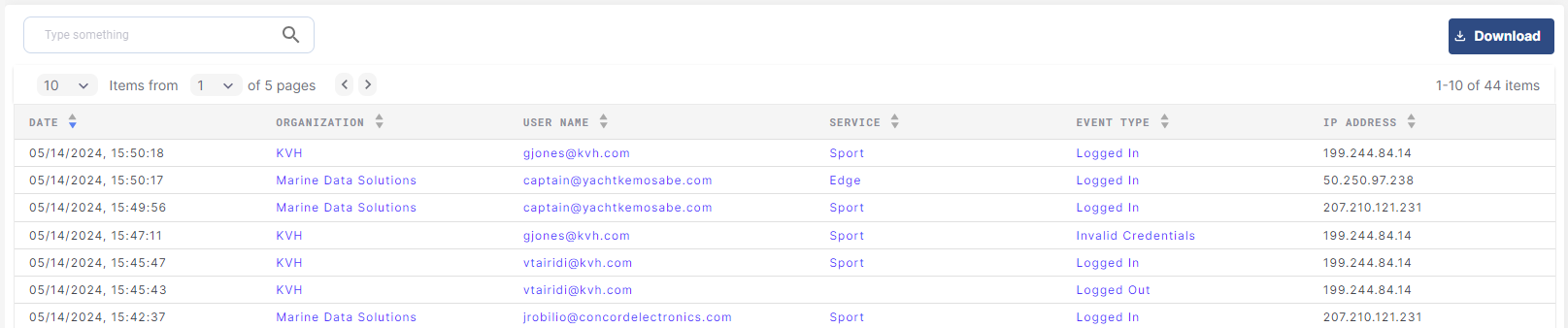
Activity Log table
The table shows the following information:
-
Date – date and time of the activity.
-
Organization – organization of the user.
-
User Name – name of the user.
-
Service – service used by the user.
-
Event Type – type of activity.
-
IP Address – IP address of the user.
-
Use the search field to find specific activities.
Filter
-
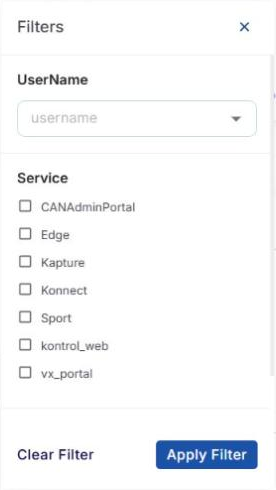
Click the Filter button to filter the tab by:
-
UserName
-
Service – CANAdminPortal, Edge, Kapture, Konnect, Sport, kontrol_web and vx_portal.
-
Event Type
-
-
Click Apply Filter to apply the filter, or Clear Filter to remove it.