-
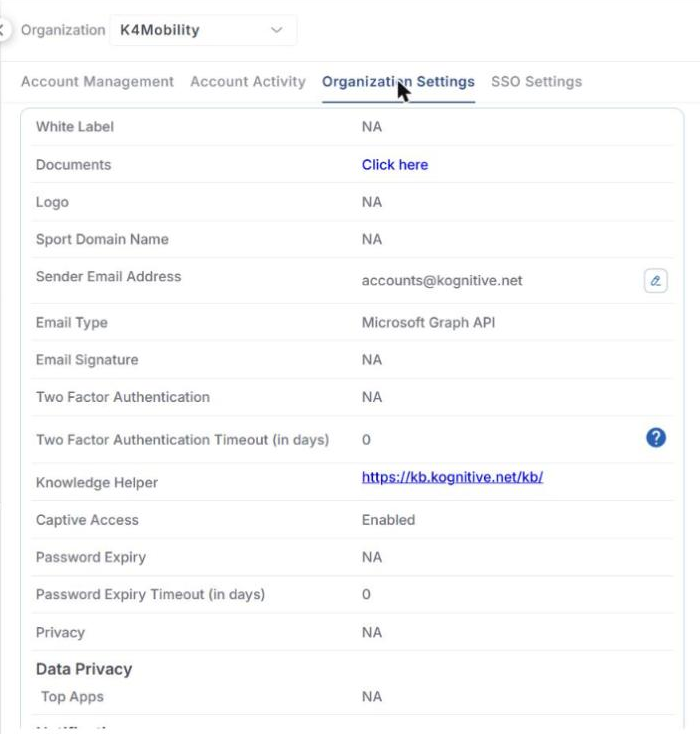
The Organization Settings tab lets you configure settings for an organization or sub-organization. This tab is available only to users with Admin Access.
-
Click the Organization Settings tab in the Account Management screen.
-
In the Organization field, select the organization or sub-organization.
Read-only fields
-
White Label – shows whether white labelling is enabled for the organization. White-labelled organizations show their own logos and naming across the products.
-
Documents – click Click here to open the Knowledge Center, which contains the online help, how-to guides and documentation for all products.
-
Logo – logo of the organization, if white labelling is enabled.
-
Sport Domain Name – link to access the CommBox Edge Cloud Portal application.
-
Sender Email Address – email address from which the organization’s automatic emails and notifications are sent. Click the edit icon next to it to change it.
-
Email Type – method used to send the emails, for example Microsoft Graph API.
-
Email Signature – signature (footer) used in the automatic emails and notifications.
-
Knowledge Helper – link to the Knowledge Base. Click it to open the Knowledge Base in a new window.
-
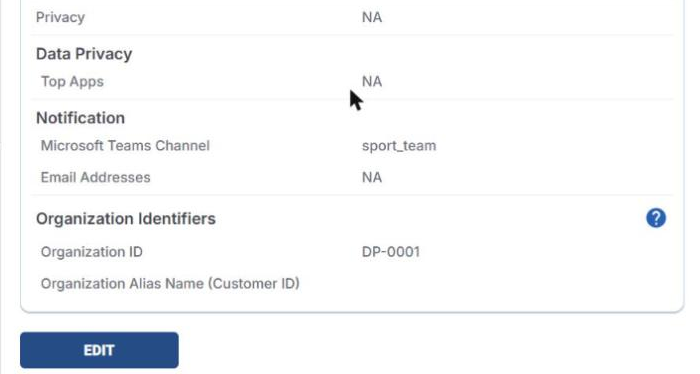
Organization Identifiers – the Organization ID (for example DP-0001) and the Organization Alias Name (Customer ID).
The White Label, Logo, Sport Domain Name and Email Signature fields are configured in the backend or using the Kapture application.
Edit the settings
Click EDIT at the bottom of the tab to edit the following fields:
-
Two Factor Authentication – turn on the toggle to enable two-factor authentication for all users of the organization. When users log in, they receive an OTP at their registered email address and must enter it to log in.
-
Two Factor Authentication Timeout (in days) – number of days for which two-factor authentication is paused after a successful verification. If set to 0, the OTP is asked on every login.
-
Captive Access – turn on the toggle to enable Captive Access for the users of the organization. Only then is the Captive portal option shown in the left menu.
-
Password Expiry – turn on the toggle to enable password expiry for the users of the organization.
-
Password Expiry Timeout (in days) – number of days after which a password expires. Users then have to set a new password.
-
Privacy – turn on the toggle to enable privacy settings for the organization.
-
Data Privacy > Top Apps – privacy setting for the Top Apps data.
-
Notification – send notifications about the alerts raised in the system:
-
Microsoft Teams Channel – enter the Name of the Teams channel and its Webhook URL.
-
Email Addresses – enter the email addresses to which the alert notifications are sent, separated by commas.
-
-
Organization Alias Name (Customer ID) – enter an alias name for the organization.
-
Click UPDATE to save the changes, or CANCEL to discard them.