Keywords: CommBox EdgeOS, Product Registration, CommBox Edge Cloud Portal, New device registration
The registration process associates the CommBox EdgeOS System with the user’s account and installation location, facilitating management in:
CommBox Edge Cloud Portal: Cloud-Based Service Portal
Edge: Mobile App
Konnect: VPN service
Pre-requisites for Registration
Group Account: Account setup is performed by Sales Team as of the onboarding process
User Account / Mobile App: User has an active user account with the Mobile App installed on a mobile device -OR- login access to CommBox Edge Cloud Portal
CommBox EdgeOS System is Online: The device being registered is powered on with an active internet connection
Registration through CommBox Edge Cloud Portal
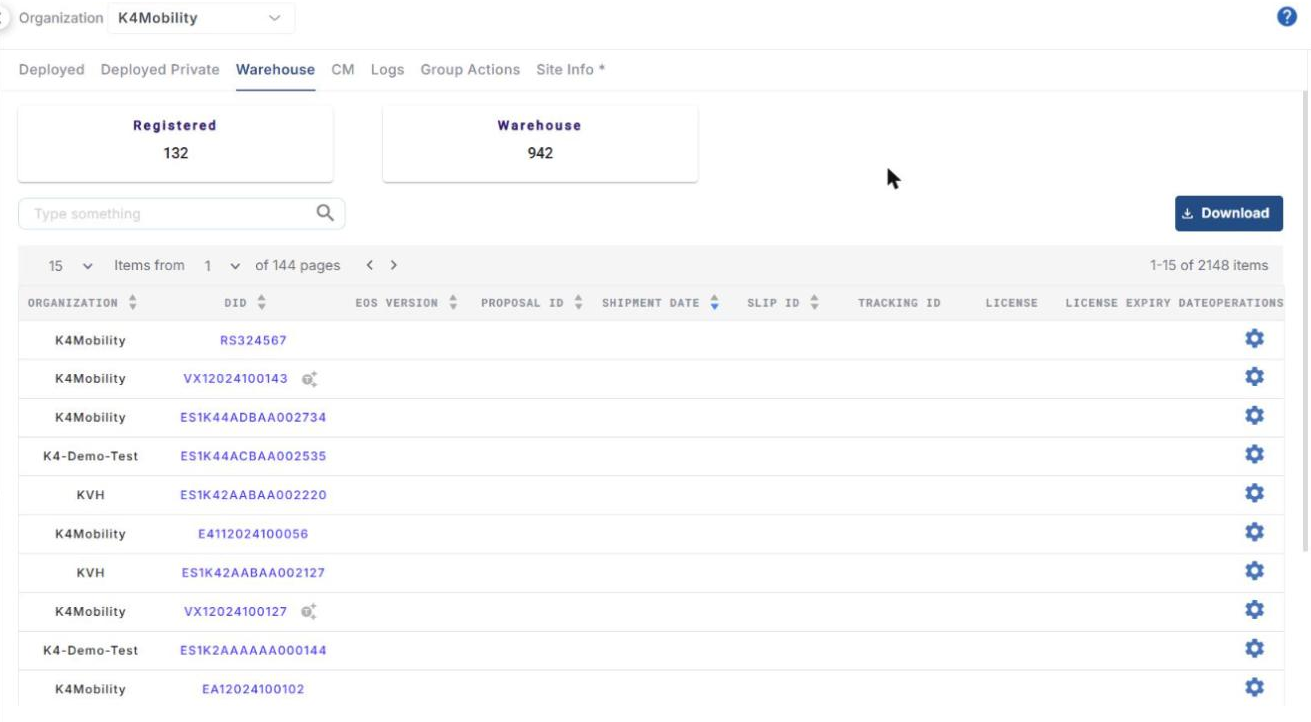
All newly procured devices are listed in the Inventory > Warehouse tab of CommBox Edge Cloud Portal.
-
Log in to CommBox Edge Cloud Portal using a web browser at https://CommBoxEdge.kvh.com.
-
Select Inventory from the left menu bar.
-
Select the Warehouse tab to see the list of devices available for registration. The Registered and Warehouse counters at the top show how many devices are deployed and how many are waiting in the warehouse.
-
Select the appropriate Organization and find the device by matching the Device ID (DID) printed on the device with the row in the table. You can type the DID in the search box to filter the list.
-
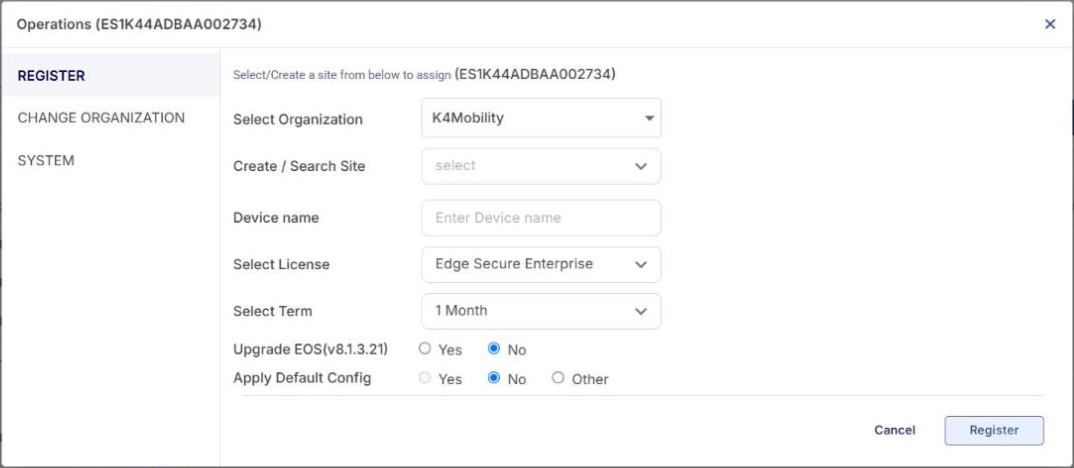
Click the gear icon under the Operations column of the device. The Operations (<DID>) dialog opens with the REGISTER option selected. (The dialog also has CHANGE ORGANIZATION and SYSTEM options.)
-
In the Select Organization field, select the required organization.
-
In the Create / Search Site field, choose the site. A Site is a Vessel, Store, Car, Truck, etc. where the Edge System will remain and can reliably be identified by management. Multiple Edge nodes can be in a single Site.
-
To use an existing site, type its name and select it from the list.
-
To add a new site, type the new site name and click Add. The site is created and the device is assigned to it.
-
-
Enter a Device name.
-
In Select License, choose the license type (for example, Edge Secure Enterprise).
-
In Select Term, choose the license term (for example, 1 Month).
-
Upgrade EOS (vX.X.X.X): the field shows the latest CommBox EdgeOS version available. Select Yes to upgrade the device to that version during registration, or No to keep the current version.
-
Apply Default Config:
-
Yes applies the default configuration of the organization.
-
No keeps the device on its current configuration.
-
Other lets you pick one of the saved backup configurations from the Select Configuration list.
-
-
Click Register to assign the device to the selected site and complete the registration. Click Cancel to close the dialog without registering.
The Upgrade EOS and Apply Default Config options (and CommBox EdgeOS licence terms) apply to CommBox EdgeOS devices. For other device types (for example, Standard Routers) the dialog may show fewer options.
-
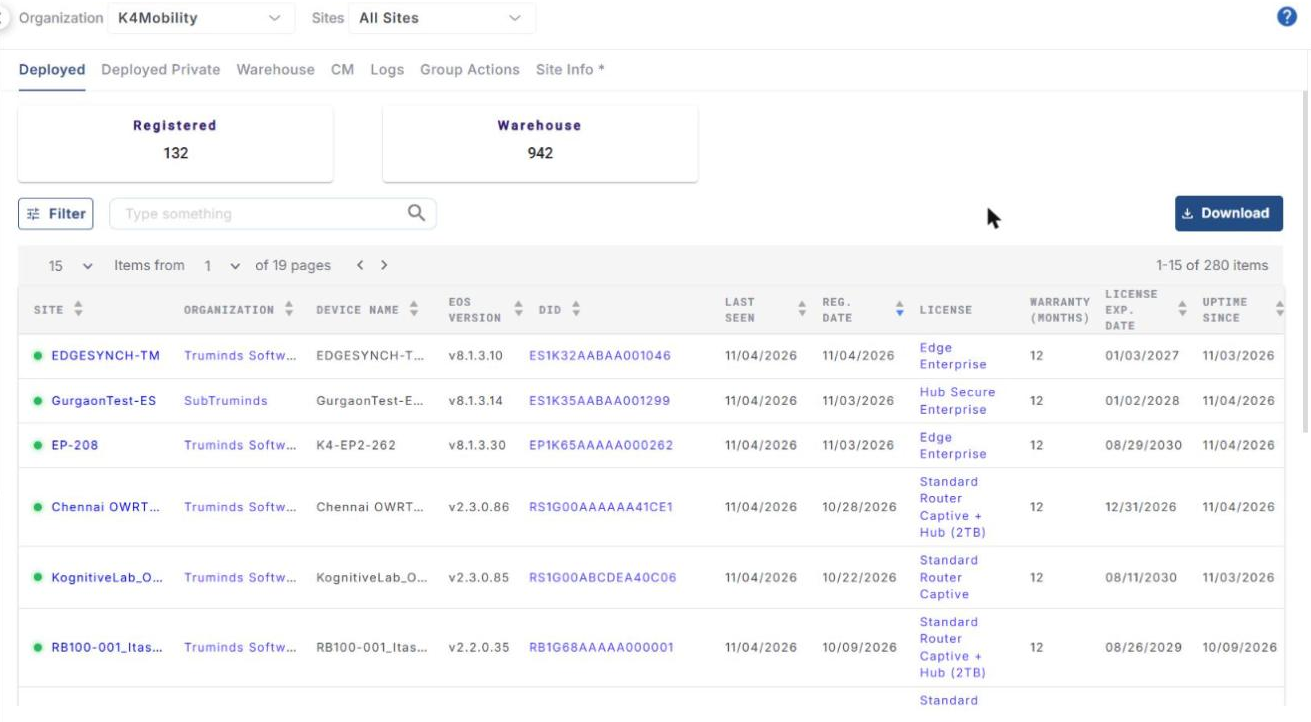
Once registered, the device moves from the Warehouse tab to the Inventory > Deployed tab. The Deployed table shows Site, Organization, Device Name, EOS Version, DID, Last Seen, Reg. Date, License, Warranty (Months), License Exp. Date, Uptime Since, Saved Config and Operations.
-
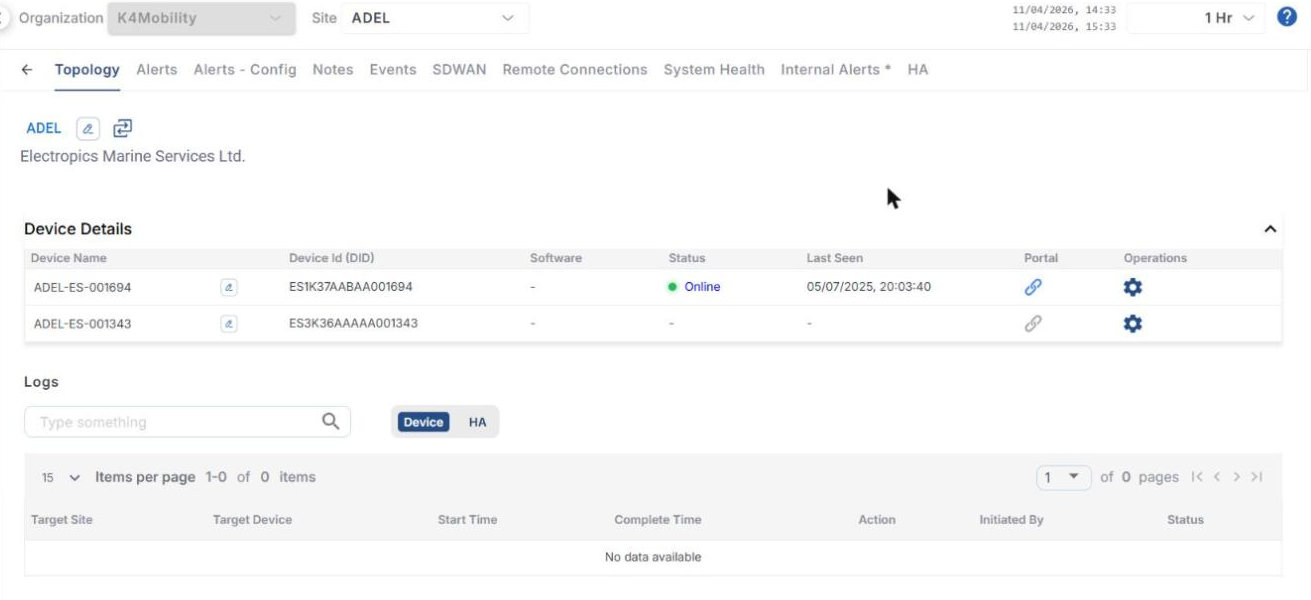
The newly registered device also appears on the site’s Topology tab (Sites > select the site), under Device Details.
-
After successful registration, power on the device and connect it to the internet. It will report Online once it checks in.
Registration through the Mobile App
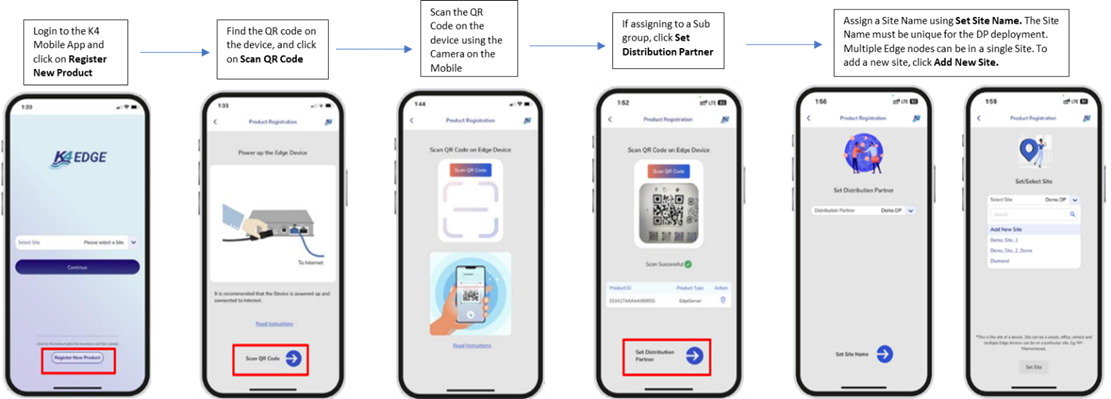
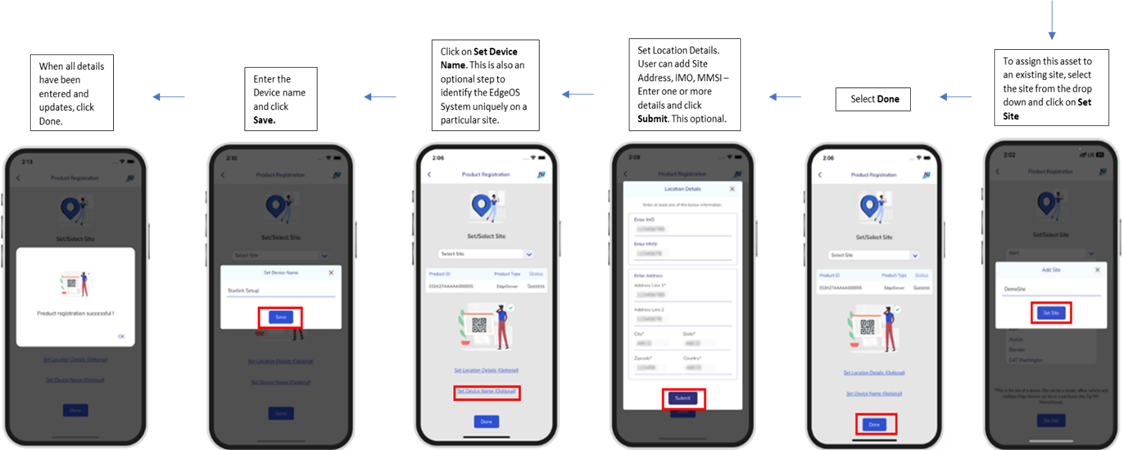
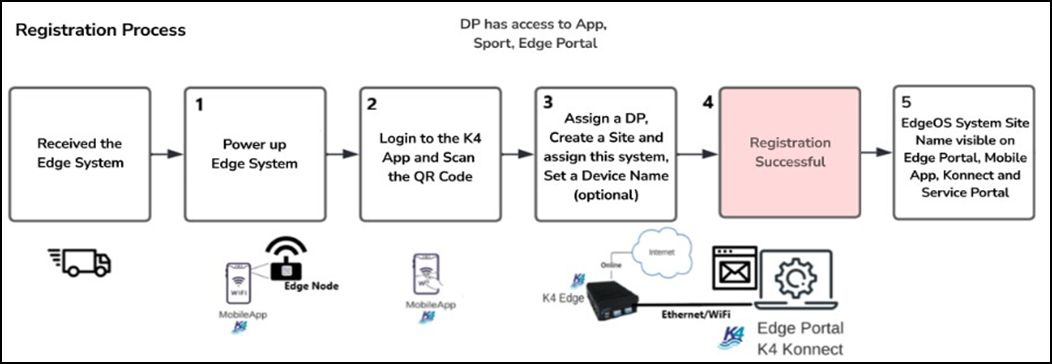
The Mobile App flow is summarised in the diagram below, followed by the detailed steps.
Steps for Registration
-
Power up and connect the CommBox EdgeOS System to the internet, e.g., plug WAN 1 into an ethernet internet source.
-
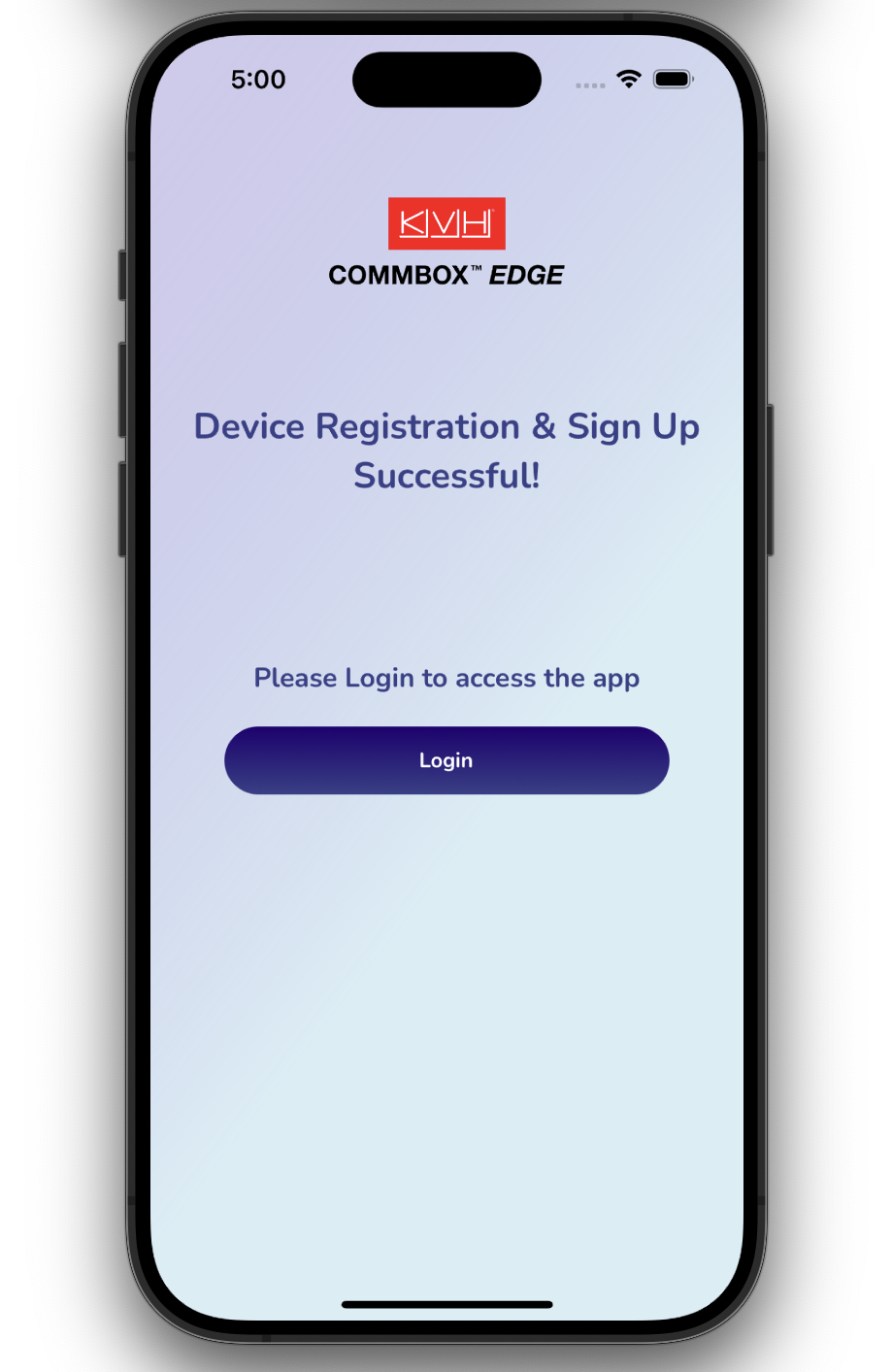
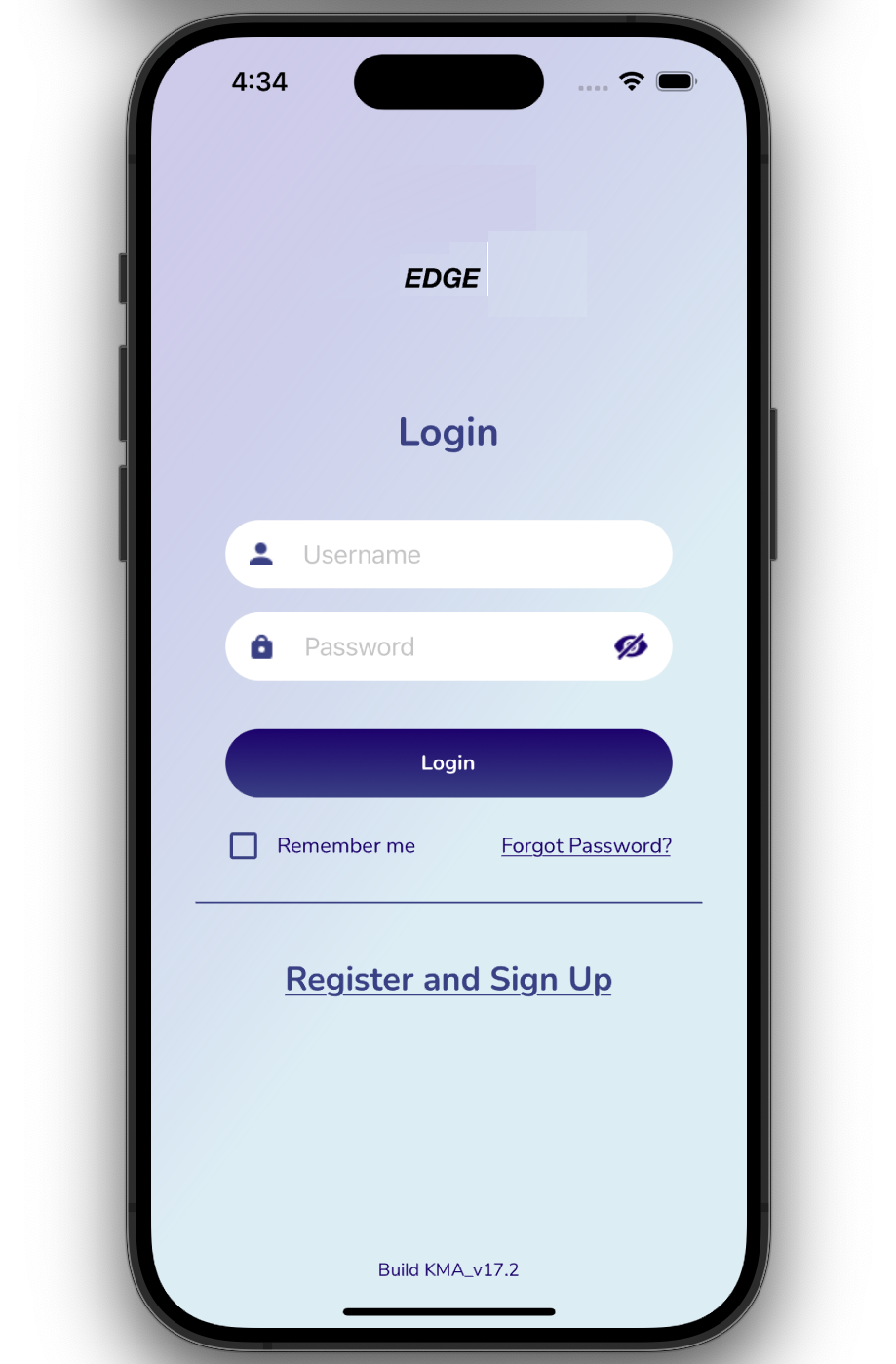
Click the Register and Signup button.
-
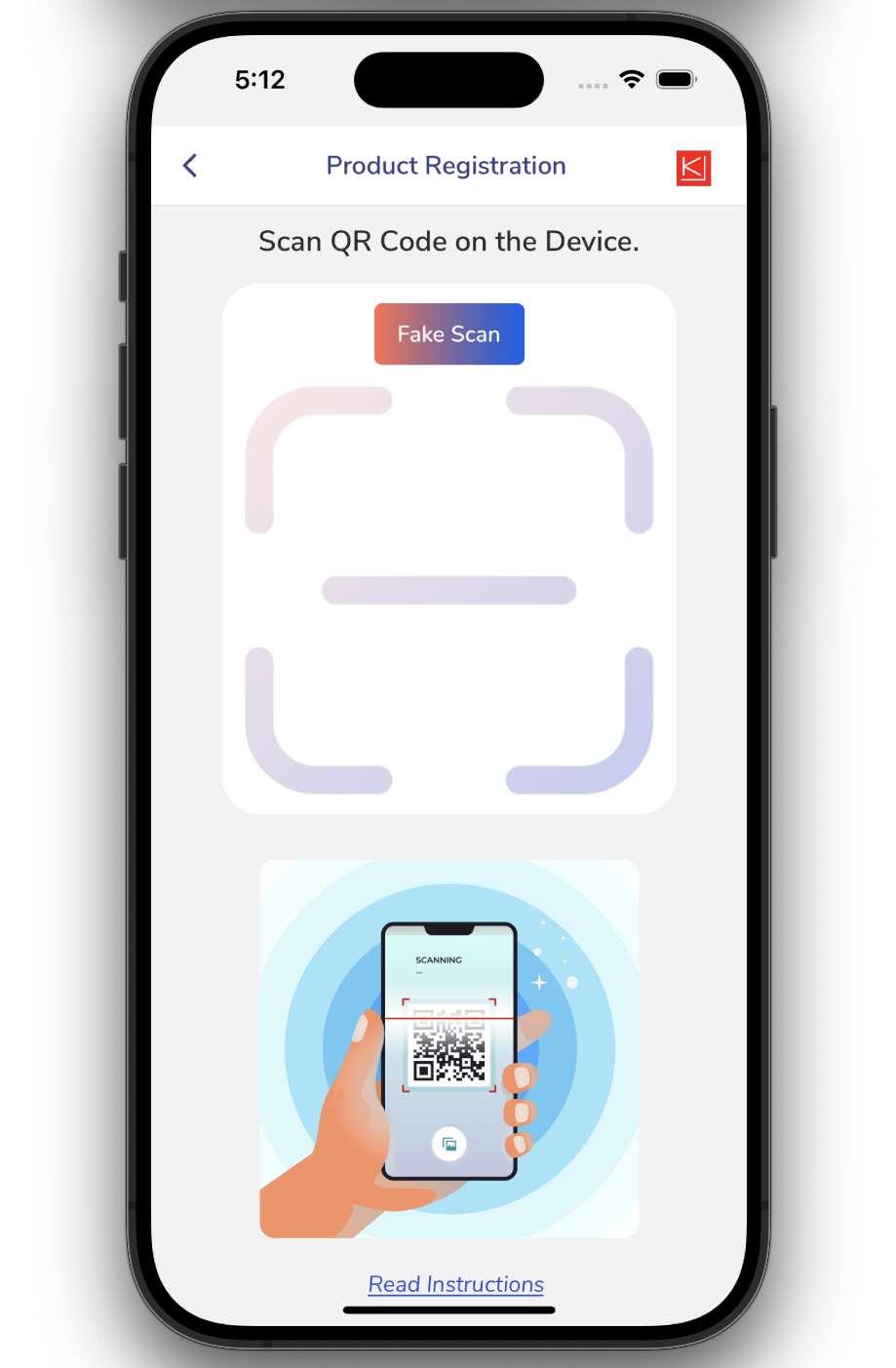
Scan the QR code provided on the device. Click the Read Instructions button to view the required steps.
-
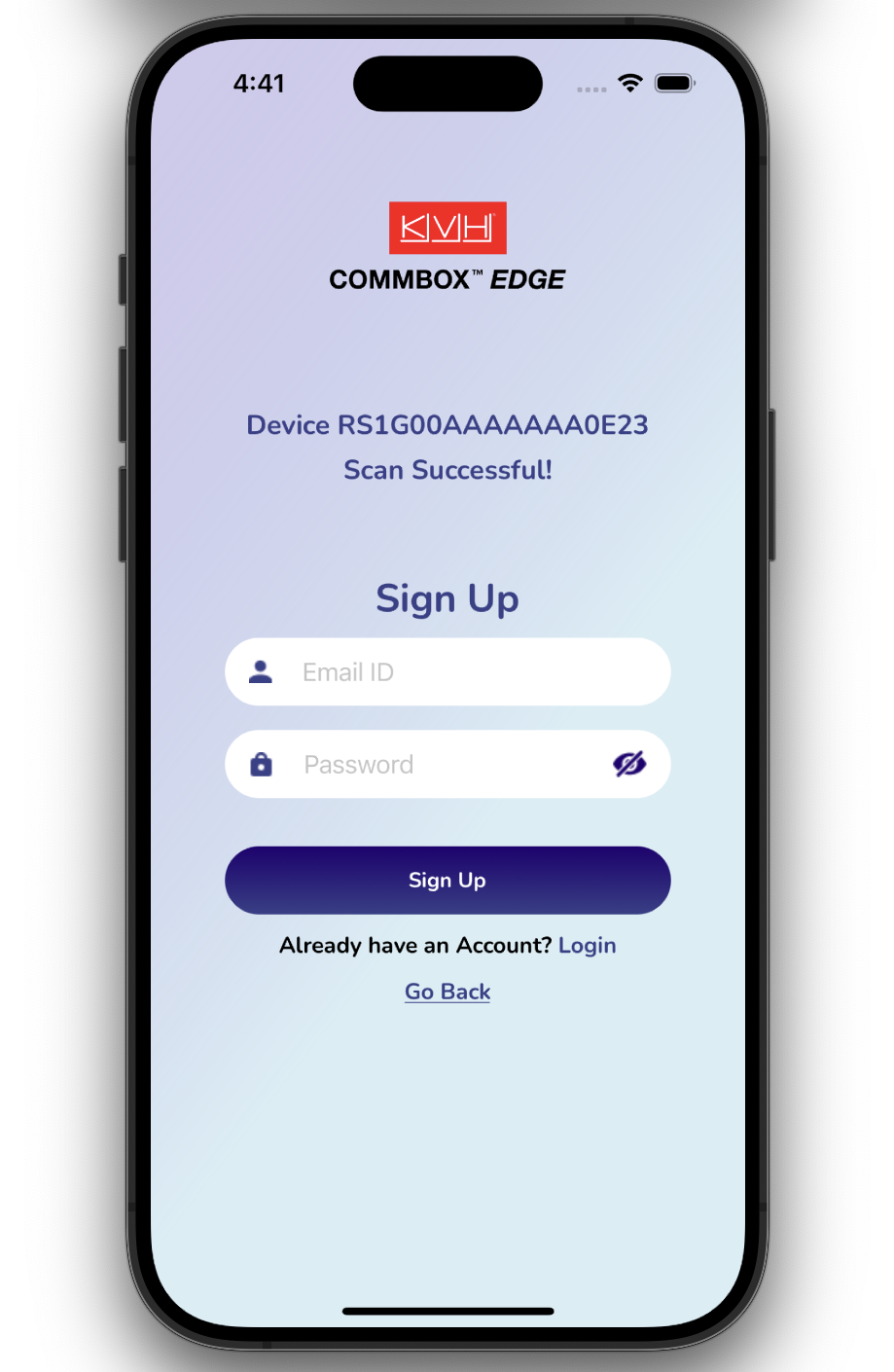
After a successful scan, the device details are displayed. Enter your email ID and set your password to sign up.
-
Existing users can select the Login button and sign in to their account.
-
-
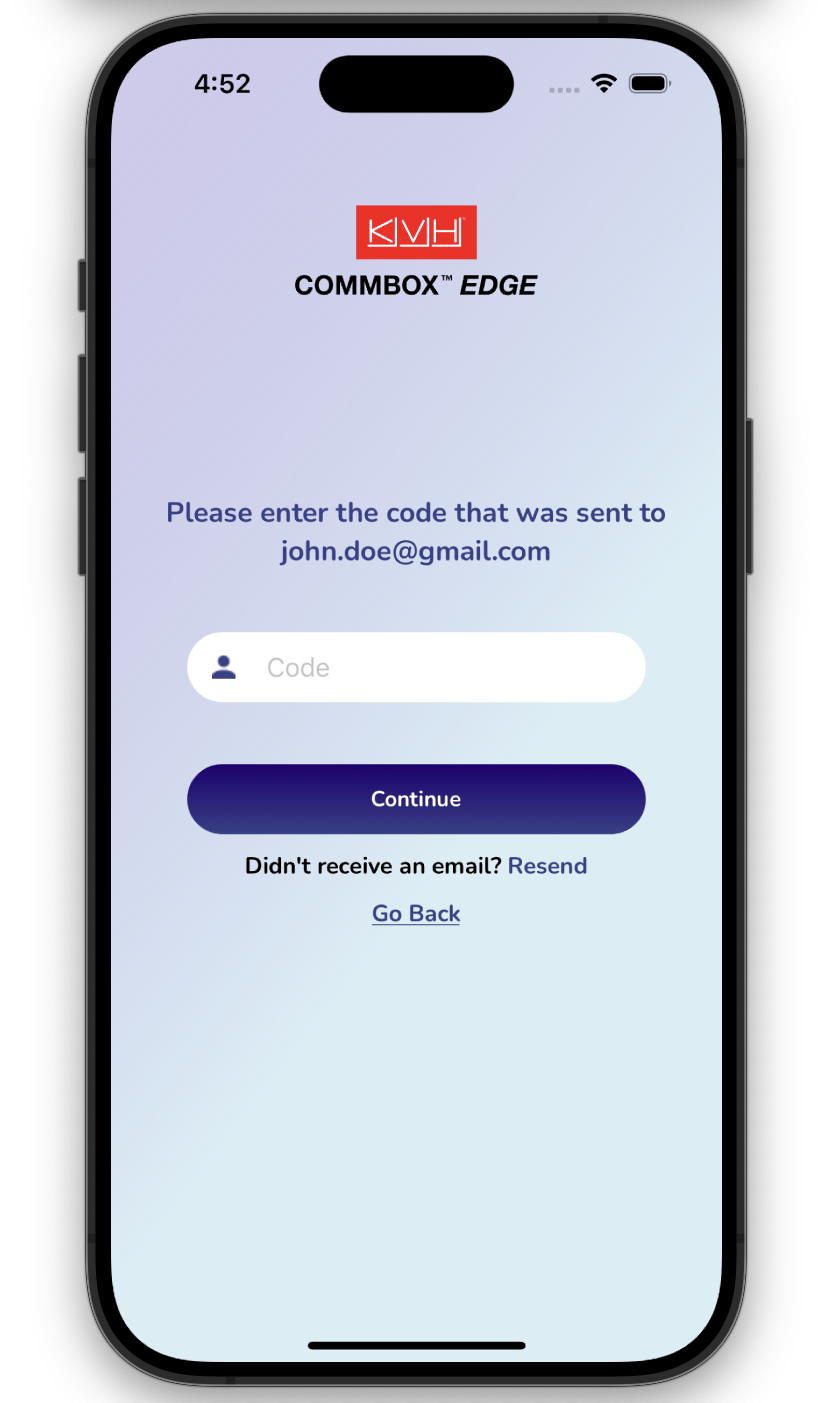
For two-factor authentication (2FA), a verification code is sent to the registered email address. Enter the code to complete the sign-up process.
-
After successfully signing up, the user can now configure the device.
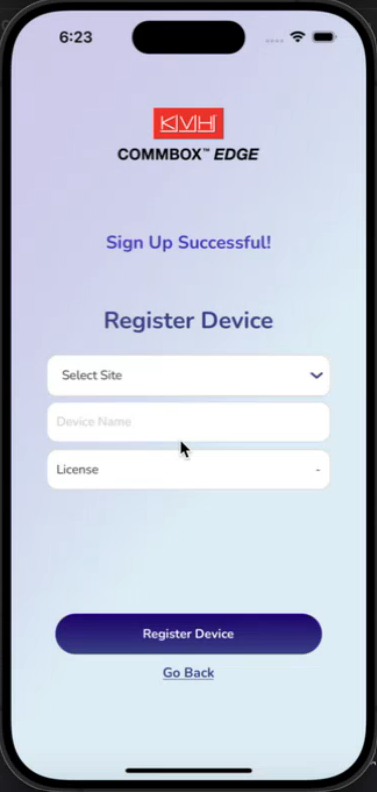
-
Click the Select Site button to choose the site from the dropdown menu to associate with the user account.
-
Click the Add New Site button to add a new site. Enter the site name.
-
Click the Set Site button to to save the site and associate the user.
-
In the Device Name field, enter a name for the device.
-
Select the License Type from the dropdown menu.
-
Click the Register Device button to complete registration.
-
After successful registration and sign-up, return to the login page and sign in using the registered credentials.