
Keywords: CommBox EdgeOS, GEO iDirect, VSAT Management
Configuring the GEO iDirect Interface (CommBox EdgeOS 8.x)
These steps set up the GEO iDirect interface so that its data is shown on the VSAT controller page.
-
Log in to the CommBox EdgeOS portal.
-
Select Interfaces > Physical Interfaces from the left menu. The page lists the interfaces on the CommBox EdgeOS device. By default only enabled interfaces are shown; tick All Interfaces to see all of them.
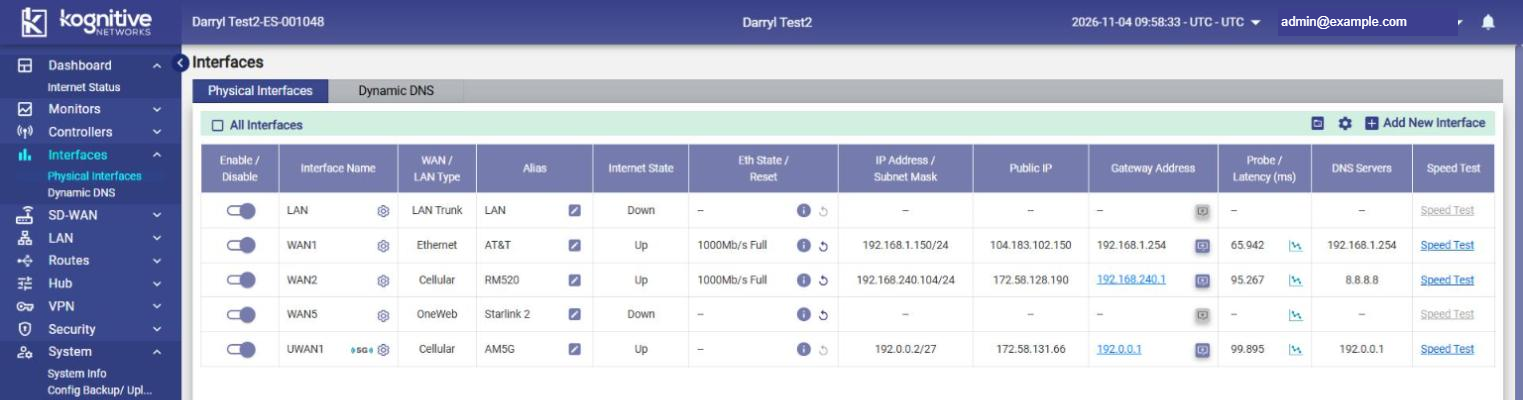
-
Remove the WAN interface to be updated from all WAN profiles.
-
Disable the interface with its Enable / Disable toggle. Settings cannot be edited while the interface is enabled.
-
Click the gear icon next to the interface. The Interface Settings dialog opens on the Type tab.
-
Check the Interface Name.
-
Set Interface Type to WAN.
-
Set WAN Type to VSAT.
-
Enter the Alias for the interface.
-
Click Save.
-
-
Click the icon in the Gateway Address column of the interface to open the VSAT Type settings.
-
Select Yes for Managed VSAT?.
-
In VSAT Type, select one of the options:
-
Global VSAT - non-KVH VSAT provider, single modem on VSAT1. The VSAT controller shows all available data. Beam switching is not supported with this option.
-
KVH Global VSAT - Modem1 (SES) on VSAT1.
-
KVH HTS VSAT - Modem1 (Hispasat) on VSAT1.
-
KVH HTS/Global VSAT - Modem1 (SES) and Modem2 (Hispasat) on VSAT1. SES and Hispasat run different iDirect platform firmware, so two modems are needed.
-
KVH Global VSAT - Multiple ISPs - Modem1 (SES/Intelsat) on VSAT1. The SES and Intelsat configurations are stored on the CommBox EdgeOS device and the right one is loaded on the modem.
-
KVH HTS/Global Coverage - Multiple ISPs - Modem1 (SES/Intelsat) and Modem2 (Hispasat) on VSAT1.
-
-
Click Save.
Configuring the VSAT Management Interface
-
Disable the VSAT management interface with its toggle.
-
Click the gear icon next to the interface. The Interface Settings dialog opens.
-
Check the Interface Name.
-
Set Interface Type to VSAT Mgmt.
-
Enter the Alias.
-
In VSAT WAN, select the VSAT interface that this interface manages.
-
Enter the Username and Password of the iDirect modem.
-
Click Save.
-
-
Enable the VSAT WAN interface again with its toggle.
-
Select Controllers from the left menu and open the VSAT tab. The modem data is fetched and shown there.