
Goal: check that a site's Starlink terminal is online and healthy, and work out why when it isn't. You'll use Orbit, the Starlink section of CommBox Edge Cloud Portal, and the Starlink page on the device itself.
Applies to: CommBox Edge Cloud Portal (Orbit) and the CommBox EdgeOS 8.x (Konnect) device portal.
Time: 2 minutes for a health check; longer to troubleshoot.
Before you begin
-
You have a CommBox Edge Cloud Portal account with access to the customer's organization and service lines.
-
You know the site's service line name or kit number. You can find both on the User Terminals tab.
-
For on-device checks, you can sign in to the site's device portal.
Step 1: Open Orbit and find the terminal
-
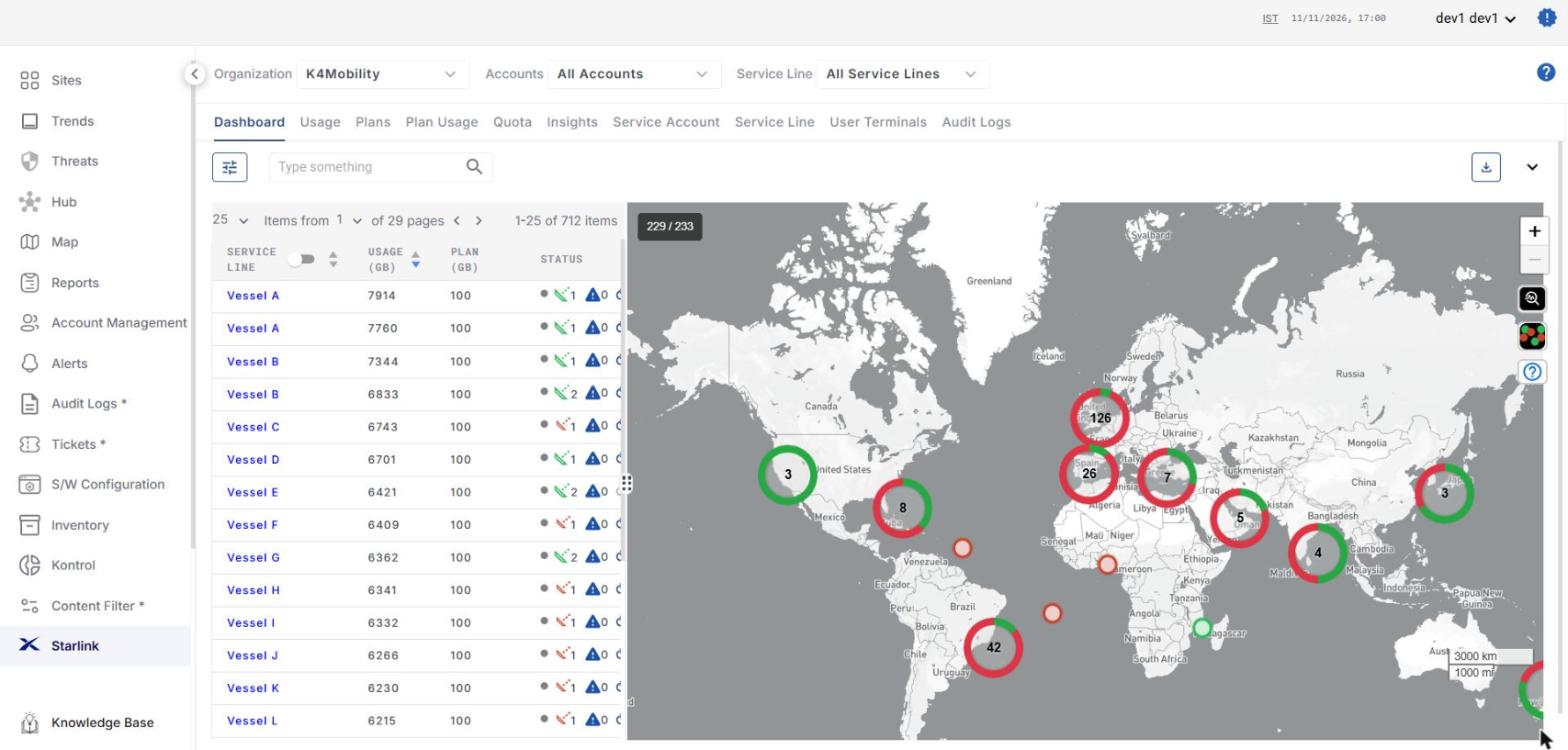
In CommBox Edge Cloud Portal, click Starlink in the left menu. Orbit opens on the Dashboard tab, with a list of service lines on the left and a map on the right.
-
Select the Organization, then narrow the list with Accounts and Service Line, or type in the search box.
-
In the Status column, check each service line's icons: whether the service line is online or offline, how many terminals it has, and how many alerts are open. Hover over an icon to see what it means.
-
On the map, each ring is a group of terminals in that area. The ring's colours show how many of those terminals are online (green) and offline (red). Zoom in to see single terminals.
Step 2: Check the terminal's health
-
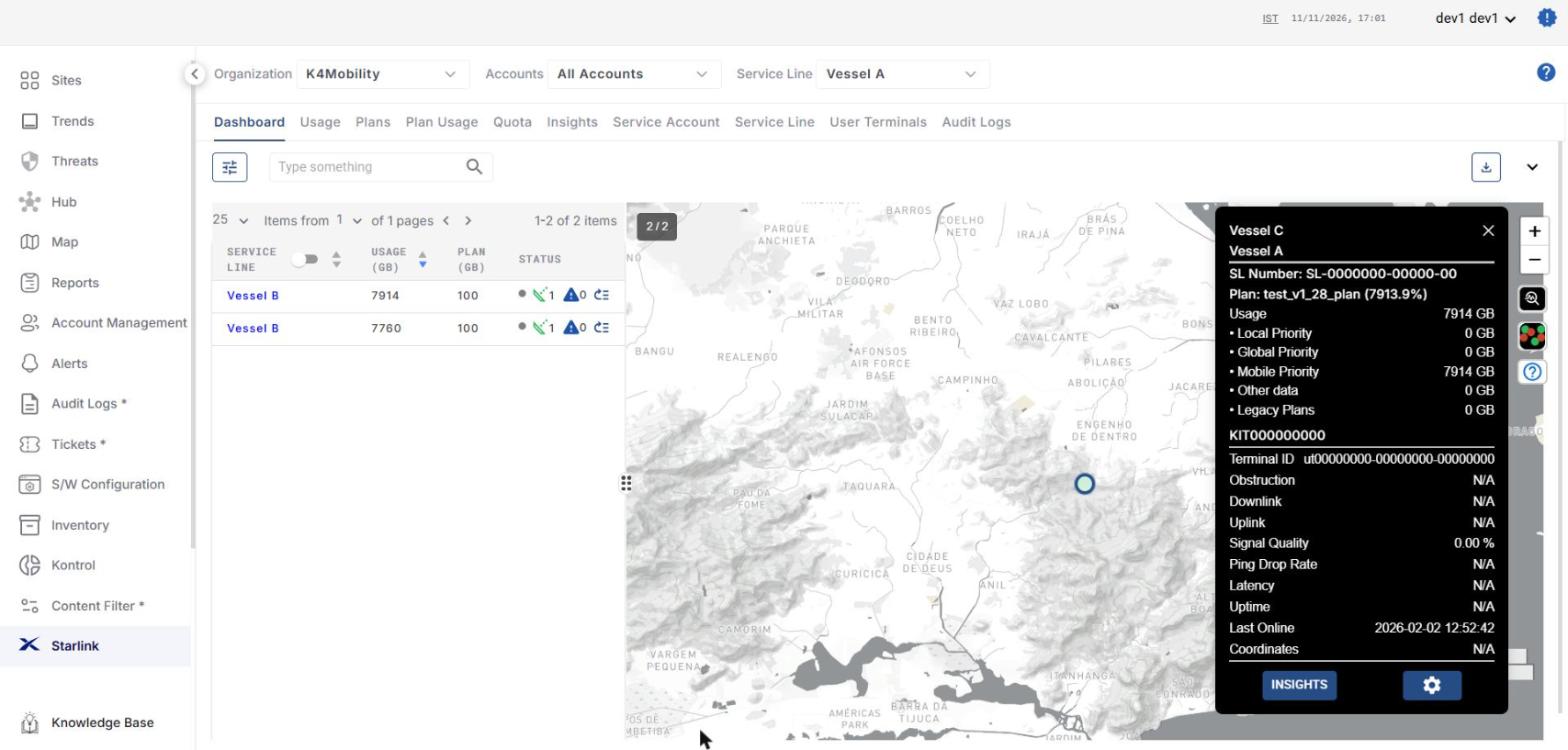
Click the service line name. The map zooms to the terminal and a details panel opens.
-
Check these values in the panel:
-
Last Online: when the terminal last reported. An old date means it's offline now.
-
Obstruction: how much of the dish's view of the sky is blocked.
-
Downlink and Uplink: current speeds.
-
Signal Quality, Ping Drop Rate and Latency: how stable the connection is.
-
Usage and Plan: data used against the plan, split by priority (Local, Global, Mobile).
-
-
The panel also shows the SL Number, kit number and Terminal ID. Copy these into any support ticket.
Step 3: Look at trends in Insights
A single reading can mislead. Insights shows how the terminal behaved over time.
-
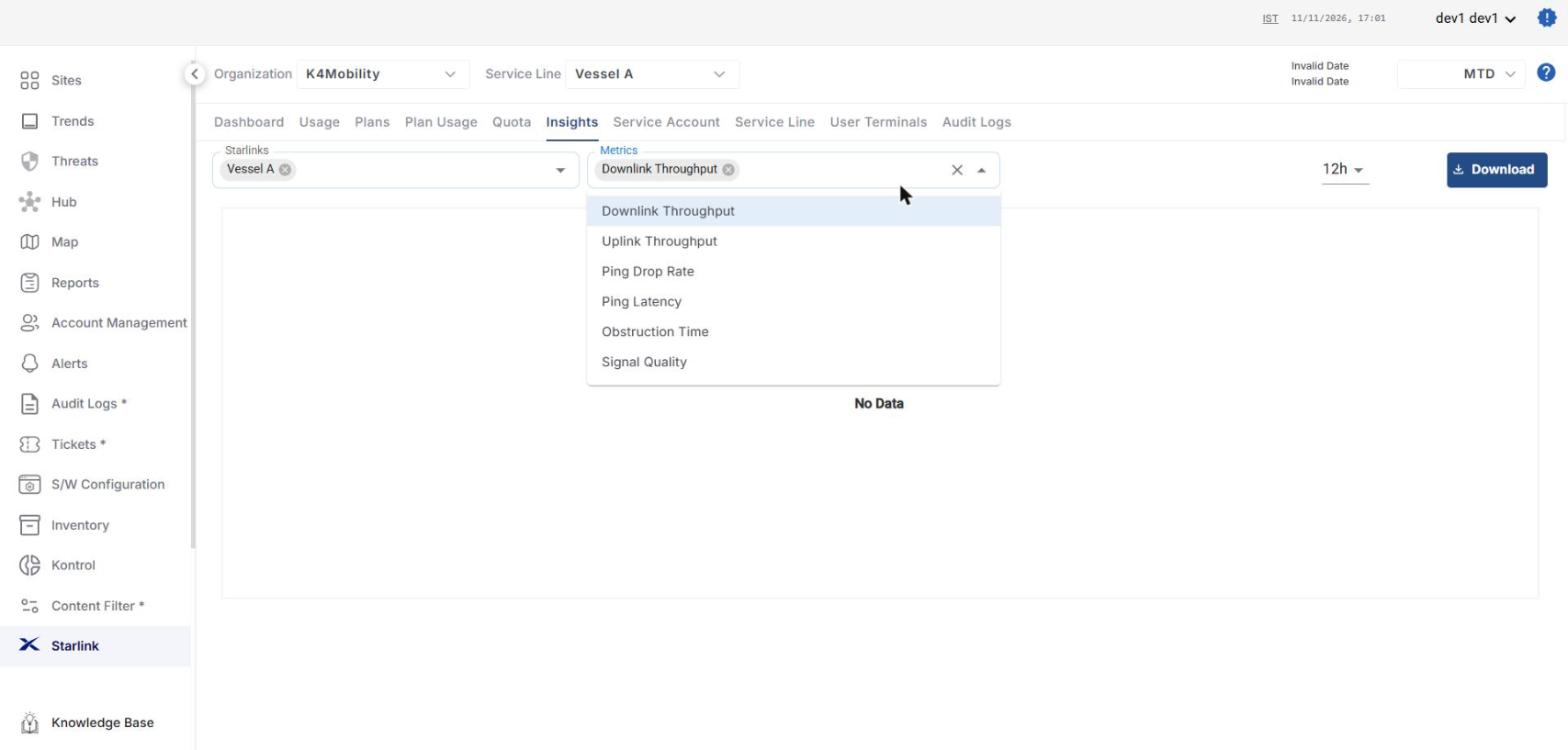
In the details panel, click Insights. It opens in a new tab with the terminal already selected. You can also open the Insights tab and choose the terminal from Starlinks.
-
In Metrics, choose what to plot: Downlink Throughput, Uplink Throughput, Ping Drop Rate, Ping Latency, Obstruction Time or Signal Quality. You can add several.
-
Set the time window (for example 12h) and the date range at the top right, to cover the period the customer reported a problem.
-
Click Download to export the data for a ticket or report.
Step 4: Check the terminal from the device
If Orbit shows the terminal offline, check what the site's device can see.
-
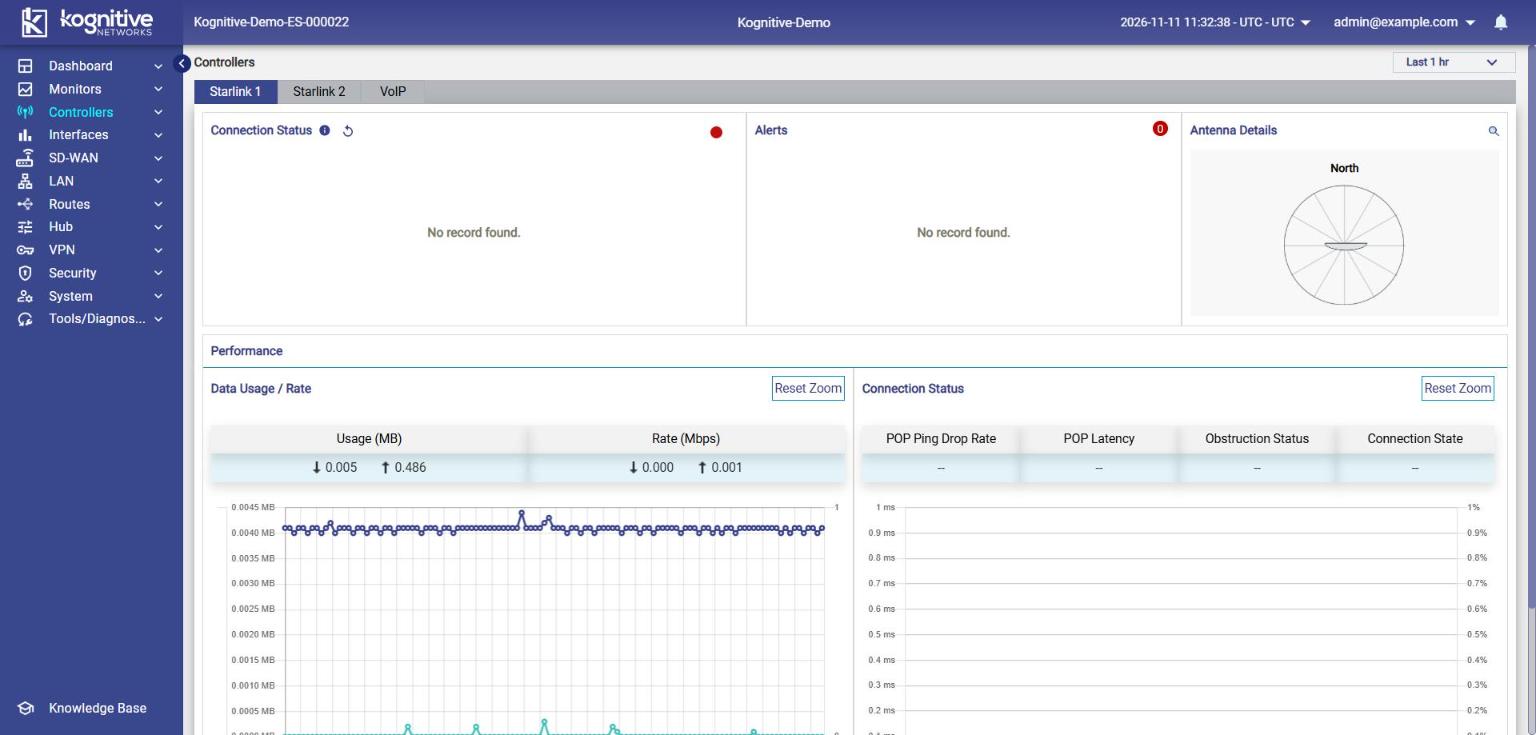
Open the site's device portal and go to Controllers, then select the terminal (for example Starlink 1).
-
Check Connection Status, Alerts and Antenna Details.
-
Under Performance, check data usage and rate, and the connection chart: POP Ping Drop Rate, POP Latency, Obstruction Status and Connection State.
-
On Interfaces > Physical Interfaces, check that the Starlink WAN shows Up. If it's down, the device isn't getting a connection from the terminal at all.
Troubleshooting
|
What you see |
Likely cause |
What to do |
|---|---|---|
|
Terminal offline, Last Online is old |
The terminal has no power, a cable fault, or no view of the sky |
Ask the site to check power and cabling to the dish. Check Controllers on the device (Step 4). |
|
High Obstruction or Obstruction Time |
Something blocks the dish's view: a mast, crane, building or the vessel's own structure |
Ask the site whether anything moved near the dish. Consider moving the dish to a clearer spot. |
|
High Ping Drop Rate or Latency, but low obstruction |
Signal problem or bad weather |
Check Signal Quality in Insights over the same period. If it stays poor in good weather, raise a ticket. |
|
Low Downlink or Uplink speeds |
Congestion, obstruction, or the plan's data allowance |
Compare with Obstruction and Signal Quality. Check Plan Usage and Quota. |
|
Usage is close to or over the plan |
The site is using more data than its plan |
Check the Plan Usage and Quota tabs, and talk to the customer about the plan. |
|
Orbit shows online, but the site has no internet |
The problem is between the terminal and the device, or in the device's settings |
Check the Starlink WAN in Interfaces and the WAN profile. See How To: Set up WAN failover between links. |
Related pages
-
How To: Set up a new site
-
How To: Set up WAN failover between links
-
Orbit: field reference