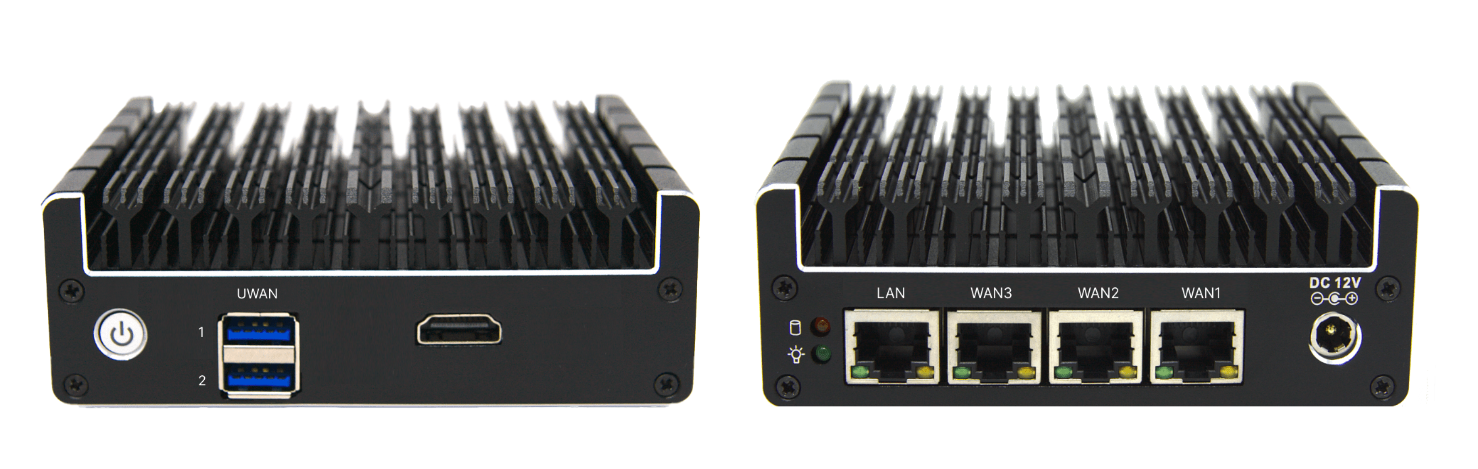
The different variants of Edge devices that we provide are shown below.
Unknown Attachment
Unknown Attachment
Power button
The Power button has 3 power states: On, Off and Sleep. The Sleep state is not widely used. The Power button being illuminated in Blue/Green color denotes that the device is Powered on.
Hard disk activity
The LED light on the back panel with the 
The CommBox Edge 2 device does not perform any write operations on the hard disk and therefore it does not have this LED indicator.
LEDs on the WAN/LAN ports
There are two LEDs provided on every WAN/LAN Port.
-
Link/Activity LED:
-
Color: Typically Green.
-
Status and Meaning:
-
Off: No link is established.
-
Steady On: A link is established but there is no activity.
-
Blinking: Indicates network activity (data being transmitted or received).
-
-
-
Speed LED:
-
Color: Can be Green, Yellow, or Off, depending on the link speed.
-
Status and Meaning:
-
Off: 10 Mbps link speed.
-
Green: 100 Mbps link speed.
-
Yellow: 1 Gbps link speed.
-
-
Typical LED Behavior
-
When a network cable is connected and a valid link is established, the Link/Activity LED will turn on and might blink to indicate data transmission or reception.
-
The Speed LED will light up in different colors to indicate the speed of the network connection.
-
If the Link/Activity LED is off, it suggests that there is no physical connection or the network interface is disabled.
-
If the Speed LED is off while the Link/Activity LED is on, it usually means the connection is at 10 Mbps.
Troubleshooting with LEDs
-
No LEDs Lit: Check the network cable and connections. Ensure the NIC is properly seated in its slot.
-
Link/Activity LED Off, Speed LED Off: No physical connection or NIC disabled. Check network cable, switch, and NIC settings.
-
Link/Activity LED On, Speed LED Off: Connection is established at 10 Mbps. Ensure the network supports higher speeds if needed.
-
Link/Activity LED Blinking, Speed LED Lit: Normal operation with network activity.
Conclusion
The LED indicators on the WAN/LAN ports provide useful visual feedback for network status and activity. Understanding the meanings of these indicators can help in effectively managing and troubleshooting network connections.
Note: The light indicators do not blink/flash to denote any specific hardware issue. If your issue is not covered in this guide, please contact our support team. They will be able to assist you further.