
|
Product Version: |
CommBox EdgeOS 8.1.1.52 |
|
Platform: |
Proxmox VE 9.x |
|
Document Date: |
April 2026 |
Overview
This guide walks through installing the CommBox Edge VX virtual appliance on Proxmox VE using the OVA file downloaded from the KVH cloud portal. The process involves five main phases:
|
Phase 1 |
Download the OVA file from the KVH cloud portal |
|
Phase 2 |
Transfer and extract the OVA on the Proxmox node |
|
Phase 3 |
Create a new Virtual Machine in Proxmox |
|
Phase 4 |
Import the VMDK disk and attach it to the VM |
|
Phase 5 |
Configure boot order and start the VM |
Prerequisites
Before you begin the installation, ensure the following requirements are met.
System Requirements
|
Hypervisor |
Proxmox VE 8.x or 9.x (this guide uses 9.1.6) |
|
vCPUs |
4 cores minimum recommended |
|
RAM |
8 GB minimum recommended |
|
Disk |
120 GB (provided by the OVA image — do not resize) |
|
Network |
At least one bridge (vmbr) connected to a network segment |
|
Internet access |
Required on the Proxmox node for the OVA download |
Access Requirements
|
KVH Portal |
Valid login at http://cloud.kognitive.net with software download access |
|
Proxmox |
Root or admin access to the Proxmox VE web interface |
|
Proxmox Shell |
Access to the node Shell (available from the Proxmox UI) |
|
📋 Important Note This guide uses the OVA (Open Virtual Appliance) format. Once extracted, the OVA provides a VMDK disk image whose size is fixed by the appliance. Do not attempt to resize or modify the disk image before importing — this will corrupt the filesystem. |
Phase 1 — Download the OVA File
The OVA file is downloaded from the KVH cloud portal under the Software Configuration section.
Step 1: Log in to the KVH Portal
-
Open your browser and navigate to http://cloud.kognitive.net . Log in with your KVH account credentials.
Step 2: Navigate to Software Downloads
-
In the left sidebar, click S/W Configuration. The page will show three tabs: Deployed EOS, Current EOS, and Konnect App.
Step 3: Open the Current EOS Tab
-
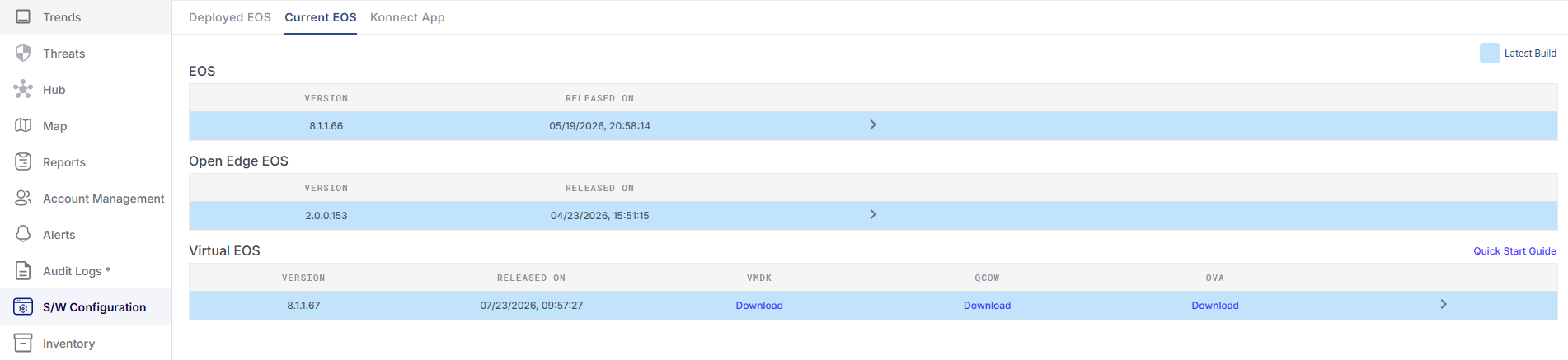
Click the Current EOS tab. You will see three software sections: EOS (physical hardware), Open Edge EOS, and Virtual EOS.
Step 4: Download the OVA File
-
In the Virtual EOS section, locate the latest version (e.g., 8.1.1.52, released 10/04/2026). Click the Download link in the OVA column.
|
💡 Tip — Download Formats Available Three download formats are available: VMDK, QCOW2, and OVA. This guide uses the OVA format, which bundles the disk image (VMDK), the descriptor file (OVF), and a manifest file (MF) in a single archive. The OVA is the recommended format for Proxmox installations. |
The file will be named in the format:
vx-blank-v8.1.1.52~99218c0.ova.gz
The download is a gzip-compressed OVA archive, approximately 4.1 GB in size. Save this file to a known location on your local machine or allow it to complete before proceeding.
Phase 2 — Transfer and Extract the OVA on Proxmox
Rather than uploading the OVA from your local machine (which can be slow), the recommended approach is to download it directly to the Proxmox node from the KVH storage servers. This is significantly faster.
Step 5: Open the Proxmox Node Shell
-
In the Proxmox web interface, click on your node (e.g., yesh-lab) in the left sidebar. Then click Shell in the menu that appears.
Step 6: Navigate to the ISO storage directory
-
Change to the Proxmox ISO staging directory where we will download and work with the files.
cd /var/lib/vz/template/iso
Step 7: Download the OVA directly to Proxmo
-
Use wget to download the OVA file directly from the KVH storage URL. Copy the download link from the portal (right-click the Download button → Copy link address).
 wget -q --show-progress \
  "https://k4storage.blob.core.windows.net/k4-software/vmimage/release/stable/ova/vx-blank-v8.1.1.52~99218c0.ova.gz" \
  -O vx-blank-v8.1.1.52.ova.gz
The download will show progress as it runs. For a 4.1 GB file at typical speeds, this takes approximately 15–25 minutes. Wait for it to complete (100%) before proceeding.
|
📋 Note The download URL shown above corresponds to version 8.1.1.52. For newer versions, copy the actual download URL from the portal, as the filename will differ. |
Step 8: Decompress the .gz archive
-
Once the download is complete, decompress the gzip archive to produce the .ova file.
gunzip -v vx-blank-v8.1.1.52.ova.gz
You will see output similar to:
vx-blank-v8.1.1.52.ova.gz: 1.2% -- replaced with vx-blank-v8.1.1.52.ova
Step 9: Extract the OVA archive
-
An OVA file is a TAR archive. Extract it to obtain the VMDK disk image, the OVF descriptor, and the MF manifest file.
tar xvf vx-blank-v8.1.1.52.ova
The extraction will list the files as they are extracted:
vx-blank-v8.1.1.52~99218c0.ovf
vx-blank-v8.1.1.52~99218c0.mf
vx-blank-v8.1.1.52~99218c0-disk1.vmdk
Extraction done
|
📋 Files Explained
Only the .vmdk file is needed for the Proxmox import. |
Phase 3 — Create a New Virtual Machine in Proxmox
We create the VM shell first (without a disk), and then attach the imported VMDK in the next phase. Do NOT start the VM yet.
Step 10: Click Create VM
-
In the Proxmox web interface, click the blue Create VM button in the top-right corner.
General Tab
Fill in the following fields:
|
Node |
yesh-lab (your Proxmox node) |
|
VM ID |
105 (auto-assigned next available ID) |
|
Name |
edge-ova (or your preferred name for the VX instance) |
-
Click Next.
OS Tab
|
Media |
Select Do not use any media (we will attach the VMDK manually) |
|
Guest OS |
Linux |
|
Version |
6.x – 2.6 Kernel (default) |
-
Click Next.
System Tab
|
BIOS |
Default (SeaBIOS) |
|
Machine |
Default (i440fx) |
|
SCSI Controller |
VirtIO SCSI single |
-
Leave all settings at their defaults. Click Next.
Disks Tab
A default disk will be shown. Do not worry about it — we will remove it after the VM is created. Click Next.
CPU Tab
|
Sockets |
1 |
|
Cores |
4 |
|
Type |
x86-64-v2-AES |
-
Click Next.
Memory Tab
|
Memory (MiB) |
8192 (8 GB — adjust based on your requirements) |
-
Click Next.
Network Tab
|
Bridge |
vmbr0 (your WAN-facing bridge — adjust to match your network topology) |
|
Model |
VirtIO (paravirtualized) |
|
📋 Network Interfaces The VX appliance supports multiple network interfaces. The initial interface is configured here. Additional interfaces (e.g., vmbr1, vmbr3) can be added after the VM is created by going to Hardware → Add → Network Device. |
-
Click Next, then review the Confirm tab summary and click Finish.
|
✅ Checkpoint The VM (e.g., VM 105 edge-ova) now appears in the left sidebar. "VM 105 - Create: OK" should appear in the Task Log at the bottom. Do not start the VM yet — the disk has not been attached. |
Phase 4 — Import and Attach the VMDK Disk
Now we import the VMDK into Proxmox ZFS storage and attach it to the VM as the boot disk.
Step 11: Import the VMDK via the Proxmox Shell
-
Return to the Proxmox Shell (click your node → Shell) and run the following command. Replace 105 with your actual VM ID.
qm importdisk 105 vx-blank-v8.1.1.52~99218c0-disk1.vmdk local-zfs
This command imports the VMDK into the local-zfs storage pool. You will see progress output:
transferred 1.2 GiB of 120.0 GiB (1.00%)
transferred 12.0 GiB of 120.0 GiB (10.00%)
...
transferred 120.0 GiB of 120.0 GiB (100.00%)
unused0: successfully imported disk 'local-zfs:vm-105-disk-1'
The import transfers the full 120 GB disk image into ZFS storage. This takes approximately 10–20 minutes. Wait for the "successfully imported" confirmation message before proceeding.
|
⚠️ Storage Target The command above uses local-zfs as the storage target. If your Proxmox instance uses a different storage pool (e.g., local-lvm, ceph, nfs), replace local-zfs with your pool name. Check available pools under Datacenter → Storage. |
Step 12: Attach the imported disk to the VM
-
In the Proxmox web interface, click on VM 105 in the left sidebar, then click Hardware. You will see two disks: the old default disk (Hard Disk scsi0) and the newly imported disk (Unused Disk 0 — local-zfs:vm-105-disk-1).
First, remove the default disk:
|
|
Click Hard Disk (scsi0) to select it |
|
|
Click the Detach button in the toolbar |
|
|
Confirm by clicking Yes in the dialog |
Then attach the imported VMDK as the boot disk:
|
|
Click Unused Disk 0 (local-zfs:vm-105-disk-1) to select it |
|
|
Click Edit in the toolbar |
|
|
Verify Bus/Device is SCSI 0, Storage is local-zfs, IO thread is checked |
|
|
Click Add to attach the disk |
The Hardware tab should now show:
|
Hard Disk (scsi0) |
local-zfs:vm-105-disk-1, iothread=1, size=120G |
|
✅ Checkpoint The imported VMDK is now the primary disk for the VM. "VM 105 - Configure: OK" should appear in the Task Log. |
Phase 5 — Configure Boot Order and Start the VM
Step 13: Set the Boot Order
-
Click on VM 105 → Options. Double-click Boot Order to open the boot order editor.
In the boot order dialog:
|
|
Find scsi0 in the list (local-zfs:vm-105-disk-1, size=120G) |
|
|
Check the Enabled checkbox next to scsi0 |
|
|
Use drag-and-drop to move scsi0 to position 1 (top of the list) |
|
|
Click OK to save |
The Options page should now show Boot Order as: scsi0, ide2 (or similar).
Step 14: Start the Virtual Machine
-
Click the Start button in the top-right of the VM page. The VM status will change to runnin
Step 15: Open the Console
-
Click Console in the left sidebar (or use the Console button in the toolbar). The KVH CommBox EdgeOS will boot.
During boot, you will briefly see:
System not ready, please wait
After approximately 30–60 seconds, the CommBox EdgeOS dashboard will appear:
|
✅ Installation Successful The CommBox Edge VX is now running. You should see:
|
Phase 6 — VM Console: Assign Network Interfaces
After the VM boots, you must perform the initial personalization from the VM console. This assigns the virtual network interfaces as Management, WAN, and LAN ports. These interface roles cannot be changed after provisioning without a full network reset.
Step 16: Log in to the VM Console
-
From the Proxmox Console, wait for the CommBox EdgeOS terminal UI to appear (30–60 seconds after boot). When prompted, log in with the default VX credentials:
Username: configure Password: configure
Step 17: Select “Assign Network Interfaces” from the Main Menu
-
From the terminal menu options, select Setup Wizard (recommended) or Assign Network Interfaces (manual). Both paths lead to the same interface assignment screens.
Step 18: Assign the Management Interface
-
The console will list the available virtual network adapters (e.g., eth0, eth1, eth2). Select exactly one interface as the Management Interface. This is used for out-of-band access to the CommBox EdgeOS portal (e.g., mapped to vmbr0 for a dedicated management VLAN). The management IP defaults to DHCP; static IP can be set in the next optional step.
Step 19: Assign WAN Interface(s)
-
Select one or more interfaces as WAN. These are the uplink interfaces that connect to internet sources (e.g., vmbr1 for a Wired WAN). Multiple WAN interfaces may be selected for SD-WAN bonding. At minimum, one WAN interface must be assigned and must have internet connectivity for the registration step to succeed.
Step 20: Assign LAN Interface(s) and Edit Labels
-
Select the remaining interface(s) as LAN (e.g., vmbr3). After all roles are assigned, the console presents the Edit Interface Labels screen. Labels must be alphanumeric with no spaces or duplicate names (e.g., WAN1, LAN1, MGMT). Update labels if needed and select OK. The system will reboot to apply the interface configuration.
|
⚠️ Important — Interface Assignment is Permanent Interface roles (Management / WAN / LAN) cannot be changed once the VM is provisioned. Any change requires a full reset of the network configuration and re-running the personalization process. Make sure the correct Proxmox bridges are mapped to the correct VM NICs before assigning roles. Cloning a provisioned VM will disable both instances. |
Phase 7 — VX System Registration
Registration ties this specific VX instance to a Device ID (DID) in the CommBox Edge Cloud Portal and brings it fully online. The VM must have active internet connectivity through its WAN interface before proceeding.
Step 21: Verify Internet Connectivity (Ping Test)
-
After the system reboots following interface assignment, log in again (configure/configure) and select Ping Host from the menu. Enter 8.8.8.8 as the target. Confirm that ping replies are received before proceeding. If ping fails, check the WAN interface assignment and the Proxmox bridge connectivity.
Step 22: Register the VX System — Method A: SPORT Login (Recommended)
-
From the console menu, select Register System using SPORT Login. Enter your CommBox Edge Cloud Portal credentials (email and password). The console will retrieve the list of sites and devices associated with your account. Select the Site / Device Name / Device ID you want to assign to this VM instance. A ‘*’ next to a DID means it is already allocated — select an unallocated DID. Confirm with Yes to proceed.
Step 23: Register the VX System — Method B: Token from CommBox Edge Cloud Portal
-
Alternatively, generate a Registration Token from the CommBox Edge Cloud Portal: navigate to Sites → select your Site → Device Details → click the Generate Token icon next to the DID. The token is displayed and copied to the clipboard. Back in the VM console, select Register System with Token from SPORT, paste/enter the token, and confirm the displayed DID. Select Yes to complete registration.
Step 24: Wait for Initialization to Complete
-
After confirming registration, the console will display: System will be available in Konnect in approximately 10-15 minutes. The VM will reboot multiple times during initialization. When prompted for login during this period, enter the credentials to continue — this is expected behaviour. Do not interrupt the process.
|
✅ Registration Complete — System Online Once initialization is complete, the VX system is fully online and accessible via:
|
Post-Installation Steps
After the VM is running, complete the following steps to finish the setup.
Add Additional Network Interfaces
The Edge VX typically requires multiple network interfaces for different network segments (WAN, LAN, management). To add interfaces:
|
|
Stop the VM if it is running (Shutdown button) |
|
|
Go to VM → Hardware → Add → Network Device |
|
|
Select the appropriate bridge (e.g., vmbr1 for LAN, vmbr3 for another segment) |
|
|
Set the Model to VirtIO (paravirtualized) for best performance |
|
|
Repeat for each additional network interface required |
|
|
Start the VM again |
Initial Configuration via Web UI
Once the VM is running and network interfaces are assigned:
|
Management URL |
http://192.168.230.1 (shown on the console dashboard) |
|
Default credentials |
Refer to your KVH portal documentation |
|
KVH portal |
Register the device under Sites → Add Site → Virtual Device |
|
📋 Registering with the CommBox Edge Cloud Portal The Edge VX must be registered with the KVH cloud portal to receive its configuration. Log into http://cloud.kognitive.net , navigate to Sites, and add a new site for this virtual device. The device will appear as "unregistered" until a cloud-initiated provisioning process completes. |
Cleanup (Optional)
After successful installation, the OVA and extracted files on the Proxmox node can be removed to free up disk space:
cd /var/lib/vz/template/iso
rm vx-blank-v8.1.1.52.ova
rm vx-blank-v8.1.1.52~99218c0.ovf
rm vx-blank-v8.1.1.52~99218c0.mf
rm vx-blank-v8.1.1.52~99218c0-disk1.vmdk

# Verify remaining files
ls -lh
|
⚠️ Warning Do not delete the .vmdk file until you have verified the VM boots correctly and the installation is complete. Keep the .ova.gz file if you plan to create additional VX instances from the same image. |
Troubleshooting
|
VM does not boot |
Verify that scsi0 (the imported VMDK) is enabled in the boot order. Check Options → Boot Order. |
|
Import fails |
Ensure sufficient disk space in local-zfs. Run: df -h /rpool to check. The VMDK expands to ~120 GB. |
|
Console shows blank |
Wait 60 seconds — the CommBox EdgeOS takes time to initialise. Click inside the console window to refresh. |
|
gunzip error |
The OVA file may have downloaded incompletely. Delete and re-download using the wget command. |
|
tar: Cannot open |
The .gz was not decompressed properly. Run: gunzip -v <filename>.ova.gz and check for errors. |
|
Wrong disk attached |
In Hardware, ensure scsi0 shows vm-105-disk-1 (120G), not vm-105-disk-0 (32G, the default disk). |
|
No management URL shown |
Network interface may not be assigned. Go to Hardware and verify a Network Device is added on the correct bridge. |
Installation Summary
The following table summarizes all steps performed during the installation.
|
Step |
Action |
Details |
|
1 |
Portal Login |
http://cloud.kognitive.net → S/W Configuration → Current EOS |
|
2 |
Locate VX package |
Virtual EOS section → version 8.1.1.52 → OVA column |
|
3 |
Download OVA |
vx-blank-v8.1.1.52~99218c0.ova.gz (4.1 GB) |
|
4 |
Open Proxmox Shell |
Proxmox UI → node yesh-lab → Shell |
|
5 |
wget OVA to Proxmox |
Downloaded to /var/lib/vz/template/iso/ |
|
6 |
gunzip |
Decompressed to vx-blank-v8.1.1.52.ova |
|
7 |
tar xvf |
Extracted .vmdk, .ovf, .mf files |
|
8 |
Create VM (no disk) |
VM 105 edge-ova: 4 vCPU, 8 GB RAM, Linux, vmbr0 |
|
9 |
qm importdisk |
Imported VMDK → local-zfs:vm-105-disk-1 (120 GB) |
|
10 |
Attach disk |
Hardware → Unused Disk 0 → Edit → Add as scsi0 |
|
11 |
Boot order |
Options → Boot Order → enabled scsi0 as primary |
|
12 |
Start VM |
VM started, Console opened, CommBox EdgeOS booted |
|
13 |
Verify |
CommBox EdgeOS 8.1.1.52~99218c0 dashboard visible on console |