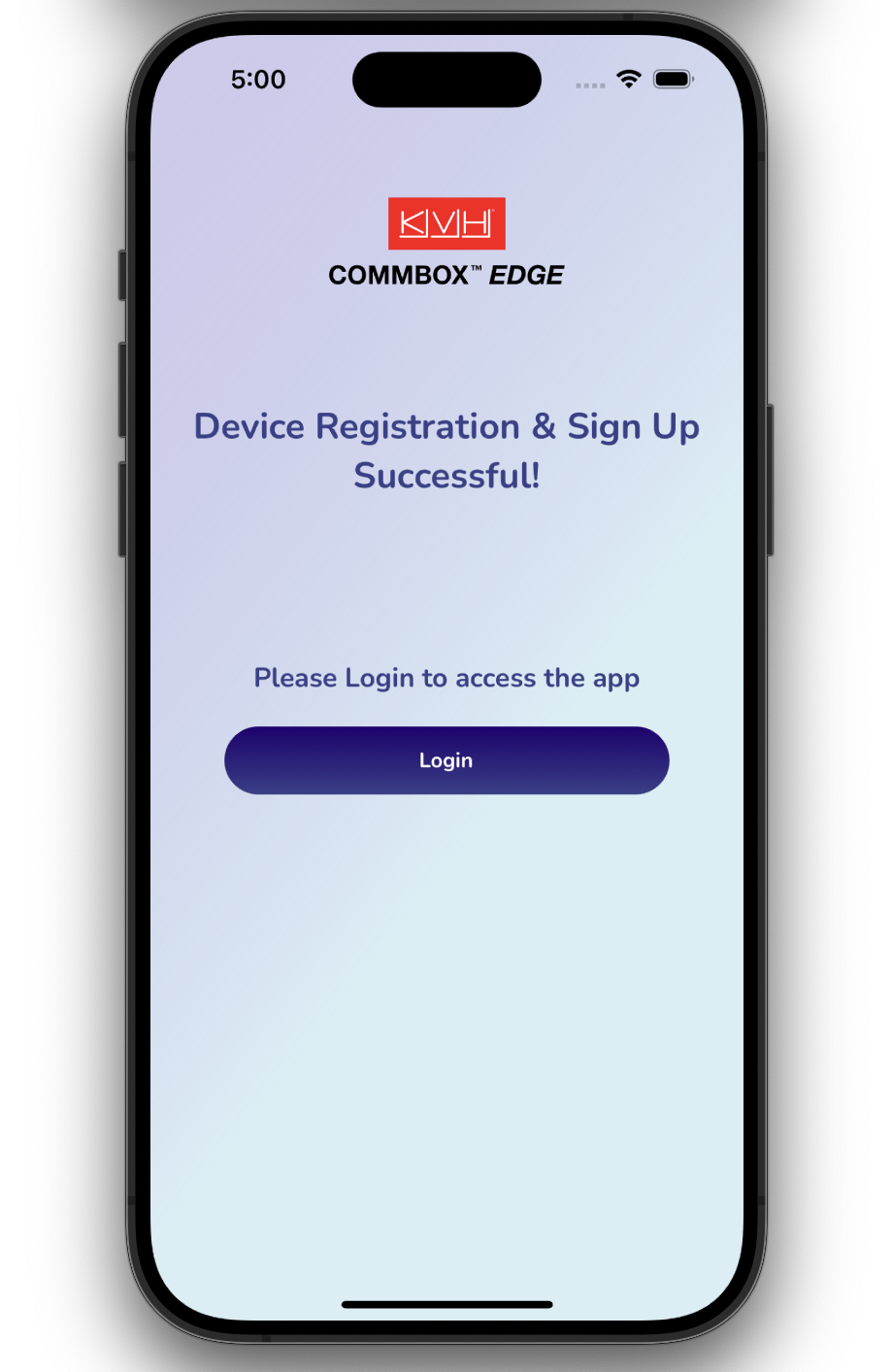
Register Device On Mobile App
The Device Registration process associates the EdgeOS System with the user’s account and installation location. This process can be done using the Mobile App by following the below steps.
Pre-requisites for Registration
Group Account: Account setup is performed by Sales Team as part of the onboarding process
User Account / Mobile App: User can have an active user account with the Mobile App installed on their mobile device -OR- User can also create an account and sign up during registration
EdgeOS System is Online: The device being registered is powered on with an active internet connection
Registration Process
Power up and connect the EdgeOS System to the internet, e.g., plug WAN 1 into an ethernet internet source.
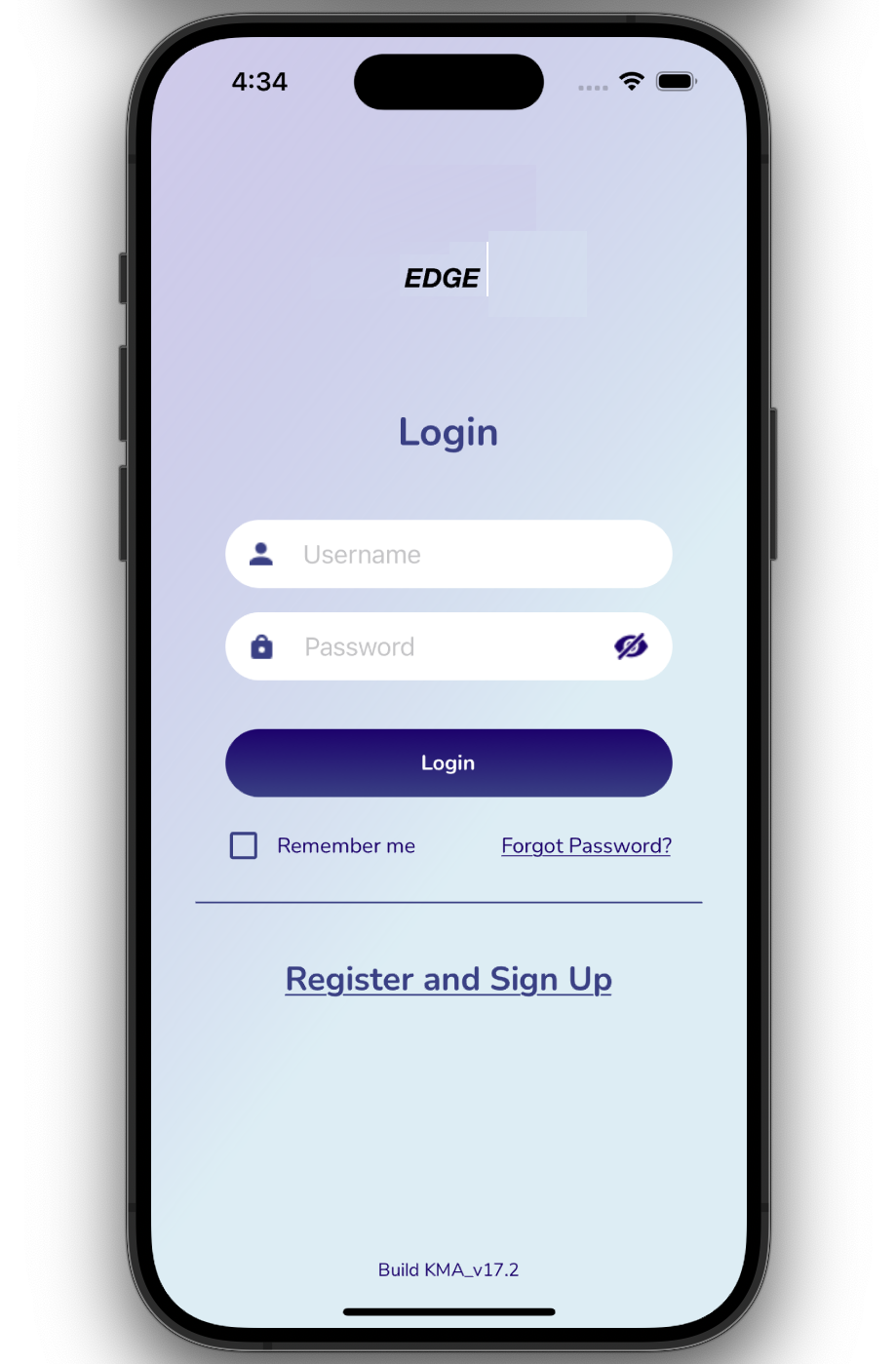
Click the Register and Signup button.
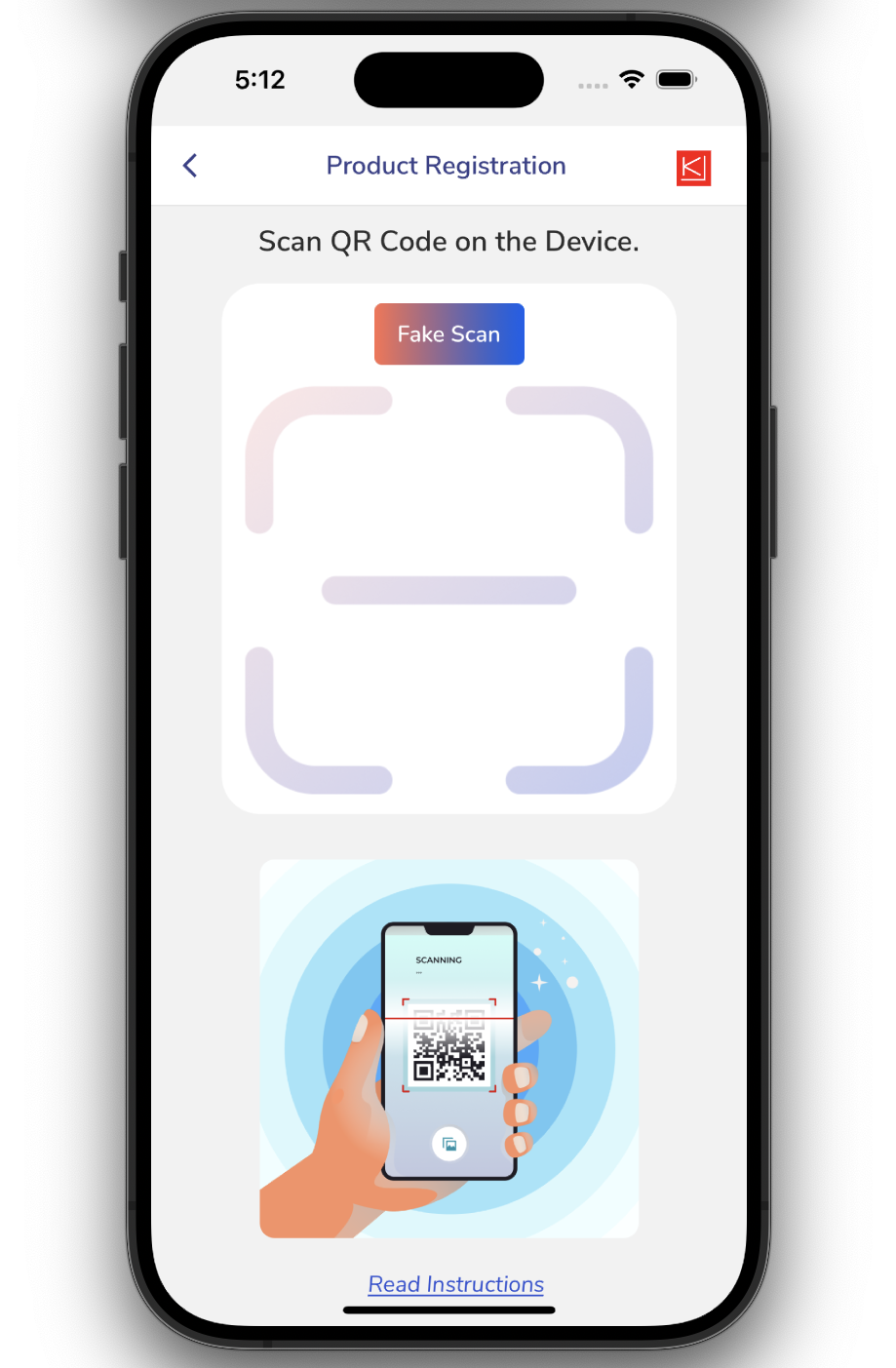
Scan the QR code provided on the device. Click the Read Instructions button to view the required steps.
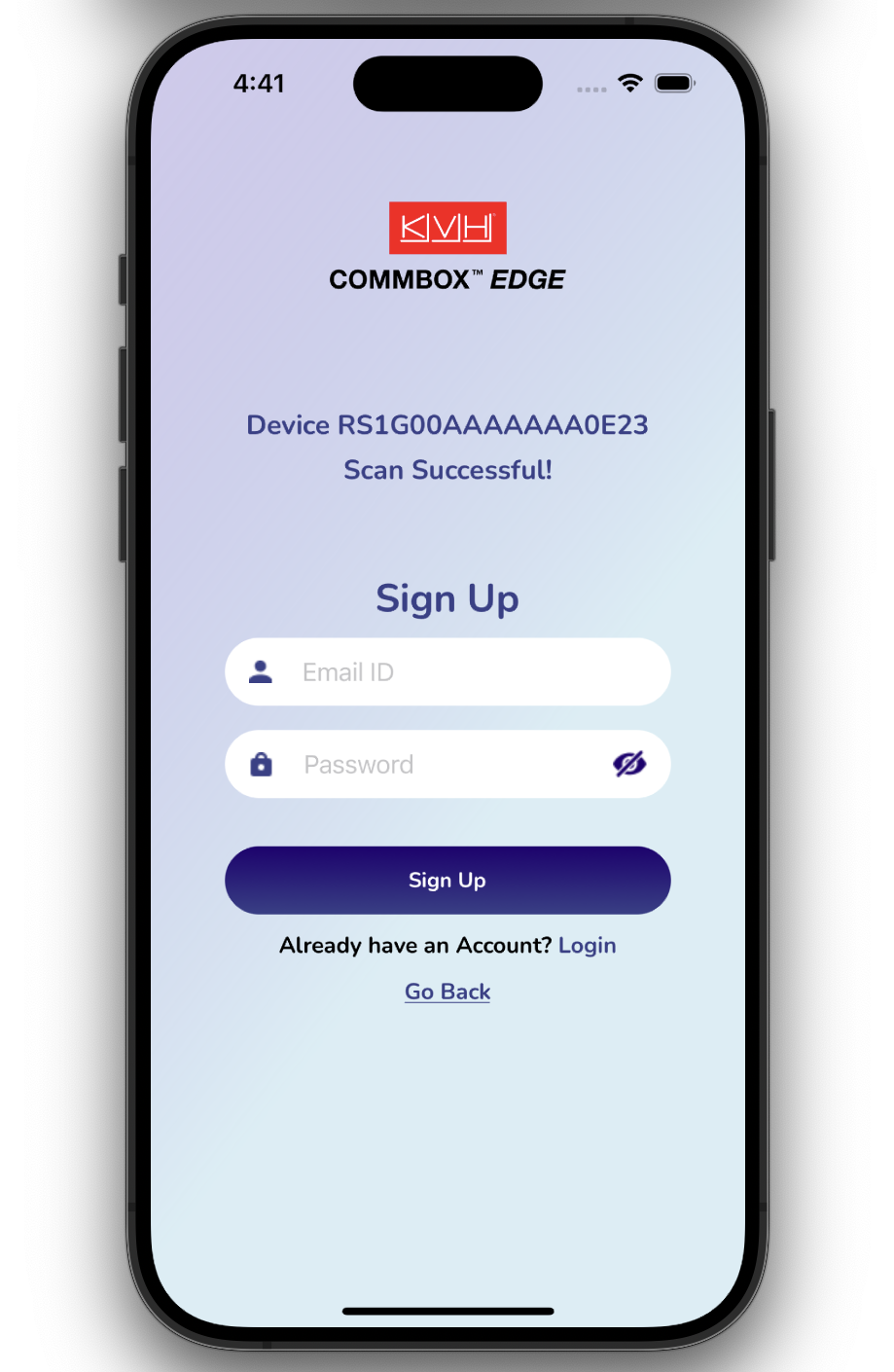
After a successful scan, the device details are displayed. Enter your email ID and set your password to sign up.
Existing users can select the Login button and sign in to their account.
For two-factor authentication (2FA), a verification code is sent to the registered email address. Enter the code to complete the sign-up process.
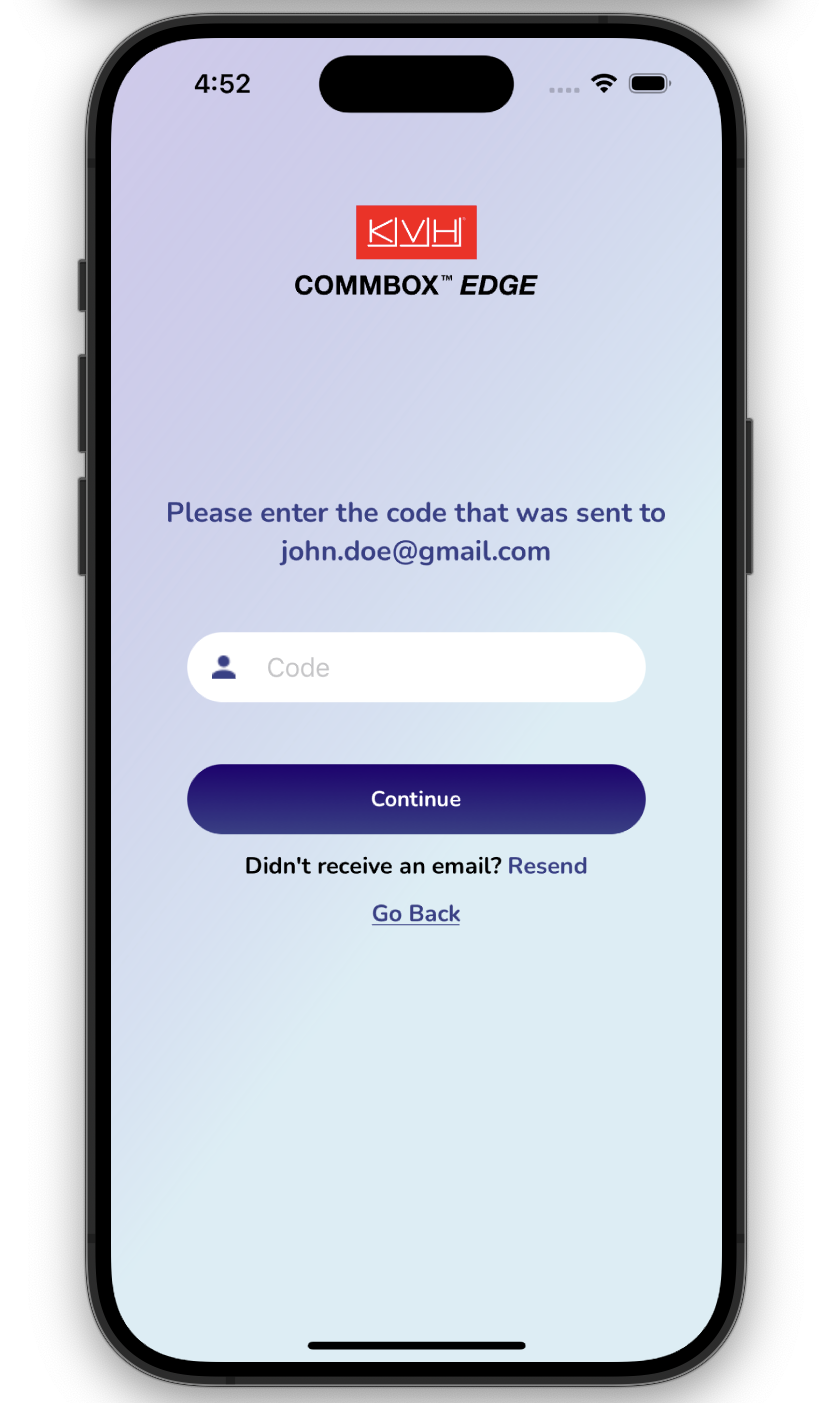
After successfully signing up, the user can now configure the device.
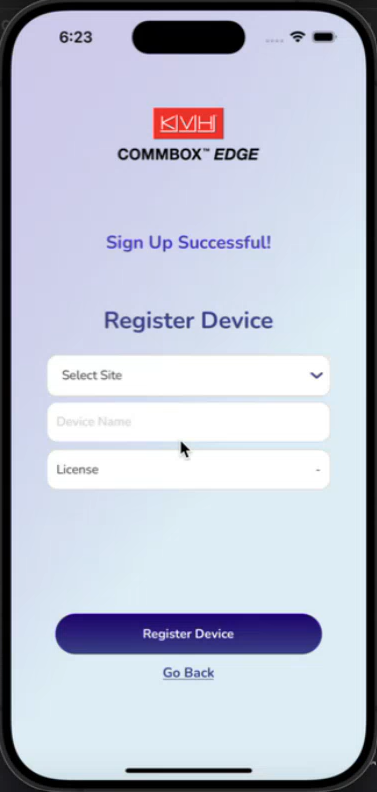
Click the Select Site button to choose the site from the dropdown menu to associate with the user account.
Click the Add New Site button to add a new site. Enter the site name.
Click the Set Site button to to save the site and associate the user.
In the Device Name field, enter a name for the device.
Select the License Type from the dropdown menu.
Click the Register Device button to complete registration.
After successful registration and sign-up, return to the login page and sign in using the registered credentials.